Support our educational content for free when you purchase through links on our site. Learn more
🔥 Amazon Fire Kids Tablet Deals: English Guide (2026)

The best Amazon Fire deals on kids tablets won’t automatically add English content, but the right Fire Kids model can give your child a sturdy tablet with parental controls and access to English-language books, apps, and videos. Check the device generation, bundle, and app availability before buying, then set the tablet and child profile to suit your family.
We’ve seen the mix-up firsthand: a parent spotted “You will see more English now,” expected a deal to change the tablet’s content, and instead needed to adjust language and profile settings. The good news? A few checks can help you avoid buying the wrong model—or expecting a discount to do something it doesn’t.
Key Takeaways
- A deal doesn’t unlock English content. Language and catalog availability depend on settings, region, child profile, and subscriptions.
- Compare the Fire 7 Kids, Fire HD 8 Kids, and Fire HD 10 Kids by generation, storage, screen size, bundle contents, and your child’s needs.
- Verify essential apps before checkout. Fire tablets use Amazon’s app ecosystem, so not every app available on Google Play or iPad is supported.
- Check the fine print: case, warranty, Kids+ trial terms, seller, and return policy can vary by listing.
👉 Shop Amazon Fire Kids tablets:
- Fire 7 Kids | Fire HD 8 Kids | Fire HD 10 Kids
- Browse more kids’ tablet deals | Compare kid-friendly tablets
Table of Contents
- ⚡ Quick Tips and Facts
- 🔥 Amazon Fire Tablet Deals for Kids: What Shoppers Should Know
- What “You Will See More English Now” May Mean
- 📚 Amazon Fire Kids Tablets: Background and How They’ve Changed
- 🛍️ Best Amazon Fire Tablet Deals for Kids by Age and Need
- 1. Fire 7 Kids for Younger Children and Everyday Use
- 2. Fire HD 8 Kids for a Balanced Screen and Size
- 3. Fire HD 10 Kids for Bigger Screens and Learning
- 4. Fire Kids Pro Tablets for Older Kids
- 5. Standard Fire Tablets with a Kid-Prof Case
- 💰 How to Find and Compare Amazon Fire Kids Tablet Deals
- Deal Events, Discounts, and Refurbished Options
- How to Compare Generations, Storage, and Bundles
- When a Kids Edition Bundle Is Worth It
- 🧒 Choosing the Right Fire Tablet for Your Child
- Age, Durability, Screen Size, and Battery Life
- Wi-Fi, Storage, Headphones, and Accessories
- 🔒 Amazon Kids, Parental Controls, and Content Filters
- Amazon Kids+ Subscription: What’s Included
- Screen-Time Limits, Bedtime Settings, and Web Browsing
- Profiles, Approvals, and Parent Dashboards
- 🌐 Language, English Content, and Learning Apps
- Changing the Tablet Language to English
- Finding English Books, Videos, and Educational Apps
- Using Fire Tablets for Reading and Language Learning
- ⭐ Ratings, Reviews, and Real-World Parent Feedback
- What Families Like About Fire Kids Tablets
- Common Complaints and Limitations
- How to Judge Reviews and Spot Outdated Advice
- 🆕 What’s New in Recent Amazon Fire Kids Tablets
- ♿ Accessibility, Privacy, and Supported Features
- Text Size, Screen Magnification, and Display Settings
- Privacy Settings, Data Collection, and Child Accounts
- Offline Downloads, Parental Controls, and Supported Apps
- 🛠️ Setup, Troubleshooting, and Care
- Setting Up a Child Profile and Amazon Kids
- Fixing Wi-Fi, Downloads, Storage, and Battery Issues
- Keeping the Tablet Safe, Clean, and Updated
- ⚖️ Amazon Fire Kids Tablet vs. iPad and Other Kids Tablets
- ❓ Frequently Asked Questions About Amazon Fire Deals for Kids
- Conclusion
- Recommended Links
- Reference Links
⚡ Quick Tips and Facts
Looking for “Amazon Fire deals on kids tablet you will see more English now”? That phrase appears to combine two different searches: finding a deal on an Amazon Fire kids tablet and getting more English-language content. A discount doesn’t automatically change a tablet’s language or catalog, but the right settings, child profile, and apps can help.
For a focused look at the deal search behind that wording, see our guide to deals on kids’ tablets and “You will see more English now”. And if you’re comparing family-friendly devices, browse our kid-friendly tablets and best tablet deals.
| Quick question | Short answer |
|---|---|
| Do Amazon Fire Kids tablets support English? | Yes. English is available as a device language, and you can select English-language books, apps, and videos. What appears in a child profile depends on its settings, region, subscriptions, and available content. |
| Does buying a deal unlock more English content? | No. A sale changes the purchase offer, not the language or content catalog. Configure the device and profile after setup. |
| Which models are worth comparing? | Compare the current Fire 7 Kids, Fire HD 8 Kids, and Fire HD 10 Kids listings. Check the model year and included bundle; Amazon’s lineup and packages can change. |
| What’s a sensible starting point? | For many families, a mid-size Fire Kids tablet offers a useful balance of portability and screen space. Older children who read, draw, or use split-screen-friendly learning activities may prefer a larger display. |
| What should we check before buying? | Generation, storage, Wi-Fi, case, warranty terms, included subscription trial, and whether the listing is a Kids Edition or a standard tablet sold with a case. |
| Is Amazon Kids+ the same as a tablet? | No. It’s a subscription service with child-focused content; availability and included titles can vary. Review the Amazon Kids+ details and terms before relying on a trial. |
Our family-and-developer rule: choose the tablet for the child’s actual use, then verify the deal. A low headline price is less exciting if it’s an older generation, has too little storage, or doesn’t include the protection you expected.
🔥 Amazon Fire Tablet Deals for Kids: What Shoppers Should Know
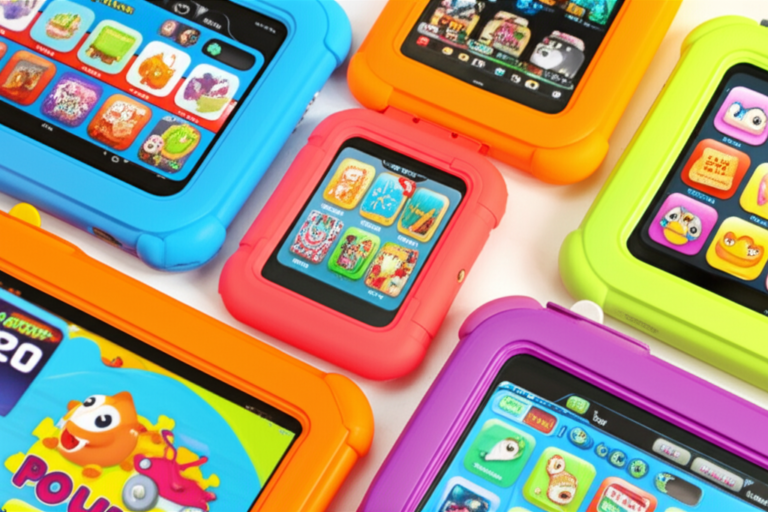
Amazon Fire Kids tablets are Fire tablets packaged for children, typically with a protective case and kid-focused software features. Exact bundle contents depend on the product and generation, so read the current listing rather than relying on an old review or a familiar product name.
As parents and app developers at Kids Tablets™, we separate the deal from the device:
- Deal: the current promotion, bundle, or seller offer.
- Device: the tablet generation, screen, storage, connectivity, and supported software.
- Kid setup: child profile, parental controls, content choices, and language settings.
- Long-term value: durability, warranty coverage, usable storage, and whether the child will still enjoy it after the novelty wears off.
A Fire Kids listing may be a sensible choice if you want an Amazon-centered family setup. If you’re weighing alternatives, our tablet comparisons can help you compare operating systems, app access, and age suitability.
What “You Will See More English Now” May Mean
The wording “You will see more English now” is not a known Fire tablet model or a guaranteed Amazon feature. It may be a search phrase, a recommendation message, or a request to change the device’s language or content.
The safest approach is to identify what you want to change:
- Menus and system text: Set the device language to English in the Fire tablet’s settings. Menu labels can vary by software version.
- Books and apps: Search for English-language content in the Amazon store or in approved child-profile content.
- Videos and audio: Check each title’s language and subtitle options; availability varies by title and region.
- Recommendations: Review the child’s profile, age settings, content permissions, and browsing or viewing history.
- A message or pop-up: Read its full context before tapping. If it asks for account credentials, payment details, or a subscription, confirm the request through Amazon’s official site or app.
Don’t assume a language message means a deal includes extra English content. We’ve seen families buy a tablet expecting the child catalog to change automatically, then discover the actual fix was simply adjusting profile permissions. We’ll walk through the setup later.
📚 Amazon Fire Kids Tablets: Background and How They’ve Changed
Amazon’s Fire tablets run Fire OS, Amazon’s tablet software based on Android. Kids-focused packages combine a Fire device with child-oriented setup and, depending on the specific offer, accessories or a subscription trial. The exact mix has changed over time, which is why model year and listing details matter more than a familiar name on the box.
The ecosystem is strongest when your household already uses Amazon services. It can make it straightforward to manage child profiles and Amazon content, but Fire tablets don’t provide the same app-selection experience as an iPad. Before buying, check whether the educational apps your child needs are supported in the Amazon Appstore.
| What to verify | Why it matters |
|---|---|
| Model and generation | Similar product names can refer to different hardware or software support. |
| Screen size and resolution | Affects reading comfort, video viewing, and how easily a child can tap controls. |
| Storage and expansion | Downloaded shows, books, games, and app updates all use space. Confirm the exact model’s options and expansion support. |
| Kids bundle contents | Case, warranty, and trial terms can differ between listings. |
| App availability | Not every Google Play app is available through Amazon’s app store. |
| Language and region | Store catalog, subscriptions, and content choices can vary by marketplace. |
For families deciding between a Fire device and a broader educational setup, browse our educational tablets guide.
🛍️ Best Amazon Fire Tablet Deals for Kids by Age and Need
The best choice depends less on a child’s age label and more on how they use the screen. A young child watching downloaded stories has different needs from an older reader using research apps and writing tools.
Amazon’s product names, generations, and bundles can change. Treat the product links below as current-search links, then confirm the specifications and package contents on the listing before ordering.
1. Fire 7 Kids for Younger Children and Everyday Use
The Fire 7 Kids is the compact option in Amazon’s kids-tablet family. A smaller device can be easier for little hands to carry, and it takes up less room in a travel bag. The trade-off is a smaller viewing area for books, longer videos, or learning apps with lots of on-screen controls.
Good fit when:
- Portability matters more than screen size.
- The child mainly uses short videos, simple games, and picture books.
- You want a child-focused bundle and protective case.
Check carefully: model generation, screen details, storage, charging accessories, warranty, and whether the listing includes a Kids+ trial.
👉 CHECK PRICE on: Amazon – Fire 7 Kids | Walmart – Fire 7 Kids | eBay – Fire 7 Kids | Amazon Fire tablets
2. Fire HD 8 Kids for a Balanced Screen and Size
The Fire HD 8 Kids is often the middle-ground choice: more screen room than a compact tablet while remaining easier to carry than a large-screen model. For many families, that balance works well for reading, educational games, and downloaded entertainment.
Good fit when:
- Your child switches between reading, games, and video.
- You want a more comfortable screen for shared viewing.
- You need a device that travels without feeling like a small TV in a backpack.
Parent perspective: a case helps, but it doesn’t make a tablet indestructible. Keep drinks, stairs, and enthusiastic sibling handoffs in the safety plan.
👉 CHECK PRICE on: Amazon – Fire HD 8 Kids | Walmart – Fire HD 8 Kids | eBay – Fire HD 8 Kids | Amazon Fire tablets
3. Fire HD 10 Kids for Bigger Screens and Learning
A larger screen can be handy for illustrated books, video lessons, drawing, and apps with detailed layouts. It can also be heavier and less convenient for a small child to hold for long periods.
Good fit when:
- The child reads longer books or uses visual learning apps.
- More screen space matters more than compact portability.
- The tablet is likely to sit on a desk, stand, or lap rather than travel in small hands all day.
Developer perspective: a bigger display doesn’t automatically make an app more educational. Look for clear navigation, readable text, age-appropriate tasks, and the option to pause or work offline.
👉 CHECK PRICE on: Amazon – Fire HD 10 Kids | Walmart – Fire HD 10 Kids | eBay – Fire HD 10 Kids | Amazon Fire tablets
4. Fire Kids Pro Tablets for Older Kids
Amazon’s Kids Pro branding is aimed at older children who may want a more grown-up interface while still using parent-managed controls. Availability and model naming can vary, so compare current listings with the standard Kids editions rather than assuming every generation has a Pro version.
Consider it if your child:
- Is ready for more independent choices within your family’s rules.
- Uses a wider range of approved apps and websites.
- Can follow charging, care, and screen-time expectations.
Don’t buy based on the word “Pro” alone. Check the device generation, included accessories, web settings, and parental-control capabilities.
👉 CHECK PRICE on: Amazon – Fire Kids Pro tablets | Walmart – Fire Kids Pro tablets | eBay – Fire Kids Pro tablets
5. Standard Fire Tablets with a Kid-Prof Case
A standard Fire tablet plus a separate case may cost less or offer a better configuration for a particular household, but it may not include the same kid-focused bundle, warranty, or setup. Compare the total package rather than just the tablet.
| Option | Potential upside | What to verify |
|---|---|---|
| Fire Kids Edition | Child-focused bundle and case may simplify setup | Exact case, warranty, subscription trial, and model |
| Standard Fire tablet + case | More freedom to choose the case and configuration | Parental controls, fit, drop protection, and bundle value |
| Used or refurbished tablet | May suit a tight budget | Battery condition, return policy, software support, seller reputation, and account lock status |
👉 CHECK PRICE on: Amazon – Fire tablets | Walmart – Fire tablets | eBay – Fire tablets
💰 How to Find and Compare Amazon Fire Kids Tablet Deals
A real deal is more than a crossed-out number. Compare the same model, storage, generation, and bundle across sellers. A discounted previous-generation tablet may still be a good buy, but only if its software support and performance suit your child’s needs.
Deal Events, Discounts, and Refurbished Options
Amazon tablet promotions often appear around major shopping events, seasonal sales, and back-to-school periods. Offers change, and we won’t promise a particular deal will be available when you read this. Check the Amazon Fire tablet page, Amazon’s current product listings, and our best tablet deals category.
For refurbished or used devices, confirm:
- The seller and condition grade.
- The return window and warranty coverage.
- Whether the device can be registered to your Amazon account.
- Battery condition and included accessories.
- Whether the model still receives the updates and apps your family needs.
Parent anecdote: one of our families nearly chose a cheaper used tablet, then noticed the listing didn’t clearly state its generation or battery condition. They chose a verifiable listing instead. Boring? Slightly. Better than a tablet that arrives tired before the child even opens a book? Absolutely.
How to Compare Generations, Storage, and Bundles
Use this quick comparison process before checkout:
- Match the model name and generation. Don’t compare “Fire HD 8” listings as if every generation were identical.
- Compare storage. Apps and downloaded media can fill a device quickly, especially when several children share it.
- Check expansion support. Confirm whether the exact model supports a microSD card and what kinds of content can be stored there.
- Read the bundle contents. Verify case, charger, warranty, and subscription trial terms.
- Check the seller and return policy. Especially important for marketplace and refurbished listings.
- Compare app needs. Search the Amazon Appstore for essential school or learning apps before purchase.
- Calculate the practical value. A slightly higher-priced bundle may include protection or support you would otherwise buy separately.
When a Kids Edition Bundle Is Worth It
A Kids Edition bundle can be worthwhile if its case, parental-control setup, warranty, and included services match what you need. It’s less compelling if you already own a suitable case, don’t want a subscription, or need apps that aren’t available for Fire OS.
Worth considering when:
- Your child is young and likely to drop the tablet.
- You want a dedicated child profile and managed content.
- The bundle’s protection and service terms are useful to your household.
Compare alternatives when:
- Your child needs a particular Google Play or school app.
- You want a more open app ecosystem.
- The included subscription would go unused.
🧒 Choosing the Right Fire Tablet for Your Child
Age labels are a starting point, not a parenting decision made by the box. Consider the child’s hand size, reading habits, patience with charging, accessibility needs, and ability to follow household rules. Our kid-friendly tablets guide is useful if you want to compare beyond Amazon.
Age, Durability, Screen Size, and Battery Life
| Child’s typical use | Prioritize | Watch out for |
|---|---|---|
| Picture books and short videos | Easy grip, case, simple controls | Screen may feel cramped on compact models |
| Reading and educational games | Comfortable display, storage, readable text | Some apps may need internet or a subscription |
| Video lessons, drawing, longer sessions | Larger display, stable stand, battery habits | Larger tablets can be heavier |
| More independent browsing and apps | Parent controls, approved content, clear rules | No filter replaces adult supervision |
The American Academy of Pediatrics recommends families develop a media plan that considers each child’s age, health, personality, and developmental needs. That’s more helpful than expecting one screen-time number to fit every household.
Wi-Fi, Storage, Headphones, and Accessories
Before buying, ask:
- Will the child use it away from Wi-Fi? Download content in advance and test it offline.
- Will multiple profiles share the device? Leave room for apps and downloads.
- Are headphones necessary? Check compatibility, volume limits, and whether a wired or Bluetooth setup suits your child.
- Does the case stand securely? A stand can help with video calls and lessons, but it should not make the tablet unstable.
- Will the screen be used outdoors? Glare can make even a larger display hard to see.
For children who need a broader app selection or different accessibility tools, compare iOS tablets alongside Fire models.
🔒 Amazon Kids, Parental Controls, and Content Filters
Amazon Kids tools can help parents manage a child’s tablet experience, but settings need regular review. Features vary by device, software version, region, and subscription. Start with Amazon’s parental controls help and the device’s own settings.
Amazon Kids+ Subscription: What’s Included
Amazon Kids+ is a subscription service offering children’s books, videos, games, and other content. Catalog, access, trial eligibility, and subscription terms can change. Check the current Amazon Kids+ page rather than assuming a familiar bundle still includes the same offer.
Before subscribing, consider:
- Whether your child will use the included catalog.
- Whether the content is available in the language you want.
- What happens when a trial ends.
- How to cancel or manage the subscription.
- Whether the apps your child needs require separate purchases or accounts.
Screen-Time Limits, Bedtime Settings, and Web Browsing
Set limits that support your family’s routine, not just the device’s defaults. A bedtime cutoff can reduce late-night tablet use; content filters and browser permissions can narrow what a child can access. But settings are only one layer of protection.
A practical setup:
- Set a child profile and age range.
- Choose which books, apps, videos, and websites are allowed.
- Set sleep or bedtime expectations.
- Test the controls using the child’s profile.
- Recheck after software updates or changes to subscriptions.
The AAP Family Media Plan can help families agree on screen-free times, device locations, and age-appropriate use.
Profiles, Approvals, and Parent Dashboards
Separate profiles help keep a child’s recommendations and permissions distinct from an adult’s. Review purchases, approvals, and browsing access in the parent tools. If something seems missing, check both the child profile and the parent account; approved content may not automatically appear in every profile.
Developer tip: test the child’s experience from the child’s profile, not just from the parent account. An app that appears available in the adult store may be unavailable, restricted, or require a different setup for a child.
🌐 Language, English Content, and Learning Apps
A Fire tablet can support English-language reading and learning, but content visibility is shaped by device language, region, child profile, app availability, and subscription access. If you’re seeing a message like “You will see more English now,” verify the actual settings rather than treating it as a promise about the catalog.
Changing the Tablet Language to English
Menu names vary by Fire OS version, but the general process is:
- Open Settings.
- Find Language & Keyboard, Device Options, or the language setting shown on your model.
- Select English and the preferred regional variant if available.
- Restart or confirm the change if prompted.
- Open the child profile and check whether its content and language preferences also need adjustment.
If you can’t find the option, use Amazon’s Fire tablet support and search for the exact model and software version.
Finding English Books, Videos, and Educational Apps
Search within the relevant store or subscription catalog, then inspect each title’s details. An English-language device menu does not guarantee every recommendation, video, or app will be in English.
Try this checklist:
- Search for a specific English-language title or learning app.
- Check the child’s age and content settings.
- Confirm the title is available in your Amazon marketplace.
- Download a sample or trial content where offered.
- Test playback, subtitles, and offline access before travel or school use.
Amazon’s Kindle app listings describe access to books, including children’s titles, plus reading tools such as adjustable text and bookmarks. The Google Play listing for Kindle and Apple App Store listing describe the Kindle app for their respective platforms; they are not listings for Fire Kids tablets or tablet deals. Check device compatibility before relying on a mobile-app listing.
Using Fire Tablets for Reading and Language Learning
A tablet can support English practice when an adult pairs screen time with conversation: read a page together, ask the child to explain a new word, or switch between audio narration and text. The Kindle app’s listed tools include adjustable text, search, bookmarks, notes, and dictionary lookup on supported devices.
A simple 15-minute routine:
- Let the child choose a short English story.
- Read a page together or listen to narration where available.
- Pause at one or two unfamiliar words.
- Use a dictionary or picture clue to discuss meaning.
- Ask the child to retell a favorite part.
- End while the child still wants “one more page.”
A Kindle reviewer summarized the convenience with the phrase “Read anytime, anywhere.” That’s a useful description of portable reading, not evidence that a Fire Kids purchase automatically increases English content. For more learning-focused options, see our educational tablets category.
⭐ Ratings, Reviews, and Real-World Parent Feedback
There is no single reliable rating that covers every Fire Kids generation, bundle, and marketplace listing. Ratings can shift, and reviews may mix generations or describe an older software experience. Read recent reviews for the exact product page you’re considering.
| Review lens | What to look for |
|---|---|
| Durability | Reports about case fit, screen damage, and charging ports |
| Performance | App loading, video playback, and slowdowns after updates |
| Battery | How long it lasts in the family’s typical mix of apps and video |
| Parental controls | Whether parents can set and maintain useful boundaries |
| Content access | Missing apps, subscription confusion, or regional availability |
| Service | Warranty claims, returns, and seller communication |
What Families Like About Fire Kids Tablets
Parents often value a dedicated child profile, bundled protection, and access to Amazon’s books and entertainment ecosystem. Kids may like a familiar favorite show, colorful case, or the ability to choose a book independently.
What we hear from families: a tablet can make a long trip smoother, but the best travel tool is still the one downloaded and tested before you reach the airport. “It’ll load when we get there” is not a reliable travel strategy.
Common Complaints and Limitations
Common concerns include limited access to apps found on Google Play, subscription terms that families overlook, and confusion between a standard Fire tablet and a Kids Edition bundle. A protective case helps with everyday knocks but cannot guarantee a device will survive every tumble.
App developer perspective: platform compatibility matters. If a school, therapist, or teacher requires a specific app, verify that the app is available and supported on the exact Fire model before buying.
How to Judge Reviews and Spot Outdated Advice
Use reviews as clues, not verdicts:
- Match the review to the exact model and generation.
- Prefer recent reviews that describe a specific use case.
- Separate complaints about shipping from tablet performance.
- Look for repeated patterns rather than one dramatic story.
- Verify important specifications on Amazon’s listing or support pages.
The Kindle app’s reviews provide a different perspective. One reviewer called it “Revolutionary!!”, while another praised its reading convenience and font options. Those comments relate to the Kindle reading app, not the quality or deal value of a Fire Kids tablet.
🆕 What’s New in Recent Amazon Fire Kids Tablets
“Latest” changes as Amazon refreshes its lineup. Before you buy, compare current model pages and confirm the launch or generation details rather than trusting an undated blog post.
Check these items on the current product listing:
- Screen size and resolution.
- Processor and memory information, if provided.
- Storage choices and expansion support.
- Wi-Fi and Bluetooth specifications.
- Camera, charging, and accessory details.
- Software support and available apps.
- Kids bundle contents, warranty, and subscription terms.
For an up-to-date starting point, use Amazon’s Fire tablet product page and search the exact model on Amazon. Then compare with our tablet comparisons.
♿ Accessibility, Privacy, and Supported Features
Accessibility and privacy deserve a look before a child starts using the device. Features differ by model and software version, so check the tablet’s settings and Amazon’s official support information.
Text Size, Screen Magnification, and Display Settings
Explore display settings for text size, magnification, color adjustments, and other accessibility options available on your model. For reading, also check whether the app itself allows font size, margins, brightness, and background changes.
The Apple App Store listing for Kindle includes accessibility labels such as VoiceOver, Larger Text, Dark Interface, Differentiate Without Color Alone, and Sufficient Contrast for supported Apple devices. Those are not a guarantee that every feature works the same way on Fire OS. Confirm Fire-specific options through Amazon’s accessibility support.
Privacy Settings, Data Collection, and Child Accounts
Review Amazon’s privacy notices and the settings attached to your family account. The App Store privacy information for Kindle reports categories of data that may be linked to users, including purchases, search history, usage data, identifiers, and diagnostics. That disclosure applies to the iOS app’s listing, not automatically to every Fire tablet service or configuration.
Practical steps:
- Use a child profile rather than sharing an adult profile.
- Approve apps and purchases intentionally.
- Review microphone, location, and other permissions when available.
- Read the privacy information for each app your child uses.
- Revisit account settings periodically.
See Amazon’s privacy notice and the FTC’s children’s privacy guidance.
Offline Downloads, Parental Controls, and Supported Apps
Offline use depends on the app and title. Download a book, video, or learning activity and test it with Wi-Fi turned off before a trip. Some content may require a recurring connection, an active subscription, or a fresh login.
Supported features are not universal. An app may have different functions on Fire OS than on iOS or Android. Verify the app listing, developer support page, and child-profile access before making a purchase around that app.
🛠️ Setup, Troubleshooting, and Care
A few minutes of setup can prevent the classic family-tablet mystery: “Why is the story in another language, and why can’t I find the app?” Keep the child profile, language, and content settings together in your setup checklist.
Setting Up a Child Profile and Amazon Kids
- Charge the tablet and connect it to a trusted Wi-Fi network.
- Register it to the adult Amazon account that will manage it.
- Create a child profile and enter accurate age information.
- Set content permissions and any web-browsing rules.
- Check the language and region settings.
- Add approved books, apps, and videos.
- Test the profile yourself before handing over the device.
- Explain the family’s screen-time and charging rules.
Use Amazon’s official Fire tablet help if the setup screens differ from these steps.
Fixing Wi-Fi, Downloads, Storage, and Battery Issues
| Problem | First checks |
|---|---|
| Wi-Fi won’t connect | Confirm the network password, restart the router and tablet, and check whether other devices connect. |
| A download is missing | Check the child profile, account, subscription status, and content permissions. |
| Storage is full | Remove unused apps or downloads and check whether the model supports expandable storage. |
| Battery drains quickly | Reduce brightness, close unused apps, check downloads and streaming, and review battery settings. |
| App won’t appear | Confirm Fire OS compatibility, age restrictions, and the app’s availability in the Amazon Appstore. |
Avoid factory resetting until you’ve checked account access and saved content. If the issue persists, search Amazon’s device help pages for the exact tablet model.
Keeping the Tablet Safe, Clean, and Updated
- Use a case designed for the exact model.
- Keep liquids and food away from charging ports.
- Clean the screen with a soft, lint-free cloth; follow the manufacturer’s care guidance.
- Install available software updates.
- Store the charger where younger children can’t chew or tug on the cable.
- Revisit content permissions as the child grows.
⚖️ Amazon Fire Kids Tablet vs. iPad and Other Kids Tablets
Fire Kids tablets and iPads serve different priorities. Fire models are compelling for families who want Amazon’s ecosystem and kid-focused options; iPads may suit households that need Apple’s app catalog, school tools, or existing Apple services. Neither label alone tells you what fits your child.
| Consideration | Amazon Fire Kids tablet | Apple iPad |
|---|---|---|
| Family ecosystem | Amazon accounts, Amazon content, Fire OS | Apple accounts, iPadOS, Apple services |
| App selection | Amazon Appstore; verify essential apps | Apple App Store; verify age suitability and app needs |
| Kids-focused package | Kids-branded bundles may include a case or service offer; confirm listing | Family setup and parental controls are available, but bundles differ |
| Reading | Kindle content and compatible reading apps | Kindle app and other supported reading apps |
| Best comparison question | Does it run the child’s essential apps and content? | Does its app ecosystem and setup justify the choice for your family? |
For a closer look at Apple options, see our iOS tablets category and tablet comparisons. The supplied Apple iPhone Duo page describes a foldable phone, not a Fire tablet competitor or children’s tablet deal. It should not be used to judge Fire Kids specifications or pricing.
❓ Frequently Asked Questions About Amazon Fire Deals for Kids
What are the best Amazon Fire tablet deals for kids right now?
There isn’t one deal that stays best for every family or every date. Compare current Fire 7 Kids, Fire HD 8 Kids, and Fire HD 10 Kids listings. Match the generation and bundle, then check storage, case, warranty, seller, return policy, and subscription terms. Our best tablet deals page is another place to compare offers.
Which Amazon Fire tablet is best for children learning English?
The best model is the one that supports the child’s reading and learning apps, provides a comfortable screen, and can be configured with suitable English content. A larger screen may help with illustrated material; a compact device may be easier to carry. No model automatically guarantees more English content. Set the language, review the child profile, and confirm app and title availability.
Are Amazon Fire Kids tablets worth buying for educational apps and games?
They can be worth considering when the child’s apps are available in the Amazon Appstore and the family values Amazon’s child-profile features. They may be a poor fit if a school or learning specialist requires an app that Fire OS does not support. Search for the exact apps first, then compare with educational tablets and iOS tablets.
How can I find discounts on Amazon Fire Kids tablets with parental controls?
Compare current Amazon listings with other reputable retailers, and check whether the product is a Kids Edition bundle or a standard tablet. Verify parental-control features, included case, warranty, subscription terms, seller, and return policy. A discounted standard tablet may still need a separate case and more setup.
Does a Fire Kids tablet deal give my child more English content?
No. A deal affects the offer or bundle, not the language catalog. English content depends on the device language, marketplace, child profile, app availability, and subscription access. Change settings and test the child profile after setup.
Can children use Kindle books on an Amazon Fire Kids tablet?
Fire tablets support Amazon reading experiences, but exact access depends on the device, account, child profile, and title. The Kindle app listings for iOS and Google Play describe those platforms and should not be treated as Fire Kids product pages. Check the current Fire tablet listing and Amazon’s book-access details.
Is Amazon Kids+ required to use a Fire Kids tablet?
A subscription is not the same as the tablet itself. Bundle offers may include a trial, but trial eligibility and renewal terms vary. Review the Amazon Kids+ page and account terms before activating a subscription.
Can I use a Fire tablet offline on a trip?
Often, yes, for content that supports downloads. Download books, videos, and apps while connected to Wi-Fi, then test them offline before travel. Some titles or services may still require an active connection or subscription verification.