Support our educational content for free when you purchase through links on our site. Learn more
7 Best Kids Tablets for Neurodivergent Children (2026) 🧠📱

The best kids tablets for neurodivergent children are customizable, predictable, durable, and matched to a child’s specific needs. For most families, an Apple iPad is the strongest all-around choice for accessibility and AAC apps, while Amazon Fire HD Kids is a practical pick for younger children who need a rugged tablet with simple parental controls.
A diagnosis alone cannot tell you which tablet will work. An autistic child may need visual schedules and AAC; a child with ADHD may benefit from timers and fewer notifications; a child with dyslexia may need text-to-speech and audiobooks. The right setup matters more than the logo on the back.
We learned this the hard way when one of our young testers rejected a “calming” app within seconds because its cheerful chime sounded like a tiny fire alarm. Once we muted it, reduced motion, simplified the home screen, and added a visual timer, the same tablet became a useful reading and communication tool. Sensory-friendly technology is personal, not one-size-fits-all.
This guide compares leading tablets, accessibility features, AAC compatibility, educational apps, parental controls, durability, sensory settings, school support, and practical routines. By the end, you’ll know which device fits your child’s goals—and which tempting features may cause more friction than help.
Key Takeaways
- Best overall accessibility: Apple iPad, especially for AAC, text-to-speech, Guided Access, switch access, and specialist education apps.
- Best rugged child-friendly option: Amazon Fire HD Kids, with a protective case, child profile, content filters, and parent dashboard.
- Best Android flexibility: Samsung Galaxy Tab, offering broad Google Play access and useful accessibility settings.
- Best for Windows schoolwork: Microsoft Surface Go, particularly for older children and teens using keyboard-based assignments.
- Choose by function, not diagnosis: Identify whether the tablet’s main job is communication, learning, regulation, homework, entertainment, or travel.
- Prioritize sensory controls: Look for adjustable brightness, reduced motion, volume limits, captions, simple layouts, and predictable app behavior.
- AAC requires specialist input: A consumer tablet may support communication, but dedicated AAC devices and professional setup can better for children who rely on speech-generating technology.
- Parental controls are not sensory plans: Apple Screen Time, Google Family Link, Amazon Kids, and Microsoft Family Safety manage access, but adults must customize the tablet around the child.
- Keep a backup plan: Maintain printed visual schedules, communication cards, offline content, chargers, and non-screen calming tools.
- Start small: One well-tested app and a calm home screen usually beat dozens of distracting downloads.
👉 CHECK PRICE on:
- Apple iPad: Amazon | Apple Official Website
- Amazon Fire HD Kids: Amazon | Amazon Kids
- Samsung Galaxy Tab: Amazon | Samsung Official Website
- Microsoft Surface Go: Amazon | Microsoft Official Website
Table of Contents
-
⚡ Quick Tips and Facts About Kids Tablets for Neurodivergent Children
-
Autism, ADHD, Dyslexia, Dyspraxia, and Other Learning Differences
-
🔍 How to Choose a Tablet for Autism, ADHD, Dyslexia, and Sensory Needs
-
Offline Access for Travel, School, and Low-Connectivity Homes
-
Text-to-Speech, Speech-to-Text, Magnification, and Switch Access
-
Amazon Kids, Apple Screen Time, Google Family Link, and Microsoft Family Safety
-
App Permissions, Advertising, Purchases, and Data Collection
-
Safe Browsing, Messaging, Multiplayer Games, and Social Media
-
Working With Teachers, Occupational Therapists, and Speech-Language Pathologists
-
Homework, Note-Taking, Reading Support, and Digital Organization
-
Building Digital Citizenship and Online Communication Skills
-
❓ Frequently Asked Questions About Neurodivergent-Friendly Tablets
Quick Tips and Facts About Kids Tablets for Neurodivergent Children
If you’re comparing kids tablets for an autistic child, a child with ADHD, dyslexia, sensory processing differences, or another neurodevelopmental profile, here’s the headline: the best tablet is the one you can calmly customize around your child. A flashy device with a mountain of apps can become digital confetti. A modest tablet with predictable settings, offline content, AAC access, and a sturdy case may be far more useful.
Our Kids Tablets™ team has tested devices from the perspectives that matter:
- Parents want safety controls, durability, battery life, and fewer arguments.
- Children want fast response, familiar interests, comfortable sound, and a device that does not feel like homework wearing a fake moustache.
- App developers want clear accessibility settings, reliable performance, and enough storage for visual schedules, communication tools, and learning apps.
The Short Version: What Should You Buy?
| Family priority | Strong starting point | Why it works | Main caution |
|---|---|---|---|
| Best all-around accessibility | Apple iPad | Excellent accessibility, Guided Access, AAC compatibility, broad app support | More setup work; protective accessories are essential |
| Simple child profile and durable bundle | Amazon Fire HD Kids | Amazon Kids parental controls, kid-focused case, child profiles | App selection and Google Play access can be limited |
| Android flexibility | Samsung Galaxy Tab | Android accessibility, Family Link, strong multitasking | “Kids mode” and menus vary by model |
| Schoolwork and Windows software | Microsoft Surface Go | Full Windows apps, keyboard and stylus options | Less toy-like, potentially more complex |
| Communication support | iPad or Android tablet with professional AAC app | Large AAC ecosystem and customizable layouts | Choose with an SLP or AAC specialist |
Our practical recommendation: begin with the child’s goals, not the brand. Is the tablet mainly for learning, regulation, communication, travel, homework, or all five before breakfast?
Six Facts Worth Knowing
- A tablet is assistive technology only when it supports a real need. Watching cartoons may be enjoyable; using a visual schedule, speech-generating app, text-to-speech tool, or accessible reading app serves a different purpose.
- Neurodivergent children do not share one sensory profile. One child may love bright animations; another may find them exhausting.
- Parental controls are useful, but they are not neurodiversity-specific. Apple Screen Time, Google Family Link, Amazon Kids, and Microsoft Family Safety manage access and time. They do not understand your child’s triggers.
- Offline access matters. Waiting rooms, flights, school buses, and medical visits are not reliable Wi-Fi laboratories.
- A protective case is part of the tablet. Treating it as an optional extra is like buying a raincoat and leaving the umbrella at home.
- Tablets work best as one tool in a broader support plan. A hospital study found that families valued sensory tools and staff approach alongside tablets, rather than tablets alone (PMC11286462).
Who Can Benefit From a Neurodiversity-Friendly Tablet?
A carefully configured tablet may help children who need:
- Visual structure: timers, checklists, first-then boards, and visual schedules.
- Alternative communication: AAC symbols, text-to-speech, picture choices, or customized vocabulary.
- Reading support: text-to-speech, audiobooks, adjustable fonts, and reduced visual clutter.
- Executive-function assistance: reminders, calendars, task breakdowns, and planning tools.
- Sensory control: lower brightness, reduced motion, volume limits, and predictable content.
- Fine-motor alternatives: stylus input, larger touch targets, voice dictation, or switch access.
- Safe special-interest exploration: coding, animals, maps, music, drawing, or construction.
The American Academy of Pediatrics recommends building a family media plan around sleep, physical activity, learning, relationships, and the child’s individual needs rather than treating one universal screen-time number as magic.
The Three-Minute Buying Filter
Before comparing gigabytes and megapixels, answer these questions:
- What is the tablet’s primary job?
- Communication?
- Homework?
- Sensory regulation?
- Entertainment during travel?
- Several jobs with separate profiles?
- What causes friction now?
- Loud audio?
- Suden advertisements?
- Apps that are hard to exit?
- Too many icons?
- Battery failure?
- Difficult transitions?
- Who will manage it?
- Parent or caregiver?
- Teacher?
- Speech-language pathologist?
- Occupational therapist?
- Child independently?
- What must work without internet?
- AAC?
- Downloaded videos?
- Reading books?
- Visual stories?
- Games for travel?
- What happens when the tablet is unavailable?
- Can the child use a paper schedule, fidget, book, or other communication method?
- Can a caregiver explain the change in advance?
That final question is more revealing than a processor benchmark. A tablet should expand independence, not become the only bridge between calm and catastrophe.
Common Mistakes Parents Can Avoid
❌ Buying the cheapest tablet without checking app compatibility
❌ Installing dozens of apps before observing what the child actually enjoys
❌ Leting notifications, autoplay, and advertisements interrupt regulation
❌ Treating “educational” as automatically accessible
❌ Using a tablet as the sole communication system without professional guidance
❌ Forgeting headphones, a stand, or a rugged case
❌ Ending screen time abruptly when the child has no transition warning
❌ Assuming an autistic child, child with ADHD, or child with dyslexia will need the same settings as another child with the same diagnosis
✅ Start with one purpose.
✅ Test one app at a time.
✅ Keep a backup communication or calming option.
✅ Ask the child what feels comfortable.
✅ Review settings every few weeks.
Understanding Neurodivergent Children’s Technology Needs
Autism, ADHD, Dyslexia, Dyspraxia, and Other Learning Differences
“Neurodivergent” includes many experiences, and diagnostic labels do not predict a child’s complete technology profile.
| Child’s possible need | Helpful tablet features | Potential problem |
|---|---|---|
| Autism and communication differences | AAC, visual schedules, social stories, predictable layouts | Overly busy interfaces or unwanted sounds |
| ADHD and attention regulation | Short tasks, timers, reminders, reduced notifications | Endless scrolling, autoplay, rapid rewards |
| Dyslexia | Text-to-speech, audiobooks, adjustable spacing, dictation | Dense text and poor font controls |
| Dyspraxia or motor-planning differences | Larger touch targets, stylus, voice control, switch compatibility | Tiny buttons and imprecise touch response |
| Sensory processing differences | Brightness controls, reduced motion, volume limits, headphones | Flicker, flashing, vibration, sudden audio |
| Intellectual disability or developmental delay | Simplified navigation, visual choices, repetition | Complex menus and abstract instructions |
| Anxiety or demand avoidance | Choice, preview, flexible pacing, low-pressure activities | Rigid timers and surprise transitions |
The CDC’s information on autism emphasizes that children can have different strengths, challenges, and support needs. That principle matters here: diagnosis can guide questions, but observation guides settings.
Sensory Processing, Attention, and Executive Function
A child may struggle not with the lesson itself but with the tablet’s “background noise”:
- Five icons competing for attention.
- A video that changes scenes every few seconds.
- A game that celebrates loudly.
- A notification appearing during a reading task.
- A keyboard that predicts the wrong word.
- A timer that ends without warning.
Our child testers often described the best interfaces as “easy to know.” That phrase is deceptively powerful. Predictability reduces the mental effort required to operate the device, leaving more capacity for reading, communicating, creating, or solving a problem.
Try separating tablet needs into four layers:
- Access: Can the child see, hear, touch, speak, or control the device?
- Comprehension: Can the child understand the instructions and choices?
- Regulation: Can the child tolerate the sensory input and transitions?
- Independence: Can the child complete a task without constant adult rescue?
A tablet that performs well at layer one may still fail at layer four.
Assistive Technology Versus Entertainment Screens
The same iPad can be:
- A speech-generating device.
- A digital book with text-to-speech.
- A visual schedule.
- A drawing studio.
- A video player.
- A highly effective procrastination machine.
The difference is purpose, setup, and support.
The scoping review of procedural support for neurodivergent children found tablet-based visual supports in six studies, but it did not prove that a particular tablet brand or app works best (PMC12979319). The review supports individualized preparation and technology-based familiarization, not a blanket “screens are therapeutic” claim.
A useful family rule is:
Entertainment is allowed to be entertainment. Assistive technology should be judged by whether it helps the child communicate, participate, learn, or cope.
Best Kids Tablets for Neurodivergent Children
The ratings below are Kids Tablets™ practical scores, not clinical test results. They reflect setup flexibility, accessibility, durability options, app ecosystem, child controls, and everyday family usability. Scores can change significantly with accessories and configuration.
Rating Table
| Tablet family | Design | Accessibility | Parental controls | App ecosystem | Durability options | Battery/travel | Neurodivergent fit | Overall |
|---|---|---|---|---|---|---|---|---|
| Amazon Fire HD Kids | 8/10 | 7/10 | 9/10 | 7/10 | 9/10 | 8/10 | 8/10 | 8/10 |
| Apple iPad | 8/10 | 10/10 | 8/10 | 10/10 | 7/10 | 8/10 | 9/10 | 9/10 |
| Samsung Galaxy Tab | 8/10 | 8/10 | 8/10 | 9/10 | 7/10 | 8/10 | 8/10 | 8/10 |
| Lenovo Tab M-series | 8/10 | 7/10 | 7/10 | 8/10 | 7/10 | 8/10 | 7/10 | 8/10 |
| Microsoft Surface Go | 7/10 | 9/10 | 8/10 | 9/10 | 6/10 | 7/10 | 8/10 | 8/10 |
| reMarkable Paper Pro | 9/10 | 5/10 | 4/10 | 3/10 | 6/10 | 9/10 | 6/10 | 6/10 |
| Dedicated AAC device | 7/10 | 10/10 | 8/10 | 5/10 | 8/10 | 8/10 | 9/10 | 8/10 |
How to read the table: an iPad’s 10/10 accessibility does not mean it is automatically the best purchase. If your child needs a low-distraction writing surface, an e-ink device may be more comfortable. If the tablet will be thrown during frustration, case design may outrank processor speed.
1. Amazon Fire HD Kids Tablets
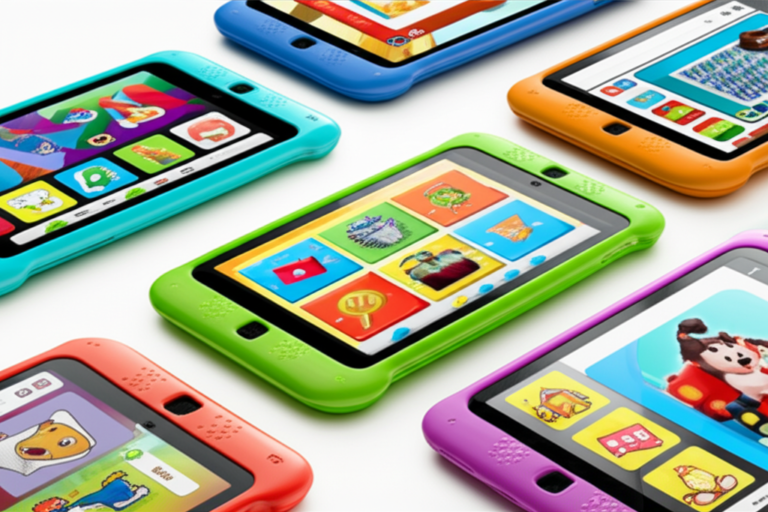
The Amazon Fire HD Kids range remains popular because the child-friendly case and parent dashboard reduce setup friction. Amazon Kids profiles let adults set age filters, daily goals, bedtime limits, and approved content through Amazon’s parental controls.
Why parents like it
- Ruged bumper cases are included with many Kids editions.
- Child profiles keep adult content separate.
- Parent Dashboard offers content and time controls.
- Downloaded media can help during travel.
- The interface is approachable for younger children.
- The device is easier to replace than a premium tablet after a dramatic “gravity experiment.”
Where it helps neurodivergent children
- Predictable child profile: fewer accidental purchases and fewer adult notifications.
- Reading access: Kindle books, Audible content, and compatible reading apps.
- Low-pressure entertainment: familiar videos or music can support transitions.
- Travel regulation: offline downloads are practical for waiting rooms and flights.
Drawbacks
- Some educational, AAC, and specialist apps are unavailable or less straightforward than on iPad or standard Android.
- Fire OS may require workarounds for Google services.
- Accessibility tools are useful but generally less expansive than iPadOS.
- App compatibility must be checked before buying, especially for school or therapy software.
👉 CHECK PRICE on:
- Amazon Fire HD Kids: Amazon | Amazon Kids
2. Apple iPad With Guided Access and Assistive Features
The Apple iPad is our strongest all-round recommendation when accessibility, AAC, schoolwork, and specialist apps matter more than the lowest entry cost.
Why it scores highly
Apple includes extensive accessibility features under iPad accessibility, including:
- VoiceOver screen reading.
- Zoom and display adjustments.
- Spoken Content.
- Voice Control.
- AssistiveTouch.
- Switch Control.
- Guided Access.
- Live Speech and related communication features on supported devices.
- Per-app settings and visual customization.
Why Guided Access matters
Guided Access can restrict the iPad to one app, disable parts of the screen, and prevent accidental exits. This is valuable for:
- AAC sessions.
- Reading practice.
- A visual timer.
- A medical social story.
- A classroom task.
- A calming app that should not suddenly leap into YouTube.
Strengths for neurodivergent children
- Excellent AAC and special-education app ecosystem.
- Strong text-to-speech and speech-to-text options.
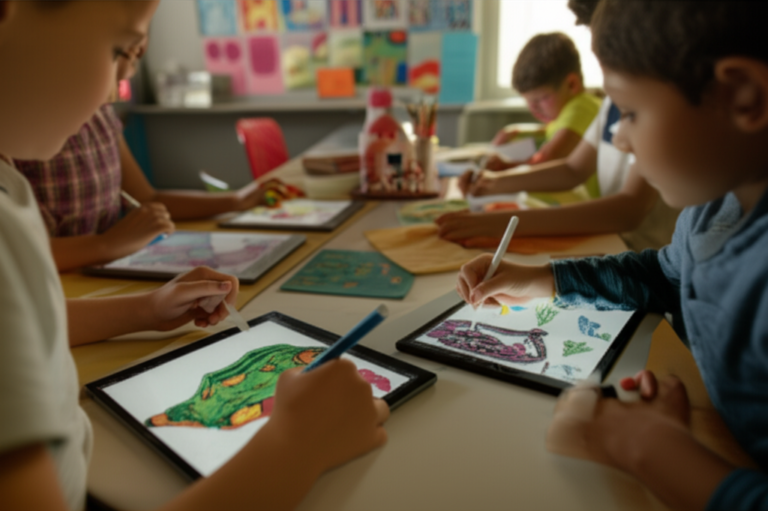
- Good stylus support for handwriting and drawing.
- Easy integration with school systems in many districts.
- Fine-grained sensory and motor accessibility settings.
- Strong case and mounting ecosystem.
Drawbacks
- Setup can feel like assembling flat-pack furniture without the tiny hex key.
- App subscriptions can accumulate.
- A standard iPad is not indestructible; use a protective case and screen protector.
- Apple’s controls are powerful, but adults must configure them intentionally.
👉 CHECK PRICE on:
- Apple iPad: Amazon | Apple Official Website
- Apple Pencil: Amazon | Apple Official Website
3. Samsung Galaxy Tab Kids and Family Tablets
Samsung Galaxy Tab models offer a flexible Android experience with strong accessibility, Google Play access, and compatibility with many school and communication apps.
Strengths
- Android accessibility settings include TalkBack, magnification, interaction controls, hearing enhancements, and more; Samsung documents these through its accessibility support pages.
- Google Play provides broad app availability.
- Samsung Kids can create a more controlled child environment.
- Split-screen and multitasking can help older children.
- Stylus-capable models support handwriting, diagrams, and drawing.
- Family Link supports approval and screen-time management.
Drawbacks
- Experiences vary considerably between Galaxy Tab models.
- Menus can feel more complicated than a locked-down children’s tablet.
- A cheap case may cover speakers, charging ports, or buttons.
- Families need to check Android version compatibility for AAC and school apps.
Best fit
Choose Samsung when you want:
- More app freedom than Fire OS.
- More customization than many children’s tablets.
- A bridge between entertainment and schoolwork.
- Android device that can grow with an older child.
👉 CHECK PRICE on:
- Samsung Galaxy Tab: Amazon | Samsung Official Website
4. Lenovo Tab M-Series Kids Tablets
Lenovo Tab tablets can be sensible family devices when you prioritize a large screen, Android app access, and a straightforward media setup.
Strengths
- Android accessibility support.
- Good compatibility with Google Play apps on supported models.
- Large-screen options can help visual schedules and shared reading.
- Kid-focused cases and stands are widely available.
- Useful for families already using Android phones.
Watch-outs
- Lower-end configurations may slow down with large games, multiple profiles, or many downloaded videos.
- Update support varies by exact model.
- Some Lenovo tablets are better for media than demanding AAC, drawing, or multitasking workloads.
- Check storage before installing audiobooks, offline videos, and communication assets.
👉 CHECK PRICE on:
- Lenovo Tab: Amazon | Lenovo Official Website
5. Microsoft Surface Go for Older Children and Teens
The Microsoft Surface Go is less of a “kids tablet” and more of a compact Windows computer with a touchscreen.
Why it can be excellent
- Full Windows software supports many school platforms.
- Microsoft accessibility tools include Narrator, Magnifier, voice access, captions, and high-contrast options; see Microsoft Accessibility.
- Keyboard and stylus support are useful for older students.
- OneNote, Word, browser-based learning platforms, and specialist software can coexist.
- It may suit a teen who dislikes a childish interface.
Drawbacks
- Less rugged by default.
- Windows presents more menus, notifications, and update interruptions.
- Battery and performance depend on the exact configuration.
- A child may need more adult teaching to manage files, browsers, and accounts.
👉 CHECK PRICE on:
- Microsoft Surface Go: Microsoft Official Website | Amazon
6. reMarkable and E-Ink Tablets for Low-Distraction Use
The reMarkable Paper Pro and similar e-ink writing tablets are niche tools. They are not replacements for an AAC iPad or a full educational tablet, but they may help children overwhelmed by bright, busy screens.
Potential benefits
- Paper-like writing experience.
- Fewer games and notifications.
- Strong focus for handwriting, sketching, and notes.
- Less visual clutter.
- Long battery life on many e-ink devices.
Limitations
- Limited app ecosystem.
- Not suitable for most AAC systems.
- Less useful for video modelling, interactive learning, or rich multimedia.
- Accessibility features may not match iPadOS or Android.
- Children with visual needs may prefer a bright LCD or OLED display instead.
This is a special-purpose low-distraction tool, not a universal kids tablet.
👉 CHECK PRICE on:
- reMarkable Paper Pro: reMarkable Official Website | Amazon
7. AAC Tablets and Dedicated Communication Devices
A consumer tablet can run AAC apps such as Proloquo, TouchChat, LAMP Words for Life, or TD Snap. Dedicated devices from Tobii Dynavox and PRC-Saltillo may offer specialized hardware, mounting, support, and funding pathways.
Consumer tablet advantages
- Familiar hardware.
- More entertainment and education options.
- Easier to carry.
- Often cheaper to replace or use as a secondary device.
- Strong cameras, Bluetooth, and app ecosystems.
Dedicated AAC device advantages
- Designed around communication access.
- More robust mounting and support options.
- Better separation between communication and entertainment.
- Specialist assessment and training may be included.
- Some funding systems recognize dedicated speech-generating devices more readily.
Critical warning
Do not remove a child’s communication system because the tablet is “only for games,” and do not assume an entertainment tablet automatically meets AAC needs. Work with a qualified speech-language pathologist or AAC specialist. ASHA’s AAC guidance explains that AAC includes many methods and should be individualized.
👉 CHECK PRICE on:
- Proloquo: AssistiveWare Official Website
- TouchChat: TouchChat Official Website
- TD Snap: Tobii Dynavox Official Website
- PRC-Saltillo AAC: PRC-Saltillo Official Website
Which Tablet Is Best for Different Neurodivergent Profiles?
| Profile or goal | Best starting point | Why |
|---|---|---|
| AAC and communication | iPad or dedicated AAC device | Broad app support and professional customization |
| Younger child needing a rugged bundle | Amazon Fire HD Kids | Simple profile and protective case |
| ADHD and school organization | iPad, Samsung Galaxy Tab, or Surface Go | Timers, calendars, notes, and broad productivity tools |
| Dyslexia and reading support | iPad or Samsung Galaxy Tab | Text-to-speech, audiobooks, display controls |
| Sensory-sensitive child | Configured iPad, Samsung, or low-distraction e-ink device | Better control over sound, motion, brightness, and clutter |
| Older student needing school software | Surface Go or iPad | Keyboard, writing, browser, and school-platform compatibility |
| Travel and waiting-room entertainment | Fire HD Kids or iPad | Offline media, cases, and easy controls |
The question we kept hearing from families was, “Which one will prevent every meltdown?” None will. The better question is: which one gives this child the most control with the least unnecessary friction?
How to Choose a Tablet for Autism, ADHD, Dyslexia, and Sensory Needs
Screen Size, Brightness, Refresh Rate, and Flicker
A larger screen can make AAC symbols, captions, reading text, and visual schedules easier to see. It can also be heavier and harder for small hands to hold.
Consider:
- Screen size: around 8 inches may be easier to carry; larger screens help shared viewing and AAC layouts.
- Brightness range: the lowest setting should be genuinely comfortable in dim rooms.
- Night or warm display modes: useful for evening use, although they do not make late-night screen use ideal.
- Reduced motion: important if animations trigger discomfort.
- Flicker sensitivity: some people are sensitive to display flicker even when others cannot see it. If a child reports headaches, eye strain, nausea, or discomfort, stop and consult an eye-care professional. The American Academy of Ophthalmology provides general digital-eye-comfort guidance.
A simple home test
- Set brightness low.
- Open a mostly white page and a dark page.
- Scroll slowly and quickly.
- Watch for squinting, covering eyes, rubbing eyes, avoidance, or irritability.
- Ask the child what feels “too much.”
- Test with and without a blue-light or warm-color filter.
Do not assume a warm filter solves every problem. Sound, motion, glare, and task difficulty may be the real trigger.
Touchscreen Responsiveness and Stylus Compatibility
Touchscreens reward quick, precise motor control. Some children need the opposite: bigger targets and more time.
Look for:
- Adjustable touch accommodations.
- Ability to ignore repeated touches.
- Larger on-screen buttons.
- Stylus compatibility.
- Palm rejection for handwriting.
- Voice dictation.
- Switch-control compatibility.
- Screen protectors that do not make touch unreliable.
On iPad, Touch Acommodations can adjust how the screen responds. Android devices offer interaction and dexterity settings, though names vary by manufacturer.
Performance, Storage, Battery Life, and Durability
Performance
A tablet should open the child’s communication app, learning platform, and downloaded content without stuttering. Slow performance can look like refusal: the child taps, waits, taps again, and suddenly the device has opened four things and everyone is unhappy.
Storage
Storage fills quickly with:
- AAC voices and vocabulary.
- Audiobooks.
- Downloaded videos.
- Photos and school files.
- Drawing projects.
- Offline maps and travel content.
Choose enough storage for growth, not merely today’s apps. Avoid filling a device beyond roughly 80–90% capacity because performance and updates can suffer.
Battery
Test the device during the longest real-world outing, not just a cheerful Saturday at home.
Pack:
- A charging cable.
- A compact power bank where appropriate.
- A labeled case pocket.
- Offline backups.
- A paper communication card or visual schedule.
Durability
Check:
- Raised screen bezel.
- Corner protection.
- Port covers.
- Handle or shoulder strap.
- Easy-to-clean surface.
- Case compatibility with stands and mounts.
- Whether speakers remain unobstructed.
The American Academy of Pediatrics’ media guidance focuses on healthy use, but practical healthy use also means the device must survive being carried, dropped, and cleaned.
Speakers, Headphone Support, and Audio Controls
Sound can be a joy or an ambush.
Look for:
- A physical volume control.
- Reliable volume limiting.
- Bluetooth support.
- Wired headphone support if latency matters.
- Separate app and system volume controls.
- Easy mute access.
- Captions and visual alternatives.
Noise-canceling headphones helped families in a sensory-pathway study, but the same study also emphasized varied tools and individual preferences (PMC11286462). Some children dislike the pressure of over-ear headphones; others dislike in-ear buds. Let the child choose when possible.
Cases, Handles, Stands, and Protective Accessories
A good case should:
- Absorb corner impact.
- Keep the tablet stable on a table.
- Permit charging while installed.
- Avoid blocking microphones and speakers.
- Work with the child’s grip.
- Be easy to wipe clean.
For AAC, add:
- A stable stand or mount.
- A shoulder strap for mobility.
- A screen protector that preserves touch accuracy.
- A backup charging plan.
- A clearly labeled communication device case.
A tablet sliding off a lap during anxious moment is not a technology failure. It is a design problem.
Offline Access for Travel, School, and Low-Connectivity Homes
Before leaving home:
- Download approved videos, books, music, and games.
- Open each item in airplane mode.
- Confirm AAC voices and vocabulary work offline.
- Turn off automatic updates during the outing.
- Disable advertisements where possible.
- Pack headphones and a backup activity.
- Test battery life with the intended brightness and volume.
The procedural-support review found technology useful for preparation and support but stressed that access and implementation vary (PMC12979319). Offline preparation reduces one avoidable variable.
Accessibility Features That Make Tablets Easier to Use
Apple iPadOS Accessibility Tools
Apple’s iPad accessibility features are unusually broad.
Useful tools include:
- Guided Access: locks the child into one app.
- Spoken Content: reads selected text or the screen.
- Voice Control: lets the user operate the device by voice.
- Switch Control: supports external switches.
- AssistiveTouch: creates alternative gestures and controls.
- Display and Text Size: adjusts fonts, contrast, color filters, and transparency.
- Reduce Motion: reduces animated transitions.
- Background Sounds: may mask distracting environmental noise, though test this carefully.
- Live Captions: useful for supported audio and conversations.
- Per-app settings: customize display and text options for individual apps.
Android Accessibility Settings
Google documents Android accessibility through its Android Accessibility Help.
Depending on the device, you may find:
- TalkBack.
- Select to Speak.
- Magnification.
- Color correction.
- Extra-dim mode.
- Live Caption.
- Switch Access.
- Voice Access.
- Interaction controls.
- Hearing-device support.
Samsung adds manufacturer-specific controls through Samsung accessibility. Because menus vary, record the path to settings in your family’s notes.
Amazon Fire Accessibility Controls
Fire tablets provide features such as:
- VoiceView screen reader.
- Magnification.
- Closed captions and subtitles where supported.
- Font and display adjustments.
- Parent-managed profiles.
Amazon’s Fire tablet accessibility support should be checked for the exact model and software version. Do not assume every Android accessibility app works on Fire OS.
Windows Accessibility Features
Microsoft Accessibility includes:
- Narrator.
- Magnifier.
- High contrast and color filters.
- Voice access.
- Live captions.
- Focus sessions.
- Keyboard and mouse accessibility.
- Dictation.
Windows can suit older children who need school software, but disable unnecessary notifications and simplify the Start menu before handing it over.
Visual, Hearing, Motor, and Cognitive Accessibility
| Need | Settings or accessories to try |
|---|---|
| Low vision | Larger text, magnification, high contrast, spoken content |
| Auditory sensitivity | Volume limit, captions, headphones, muted notifications |
| Motor difficulty | Larger touch targets, stylus, switch access, voice control |
| Attention challenges | Focus mode, one-app layout, short tasks, visual timer |
| Cognitive load | Fewer icons, consistent folders, simple instructions |
| Reading difficulty | Text-to-speech, audiobooks, spacing, fonts, dictation |
| Communication support | AAC app, stable mount, backup vocabulary, guided access |
Guided Access, Screen Pining, and Single-App Mode
iPad Guided Access
- Open Settings → Accessibility → Guided Access.
- Turn it on.
- Set a passcode or Face ID.
- Open the desired app.
- Triple-click the top button or Home button.
- Circle areas to disable if needed.
- Choose time limits only if the child understands the transition.
- Start the session.
- End it with the same button sequence and authentication.
Android screen pining
- Open Settings → Security or Security & privacy.
- Enable Screen pining.
- Open the app.
- Use the recent-apps screen.
- Tap the app icon and choose Pin.
- Unpin using the device’s specified button combination.
Test this yourself before using it during a high-stress moment. A control that works beautifully in theory can become a tiny escape-room puzzle in practice.
Text-to-Speech, Speech-to-Text, Magnification, and Switch Access
Set up accessibility before installing apps:
- Choose the preferred voice.
- Adjust speaking speed.
- Test pronunciation of the child’s name and favorite topics.
- Turn on dictation.
- Add custom vocabulary where supported.
- Test switch scanning or external input.
- Create a visual instruction card.
- Let the child practice during a calm period.
For AAC, do not rush through voice selection. The voice should be understandable, comfortable, and as age-respectful as possible. A teenager may reject an app that sounds like it belongs in preschool, quite reasonably.
The Best Learning Apps for Neurodivergent Children
App recommendations change quickly, so check the developer’s accessibility notes, privacy policy, supported operating system, and subscription terms before installing. Common Sense Media can provide additional family-oriented reviews, although no review replaces testing with your child.
Educational Apps for Autism and Social-Emotional Learning
Potentialy useful categories include:
- Visual schedule apps.
- Social-story creators.
- Emotion-identification tools.
- Interactive choice boards.
- Matching and categorization apps.
- Apps built around familiar routines.
- Digital books with predictable repetition.
Examples to investigate:
- Choiceworks for schedules, waiting, and routines.
- Social Stories Creator & Library for personalized visual narratives.
- Proloquo for AAC and language development.
- Autism Parenting Magazine’s app resources for additional parent perspectives, while checking professional guidance separately.
Avoid apps that claim to “cure” autism or guarantee behavior change. The National Institute of Mental Health describes autism as a developmental condition, not a problem an app can erase.
ADHD-Friendly Focus, Planning, and Organization Apps
For children with ADHD, the useful question is not “Can this app make them focus?” It is “Can this app make the next step obvious?”
Useful tools include:
- Visual timers.
- Calendar reminders.
- Task chunking.
- Habit checklists.
- Focus music or soundscapes.
- Note-taking apps.
- Body-doubling or shared work sessions.
- Homework planners.
Examples:
- Todoist for task lists.
- Microsoft To Do for reminders.
- Google Keep for visual notes.
- Forest for timed focus, if its gamification suits the child.
- Timo for visual planning and routines.
A better ADHD task format
Instead of:
“Do your homework.”
Use:
- Open math assignment.
- Complete questions 1–5.
- Take a three-minute movement break.
- Complete questions 6–10.
- Photograph or submit the work.
- Choose the next activity.
The tablet should display the sequence, not merely announce that the child has failed to begin.
Dyslexia Support, Reading, Spelling, and Phonics Apps
Useful features include:
- Text-to-speech.
- Audiobook synchronization.
- Adjustable font size and spacing.
- Background color controls.
- Word prediction.
- Speech-to-text.
- Reading rulers or line focus.
- Syllable and phoneme practice.
Examples to research:
- Microsoft Immersive Reader.
- Learning Ally for accessible audiobooks.
- Bookshare for qualifying students with print disabilities.
- Nessy for structured literacy resources.
- Voice Dream Reader for accessible reading workflows.
The International Dyslexia Association recommends evidence-informed literacy instruction. An app can support reading practice, but it should not replace structured teaching when a child needs it.
Math, Writing, and Executive Function Tools
Consider:
- ModMath for digital graph-paper math.
- Microsoft OneNote for organized notes.
- Google Classroom for school assignments.
- Book Creator for multimedia writing.
- Canva for Education for visual projects.
- Dragon Speech Recognition or built-in dictation for older students who benefit from voice input.
Before installing a productivity app, ask:
- Can the child find the assignment?
- Are buttons labeled clearly?
- Can work be exported?
- Does it autosave?
- Are notifications distracting?
- Can a teacher or parent see progress without taking over?
AAC, Visual Schedules, and Communication Apps
AAC apps should be selected with a speech-language pathologist or AAC specialist where possible.
Commonly used systems include:
A good AAC setup should support more than requesting snacks. It should include:
- Greetings.
- Opinions.
- Refusal.
- Pain.
- Emotions.
- Jokes.
- Questions.
- Social language.
- Repair phrases such as “I meant something else.”
- Words for changing the environment: “too loud,” “stop,” “break,” and “help.”
The procedural-support review highlighted caregiver involvement and individualized communication as central themes (PMC12979319). That applies at home too.
Sensory Regulation, Mindfulness, and Calm-Down Apps
Calming apps may offer:
- Breathing visuals.
- Slow animations.
- Nature sounds.
- Guided relaxation.
- Simple drawing.
- Predictable music.
- Visual body scans.
- Timer-based breaks.
Examples include:
- Moshi.
- Calm Kids.
- Headspace for Kids.
- Stop, Breathe & Think Kids, where available.
Test every sound and animation. A “calm” app that suddenly celebrates with trumpets has missed the assignment.
Creativity, Music, Coding, and Special Interests
Special interests can be bridges rather than distractions.
Try:
- ScratchJr for early coding.
- Scratch for older children.
- GarageBand for music creation.
- Tinkercad for design and simple engineering.
- Procreate for drawing on iPad.
- Book Creator for storytelling.
A child who refuses a generic writing prompt may happily write a six-page guide to train schedules, dinosaurs, space missions, or Minecraft farms. That is not cheating. It is finding the ramp into learning.
How to Evaluate an App Before Installing It
Use this 10-point app check:
- Does it have a clear purpose?
- Can you turn off ads?
- Does it collect unnecessary data?
- Can you disable sound and vibration?
- Are instructions short and concrete?
- Are touch targets large?
- Is there a predictable way to pause and exit?
- Can the child use it offline?
- Does it support the child’s communication and sensory needs?
- Does it respect the child’s age?
If an app fails several questions, delete it. Digital clutter is still clutter.
Entertainment, Games, and Screen-Time Balance
Low-Stimulation Games Versus Fast-Paced Games
Fast-paced games are not automatically harmful, and quiet games are not automatically beneficial. Observe what happens after use.
| After the game, the child… | Possible interpretation |
|---|---|
| Returns calmly to another activity | The game may be a manageable break |
| Becomes frantic or unable to stop | The reward loop may be too intense |
| Talks creatively about the game | It may support language or interest |
| Avoids food, sleep, or movement | The routine needs adjustment |
| Uses the game to communicate with others | It may have social value |
| Shows headaches, irritability, or sensory distress | Reduce intensity and investigate triggers |
Look for adjustable settings:
- No autoplay.
- No surprise rewards.
- No flashing effects.
- No chat with strangers.
- No manipulative countdowns.
- No advertisements interrupting play.
- Clear pause and exit controls.
Video Streaming, YouTube Kids, and Content Filters
YouTube Kids parental controls can help, but no automated filter is perfect. Use approved content, disable search when appropriate, and review watch history.
For streaming services:
- Create a child profile.
- Disable autoplay if possible.
- Use downloads for travel.
- Avoid letting recommendations determine the entire day.
- Preview shows for volume spikes, rapid cuts, scary scenes, and confusing social content.
A child may tolerate one episode beautifully and struggle with the next because the sound mix, editing speed, or emotional intensity changed. “Kids’ content” is not one sensory category.
Using Special Interests as a Learning Bridge
Try converting preferred content into:
- Reading practice.
- A drawing prompt.
- A math problem.
- A research project.
- A vocabulary board.
- A social story.
- A coding challenge.
- A map or timeline.
- A conversation starter.
Example:
“You love buses. Let’s use a transit map to practice sequencing, time, symbols, and planning.”
The goal is not to turn every joy into schoolwork. Protect some interests from adult optimization. Sometimes a dinosaur is just a dinosaur, and that is perfectly fine.
Creating Predictable Start and Stop Routines
Start routine
- Check battery.
- Choose the planned activity.
- Put on headphones if wanted.
- Set a visible timer or visual schedule.
- Explain what happens afterward.
- Begin.
Stop routine
- Give a warning.
- Show the timer or schedule.
- Finish at a natural stopping point.
- Save work.
- Close the app.
- Charge the device.
- Move to the next activity.
Use concrete language:
- “Five minutes, then bath.”
- “One more level, then save.”
- “The video ends after this song.”
- “You can choose drawing or Lego next.”
Avoid vague promises such as “just a little longer.” Children remember those words with courtroom-level accuracy.
Screen-Time Recommendations for Different Ages
There is no universally correct neurodivergent screen-time number. The World Health Organization and American Academy of Pediatrics emphasize age, sleep, physical activity, family interaction, content, and context.
Use these questions:
- Is sleep protected?
- Does the child move every day?
- Is eating reasonably balanced?
- Are relationships and communication supported?
- Does screen use help or hinder school participation?
- Can the child transition with support?
- Is the content appropriate and meaningful?
- Does the child have non-screen regulation options?
A child using AAC for several hours should not be treated the same as a child watching algorithmic videos for several hours. Count purpose and impact, not only minutes.
Privacy, Online Safety, and Parental Controls
Amazon Kids, Apple Screen Time, Google Family Link, and Microsoft Family Safety
| Platform | Best controls | Limitation |
|---|---|---|
| Amazon Kids | Child profiles, age filters, daily goals, bedtime, approved content | Fire OS app limitations |
| Apple Screen Time | Downtime, app limits, content restrictions, purchase controls | Requires thoughtful setup and Apple account management |
| Google Family Link | App approvals, content filters, location features, time limits | Controls vary by Android version and app |
| Microsoft Family Safety | Screen time, app/game limits, web filtering, family accounts | More useful for Windows and Microsoft ecosystems |
Use official documentation:
App Permissions, Advertising, Purchases, and Data Collection
Before approving an app, check:
- Microphone access.
- Camera access.
- Location access.
- Contacts access.
- Advertising identifiers.
- Third-party analytics.
- In-app purchases.
- Cloud storage.
- Account creation requirements.
- Data deletion process.
The Federal Trade Commission’s guidance on children’s privacy explains COPA obligations for services directed to children, but legal compliance does not mean every app is ideal for your family.
Safe Browsing, Messaging, Multiplayer Games, and Social Media
For younger or vulnerable users:
- Turn off open chat where possible.
- Approve contacts.
- Disable location sharing.
- Use private profiles.
- Teach “stop, block, tell.”
- Explain that screenshots and messages can be saved.
- Practice what to do if someone asks for private information.
- Keep devices out of bedrooms at night if that supports sleep and safety.
Neurodivergent children may be especially vulnerable to literal interpretation, intense interests, impulsive sharing, or difficulty detecting sarcasm and manipulation. Teach examples explicitly; do not rely on “common sense” as if it arrives preinstalled.
Password Management and Child Accounts
Create a separate child account whenever possible.
- Use a password manager.
- Do not share the parent administrator password.
- Enable two-factor authentication.
- Keep recovery codes safely stored.
- Do not use a child’s name and birthday as a password.
- Review logged-in devices.
- Remove accounts before selling or recycling a tablet.
Privacy Considerations for AAC and Educational Apps
AAC vocabulary may contain sensitive information about:
- Pain.
- Toileting.
- Medical needs.
- Emotional distress.
- Family members.
- School routines.
Ask the developer:
- Is data stored locally or in the cloud?
- Is data encrypted?
- Can the user export vocabulary?
- Can the account be deleted?
- Who can access usage data?
- Does the app share data with advertisers?
- What happens if the subscription ends?
A communication system should not become unusable because a subscription lapses unexpectedly. Keep an exported vocabulary backup where possible.
Preventing Accidental Purchases and Unsafe Downloads
Set:
- Purchase approval.
- Password requirements.
- Download restrictions.
- Browser filters.
- App-install notifications.
- Separate adult and child profiles.
- No saved payment method on the child profile where practical.
Then test it. A parental-control setting that has never been challenged is only a theory wearing a checkbox.
Tablets for School, Homework, Therapy, and Daily Living
Working With Teachers, Occupational Therapists, and Speech-Language Pathologists
Bring the tablet to the support team with specific questions:
- Which tasks are hard?
- What input method works best?
- Should the child use touch, stylus, keyboard, voice, or switch access?
- Which apps are already approved by the school?
- How should AAC vocabulary be modeled?
- What should happen if the tablet is unavailable?
- Who updates the device?
- Who pays for subscriptions?
- How is progress measured?
An occupational therapist may focus on posture, motor access, and sensory load. An SLP may focus on AAC, language, and communication. A teacher may focus on assignment access and independence. These perspectives should meet rather than compete.
Individual Education Plans and Classroom Accessibility
In the United States, the Individuals with Disabilities Education Act supports special education and related services for eligible students. Assistive technology may be considered within an Individualized Education Program, depending on the child’s needs and school process.
Ask the school to document:
- Device ownership.
- Charging responsibility.
- Approved apps.
- Accessibility settings.
- AAC vocabulary management.
- Repair or replacement responsibility.
- Data privacy.
- Home-school consistency.
- Backup procedures.
A child should not lose access to communication because a tablet remained in a classroom cupboard.
Homework, Note-Taking, Reading Support, and Digital Organization
Build a predictable school folder system:
- Today
- To do
- Submitted
- Reading
- Communication
- Reference
Use one naming format for files:
Subject – Assignment – Date
Add a visual checklist:
- Open assignment.
- Read or listen.
- Complete first section.
- Take a break.
- Review.
- Submit.
- Return to home screen.
For dyslexia or language-processing differences, use text-to-speech and audio instructions. For ADHD, reduce the number of open tabs. For motor challenges, use dictation and keyboard shortcuts.
Teletherapy and Remote Learning Setup
Create a low-distraction setup:
- Stable stand.
- Camera at eye level.
- Headphones if comfortable.
- Predictable background.
- Charging cable nearby.
- Visual session schedule.
- Break card.
- Backup contact method.
Tell therapist about sensory triggers before the session. A child who avoids eye contact on video may still be engaged; a child who appears still may be overwhelmed. Observable behavior is not a perfect window into internal experience.
Visual Timers, Routines, Chore Charts, and Independence
Tablets can support daily living:
- Morning checklist.
- Toothbrushing timer.
- Medication reminder managed by an adult.
- Dressing sequence.
- Chore chart.
- Travel itinerary.
- Visual recipe.
- Bus or appointment preparation.
- Bedtime routine.
Useful apps include Choiceworks, Timo, and built-in calendar or reminder tools.
The goal is fading adult prompts, not creating a new adult whose job is to repeatedly say, “Did you check the tablet?”
Sharing Tablet Settings Between Home and School
Create a one-page settings sheet:
- Brightness level.
- Text size.
- Volume limit.
- Headphone preference.
- AAC app and access method.
- Guided Access instructions.
- Charging routine.
- Approved apps.
- Known triggers.
- Calming content.
- Backup communication method.
Do not share passwords on the sheet. Keep administrator credentials private.
Sensory-Friendly Tablet Setup
Reducing Brightness, Blue Light, Motion, and Visual Clutter
Start with the least stimulating configuration:
- Lower brightness.
- Enable a warm display at night if comfortable.
- Turn on Reduce Motion or equivalent.
- Disable animated wallpapers.
- Remove unnecessary widgets.
- Use a plain background.
- Place only essential apps on the first screen.
- Turn off badges and flashing alerts.
- Test dark mode and light mode.
- Ask the child which feels easier.
Some children prefer bright contrast; others prefer muted colors. Do not impose “sensory-friendly” aesthetics without checking the child’s response.
Managing Sound, Notifications, and Unexpected Interruptions
Disable:
- Keyboard clicks.
- Lock sounds.
- Notification sounds.
- Message previews.
- Autoplay.
- Haptic vibration if uncomfortable.
- Loud game effects.
- Calendar alerts during learning.
Keep only essential alerts. A tablet that chirps every time an email arrives is not a learning tool; it is a tiny office manager with boundary issues.
Organizing Apps With Simple Folders and Predictable Layouts
Use a small number of folders:
- Talk
- Learn
- Create
- Watch
- Calm
- Tools
Keep the layout stable. Move apps only after telling the child. Use recognizable symbols and labels. If the child relies on location memory, rearranging icons can be more disruptive than it looks.
Choosing a Comfortable Workspace and Viewing Distance
The American Academy of Ophthalmology recommends practical habits such as regular breaks and comfortable viewing distance. Also consider:
- Stable seating.
- Feet supported.
- Screen at a comfortable angle.
- Reduced glare.
- Adequate room lighting.
- Breaks that include movement and looking into the distance.
- No tablet balanced precariously on a pillow.
When Headphones Help and When They Become Too Much
Headphones may:
- Block background noise.
- Make videos predictable.
- Support focus.
- Reduce public-place overload.
They may also:
- Feel physically uncomfortable.
- Isolate the child from safety cues.
- Increase heat or pressure.
- Make it harder to hear communication partners.
- Become a dependency without a backup plan.
Test both noise-canceling and standard headphones. Add a visual “headphones off” cue for transitions.
Setting Up a Tablet Step by Step
Create the Child Profile and Update the Operating System
- Unbox and charge the tablet.
- Install operating-system updates.
- Create a separate child account.
- Use a strong adult administrator password.
- Add emergency and recovery information.
- Set date, time, and language correctly.
- Connect only trusted Wi-Fi.
- Install a case before the child uses it.
- Check available storage.
- Restart the device.
Updates can change menus and accessibility features. Record the current settings after setup.
Install Accessibility Settings Before Apps
Configure:
- Text size.
- Display contrast.
- Spoken content.
- Voice control.
- Touch accommodations.
- Switch access if needed.
- Captions.
- Volume limit.
- Reduce motion.
- Focus mode.
- Guided Access or screen pining.
Then test with a simple app. If the child cannot operate the home screen comfortably, installing 30 apps will not fix that.
Build a Calm Home Screen
Keep the first screen to essential choices:
- Communication.
- Schedule.
- Current learning task.
- Calm activity.
- Parent-approved entertainment.
- Settings shortcut for adults only, where possible.
Move shopping, browsers, social media, and high-stimulation games away from immediate access.
Set Content Filters, Time Limits, and Downtime
Use controls to support routines, not punish regulation:
- Filter age-inappropriate content.
- Block purchases.
- Approve downloads.
- Set bedtime downtime.
- Limit distracting apps during homework.
- Keep communication apps available when appropriate.
- Avoid limits that shut off AAC or school access unexpectedly.
- Explain the schedule visually.
Test the Tablet With Your Child
Watch without hovering.
Ask:
- Can you find your communication app?
- What happens if you press the wrong button?
- Which sound feels annoying?
- What should we do when it is time to stop?
- How can you ask for help?
- What should happen if the battery is low?
Your child may reveal a problem that a specification sheet cannot.
Create a Backup and Recovery Plan
Keep:
- A printed visual schedule.
- Core AAC or communication cards.
- Downloaded files.
- A second charging cable.
- Account recovery details.
- App names and subscriptions.
- A backup device when communication depends on the tablet.
- A note explaining key settings for teachers and caregivers.
Teaching Digital Skills and Flexible Tablet Use
Modeling, Prompting, and Gradually Fading Support
Use a prompt hierarchy:
- Wait quietly.
- Point.
- Gesture.
- Give a short verbal cue.
- Model the action.
- Physically assist only when appropriate and consented to.
Then fade support. If an adult always taps the correct icon, the child may learn that the adult is part of the interface.
Using First-Then Language and Visual Schedules
Examples:
- “First two reading pages, then drawing.”
- “First save the project, then video.”
- “First headphones away, then snack.”
- “First appointment story, then basketball clips.”
Pair words with visuals. Keep the sequence honest. If “then” changes repeatedly, trust erodes quickly.
Preparing for Transitions and Tablet Shutdowns
Use:
- Five-minute warning.
- Two-minute warning.
- Visual countdown.
- Natural stopping point.
- Save-and-close routine.
- Preferred next activity.
- Consistent charging location.
For a child with intense interests, stopping in the middle of a task may be genuinely difficult. Build in time to finish, save, and explain what will happen next.
What to Do During a Meltdown or Escalation
A meltdown is not a teachable moment in the usual sense.
- Reduce language.
- Lower sensory input.
- Give physical space.
- Remove audience pressure.
- Keep the device safe without escalating a tug-of-war.
- Offer the child’s established communication method.
- Use familiar calming tools.
- Wait until recovery before discussing limits.
A tablet may help, but it may also become a contested object. Follow the child’s support plan and seek professional guidance for repeated or dangerous situations.
Building Digital Citizenship and Online Communication Skills
Teach explicitly:
- Private versus public information.
- Kind and unkind messages.
- Asking before taking photos.
- What to do with unexpected content.
- How to block and report.
- How to pause before replying.
- Why passwords are private.
- How to ask an adult for help without losing device access automatically.
Punishing disclosure can teach children to hide problems. Make “tell me quickly” the safer option.
Common Problems and Practical Fixes
The Tablet Is Too Distracting
Try:
- One-app mode.
- Removing autoplay.
- Turning off notifications.
- Moving games off the first screen.
- Using a visual task timer.
- Choosing slower-paced content.
- Separating communication from entertainment profiles.
- Offering a non-screen alternative.
The Child Becomes Distressed When Screen Time Ends
Check whether:
- The warning was clear.
- The stopping point was predictable.
- The next activity is acceptable.
- The child is tired, hungry, or overloaded.
- The content uses unusually intense reward loops.
- The tablet is serving as the only calming tool.
Use a consistent save-and-close routine. If distress remains severe, redesign the schedule rather than simply increasing consequences.
The Device Is Slow, Frozen, or Full
- Restart it.
- Check storage.
- Delete unused downloads.
- Update apps.
- Remove unnecessary widgets.
- Check battery health where supported.
- Test the device without the case if overheating is suspected.
- Back up essential communication vocabulary.
- Contact the manufacturer if failures continue.
Do not delete AAC vocabulary without verifying that it is backed up.
Apps Are Too Loud, Bright, or Unpredictable
Look for:
- In-app sound controls.
- Reduced-motion settings.
- Captions.
- Child profiles.
- Offline versions.
- Alternative apps with simpler interfaces.
If the app cannot be made comfortable, it is not the right app, regardless of its awards.
The Child Avoids Educational Apps
The app may be:
- Too difficult.
- Too childish.
- Too noisy.
- Too visually cluttered.
- Too repetitive.
- Associated with adult pressure.
- Poorly matched to the child’s interests.
Try a creative or special-interest activity first, then connect it to the learning goal.
The Tablet Is Used Instead of Communication
If the child can gesture, point, or use a device to request videos but cannot communicate pain, refusal, or help, expand the communication system.
Add:
- “Stop.”
- “Break.”
- “Too loud.”
- “Pain.”
- “I don’t know.”
- “Different one.”
- “Wait.”
- “Help.”
- “Finished.”
AAC should support autonomy, not merely compliance.
Accessibility Settings Keep Changing
Possible causes include:
- Multiple caregivers using different profiles.
- Automatic updates.
- Child access to settings.
- Shared family devices.
- Cases pressing buttons.
- Accessibility shortcuts triggered accidentally.
Create a settings checklist, limit administrator access, and photograph important screens for quick restoration.
Quick Tips for Parents, Caregivers, and Educators
A Five-Minute Tablet Setup Checklist
✅ Charge above 50%
✅ Turn on child profile
✅ Confirm brightness and volume
✅ Disable notifications
✅ Open communication app
✅ Check offline content
✅ Confirm case and stand
✅ Pack headphones
✅ Tell the child the plan
✅ Keep a backup activity nearby
A Travel and Waiting-Room Tablet Kit
Pack:
- Ruged tablet case.
- Short charging cable.
- Power bank.
- Comfortable headphones.
- Offline videos or books.
- Visual schedule.
- Fidget or sensory tool.
- Water and snack.
- Communication backup.
- Small cleaning cloth.
The hospital Sensory Pathway study found that families valued sensory tools, staff approach, and individualized support; tablets were one option among several, not a replacement for environmental adaptation (PMC11286462).
A Weekly App and Safety Check
Once a week:
- Review new apps.
- Check permissions.
- Confirm content filters.
- Delete clutter.
- Back up AAC or school files.
- Inspect the case.
- Test charging.
- Review screen-time patterns.
- Ask the child what feels difficult.
- Update the caregiver or school settings sheet.
Signs the Tablet Setup Needs Adjusting
Look for:
- More distress after use.
- Increasing sleep problems.
- Avoidance of previously comfortable activities.
- Physical discomfort.
- Frequent accidental exits.
- Communication vocabulary becoming outdated.
- The child relying one app for every need.
- Caregivers arguing about inconsistent rules.
- The device failing during important routines.
Adjust one variable at a time so you can tell what helped.
Kids Tablets for Neurodivergent Children Comparison Table
Operating System and Accessibility Comparison
| Platform | Accessibility depth | Child controls | AAC/app breadth | Best for |
|---|---|---|---|---|
| iPadOS | Excellent | Strong | Excellent | AAC, school, accessibility, creative work |
| Android | Strong, varies by model | Strong with Family Link | Excellent | Flexible families and broad app access |
| Fire OS | Moderate | Very strong for younger profiles | Moderate | Simple child setup and rugged use |
| Windows | Strong | Strong with family accounts | Strong | Older students and full school software |
| E-ink systems | Limited to moderate | Basic | Limited | Low-distraction reading and writing |
Learning, Communication, and Sensory Support Comparison
| Feature | Fire HD Kids | iPad | Samsung Galaxy Tab | Surface Go |
|---|---|---|---|---|
| AAC flexibility | Moderate | Excellent | Strong | Strong |
| Text-to-speech | Strong | Excellent | Strong | Excellent |
| Visual schedules | Strong with apps | Excellent | Excellent | Strong |
| Stylus support | Model-dependent | Strong | Model-dependent | Strong |
| One-app locking | Strong | Excellent | Strong | Strong |
| Offline media | Strong | Strong | Strong | Strong |
| Low-distraction setup | Strong | Excellent | Strong | Moderate |
| Specialist school software | Limited to moderate | Strong | Strong | Excellent |
Durability, Parental Controls, and School Compatibility
| Priority | Best option | Why |
|---|---|---|
| Ready-made rugged child bundle | Fire HD Kids | Case and child profile simplify setup |
| Maximum accessibility | iPad | Broad system-level tools |
| Android school ecosystem | Samsung Galaxy Tab | Google Play and Android flexibility |
| Windows school platform | Surface Go | Full Windows software |
| Dedicated communication | AAC device or professionally configured iPad | Specialist support and communication focus |
Which Tablet Fits Your Family’s Priorities?
Choose Fire HD Kids if simplicity, a child profile, and ruggedness come first.
Choose iPad if AAC, accessibility, school support, and specialist apps are central.
Choose Samsung Galaxy Tab if you want Android flexibility and a device that can grow with the child.
Choose Surface Go if schoolwork requires Windows software and the child is ready for a more computer-like experience.
Choose an e-ink tablet only for a specific low-distraction reading or writing need.
Total Ownership, Repairs, and Long-Term Value
Tablet, Case, Stylus, Keyboard, and Headphone Costs
Do not compare tablet prices alone. Consider the complete setup:
- Tablet.
- Ruged case.
- Screen protector.
- Stand or mount.
- Stylus.
- Keyboard.
- Headphones.
- Charging cable.
- Power bank.
- AAC or educational apps.
- Cloud storage.
- Replacement accessories.
A lower-cost tablet that cannot run the required communication app is not a bargain. It is an expensive rectangle with excellent intentions.
Subscriptions, App Purchases, and Cloud Storage
Track:
- Monthly or annual app subscriptions.
- School-required platforms.
- AAC vocabulary services.
- Audiobook memberships.
- Cloud storage.
- Family-sharing rules.
- Renewal dates.
- What happens when a subscription ends.
Prefer apps that allow vocabulary export, offline access, and clear account deletion.
Warranty, Repairs, Refurbished Devices, and Trade-Ins
Consider manufacturer support from:
Refurbished devices can be sensible if:
- The operating system remains supported.
- Battery health is acceptable.
- The device supports required apps.
- A return policy exists.
- The seller is reputable.
- The model is not locked to another account.
When to Upgrade or Replace a Child’s Tablet
Upgrade when:
- Required apps no longer install.
- The device cannot receive security updates.
- Battery life disrupts essential routines.
- Storage is constantly full.
- Accessibility settings malfunction.
- The child’s communication layout needs more space.
- The device no longer supports school requirements.
Do not upgrade merely because a newer model has a shinier camera. The child’s function comes first.
Health, Well-Being, and Responsible Screen Use
Sleep, Movement, Posture, and Eye Comfort
Protect:
- Consistent bedtime.
- Movement breaks.
- Outdoor time.
- Comfortable posture.
- Regular meals.
- Social connection.
- Eye comfort.
The American Academy of Pediatrics HealthyChildren guidance recommends family media planning that accounts for sleep, health, development, and relationships.
Avoiding Screen Use as the Only Regulation Strategy
Build a regulation menu:
- Music.
- Movement.
- Deep pressure if recommended and wanted.
- Drawing.
- Water play.
- Quiet space.
- Fidget tools.
- Books.
- Familiar objects.
- Breathing or rhythm.
- Adult co-regulation.
- Tablet-based support.
The Sensory Pathway research identified tablets, headphones, fidgets, weighted items, music, and environmental changes as parts of a broader toolkit (PMC11286462). That is the right model: variety beats dependence one device.
Balanced Routines for Meals, Play, and Family Time
Use predictable device-free anchors:
- Meals, unless the tablet is needed for communication.
- Bedtime preparation.
- Outdoor play.
- Family conversation.
- School transitions.
- Medical instructions when the child needs to hear the clinician.
Do not remove AAC from meals or family time simply to enforce a screen rule. Communication access is not recreational screen time.
When to Ask a Pediatrician or Specialist for Guidance
Seek professional guidance if:
- Screens interfere with sleep or eating.
- The child experiences headaches, nausea, or visual discomfort.
- Meltdowns around device use are frequent or dangerous.
- Communication access is inadequate.
- A child loses previously used communication skills.
- The tablet is replacing all other regulation strategies.
- You suspect hearing, vision, motor, or learning difficulties.
- The child needs formal AAC assessment.
The American Academy of Pediatrics and ASHA provide reliable starting points, but your child’s clinical team should guide individualized decisions.
Frequently Asked Questions About Neurodivergent-Friendly Tablets
What educational apps are recommended for neurodivergent children on tablets?
Useful starting points include Choiceworks for routines, Book Creator for expressive learning, Microsoft Immersive Reader for reading support, ScratchJr for coding, and AAC apps such as Proloquo, TouchChat, LAMP Words for Life, and TD Snap.
Choose by need:
- Autism: visual schedules, communication, social stories, and predictable routines.
- ADHD: timers, task lists, reminders, and short interactive activities.
- Dyslexia: text-to-speech, audiobooks, dictation, and accessible reading.
- Motor differences: large touch targets, stylus, voice control, and switch access.
Always test privacy, sound, motion, advertising, and exit controls.
Do any kids’ tablets include parental controls tailored for neurodivergent children?
No major consumer tablet offers parental controls that truly understand an individual child’s sensory profile or neurodivergent needs. Amazon Kids, Apple Screen Time, Google Family Link, and Microsoft Family Safety control access, content, purchases, and time.
You tailor the neurodivergent-friendly experience by:
- Disabling sound and motion.
- Creating a simple home screen.
- Using Guided Access or screen pining.
- Keeping AAC available.
- Downloading predictable offline content.
- Building visual transition routines.
What are the best durable tablets for kids with sensory sensitivities?
The Amazon Fire HD Kids range is a strong choice for younger children because many bundles include rugged cases and child profiles. An iPad or Samsung Galaxy Tab can also be durable when paired with a high-quality protective case and stable stand.
For sensory sensitivity, durability is only half the decision. Also assess:
- Screen brightness.
- Flicker or visual discomfort.
- Sound controls.
- Headphone compatibility.
- Vibration.
- App predictability.
- Weight and grip.
How can tablets support learning for neurodivergent children?
Tablets can:
- Convert text to speech.
- Break tasks into steps.
- Provide visual schedules.
- Support AAC.
- Offer repeated practice.
- Make writing accessible through dictation.
- Provide captions and audio.
- Help organize assignments.
- Connect special interests to curriculum.
- Allow multimodal learning through text, images, audio, and video.
The scoping review of 144 studies supports technology-based preparation and individualized support but does not prove one tablet is superior (PMC12979319).
Which tablets offer sensory-friendly apps for neurodivergent kids?
iPad, Android tablets such as Samsung Galaxy Tab, Amazon Fire tablets, and Windows devices can all run some sensory-friendly apps. The operating system matters less than the controls available.
Look for:
- Reduced motion.
- Adjustable brightness.
- Volume limits.
- No advertisements.
- Offline access.
- Predictable navigation.
- Large touch targets.
- Easy pause and exit.
A sensory-friendly app can still be a poor fit if it uses a sound or animation your child dislikes.
Are there tablets designed specifically for kids with autism or ADHD?
Most consumer tablets are not designed specifically for autism or ADHD. They are general-purpose devices that can be configured to support individual needs.
Dedicated AAC devices from Tobii Dynavox and PRC-Saltillo are designed around communication access, not general entertainment. They may be more appropriate when communication is the primary need.
What features should I look for in tablets for neurodivergent children?
Prioritize:
- Accessibility settings.
- Reliable performance.
- Strong parental controls.
- Ruged case compatibility.
- Volume and brightness control.
- Reduced motion.
- Text-to-speech and dictation.
- AAC app compatibility.
- Offline access.
- Long battery life.
- Simple navigation.
- Stylus or switch support where needed.
- A backup and restore process.
Do not let camera quality outrank communication access.
What are the safest tablets for kids with sensory processing issues?
The safest tablet is one that:
- Has approved apps only.
- Blocks purchases.
- Limits unsafe browsing.
- Keeps notifications controlled.
- Supports the child’s sensory settings.
- Has a protective case.
- Does not replace all other coping tools.
- Remains available for communication when needed.
Amazon Fire HD Kids is straightforward for younger children. iPad and Samsung Galaxy Tab offer deeper configuration. Safety depends on adult setup and supervision, not only the logo on the back.
Can tablets improve communication skills in neurodivergent children?
A tablet can support communication when it provides AAC, visual choices, speech output, text, or social-language practice. It does not automatically improve communication simply because a child touches it.
Effective AAC support includes:
- Modeling the system.
- Giving the child time to respond.
- Honoring refusals.
- Adding words beyond requests.
- Keeping the device available.
- Training communication partners.
- Backing up vocabulary.
ASHA’s AAC guidance supports individualized augmentative and alternative communication approaches.
What should I look for in a tablet for a neurodivergent child?
Start with the child’s primary goal. For AAC and advanced accessibility, choose an iPad or dedicated device. For a younger child who needs a rugged, controlled entertainment and learning tablet, consider Amazon Fire HD Kids. For Android flexibility, consider Samsung Galaxy Tab. For Windows school software, consider Surface Go.
Then confirm the exact apps, accessories, storage, and support plan.
Are there tablets with sensory-friendly features for kids?
Tablets do not usually label themselves “sensory-friendly,” but iPadOS, Android, Fire OS, and Windows include settings that can reduce sensory load:
- Brightness adjustment.
- Warm color filters.
- Reduced motion.
- Captions.
- Volume controls.
- Notification management.
- Screen pining or Guided Access.
- Voice and switch access.
The best setup is individualized. One child’s calming color scheme may be another child’s visual irritant.
Which tablets have apps designed for neurodivergent children?
iPad and Android tablets generally offer the broadest selection of autism support, AAC, ADHD planning, dyslexia support, visual schedule, and educational apps. Fire tablets can support many child-focused apps, but Fire OS compatibility should be confirmed first. Windows tablets suit school and productivity software but may have fewer child-specific apps.
How do tablets help neurodivergent kids with learning?
They can make information more accessible through:
- Audio.
- Visuals.
- Interactive practice.
- Speech recognition.
- Customizable text.
- Task breakdowns.
- Repetition.
- Special-interest content.
- Timers and reminders.
- Alternative communication.
The benefit depends on matching the tool to the child and avoiding sensory overload.
What are the best tablets for neurodivergent children?
For most families:
- Best overall accessibility: Apple iPad.
- Best rugged child bundle: Amazon Fire HD Kids.
- Best Android flexibility: Samsung Galaxy Tab.
- Best Windows school tablet: Microsoft Surface Go.
- Best dedicated communication pathway: professionally configured AAC device or iPad.
Our confident recommendation is an iPad when AAC, accessibility, and school support are central. Choose Amazon Fire HD Kids for younger children who mainly need a durable, controlled learning-and-entertainment device. The winner is not the tablet with the loudest feature list; it is the one your child can use comfortably, safely, and with growing independence.
Conclusion
The right tablet for a neurodivergent child is not determined by diagnosis alone. It is determined by purpose, sensory fit, communication access, durability, app compatibility, and the child’s own preferences.
- Choose Apple iPad for the strongest accessibility and AAC ecosystem.
- Choose Amazon Fire HD Kids for a younger child who needs a durable bundle and straightforward parental controls.
- Choose Samsung Galaxy Tab for Android flexibility and broad app access.
- Choose Microsoft Surface Go for older students who need Windows software.
- Choose a dedicated AAC device when communication is the primary purpose and specialist support is available.
The main positive of consumer tablets is flexibility: one device can support reading, communication, learning, creativity, travel, and regulation. The main negative is that flexibility creates complexity. Without careful setup, the same tablet can become noisy, distracting, difficult to stop, and unsuitable for the child’s actual needs.
The research supports tablet-based visual preparation, distraction, and communication as potentially useful tools, but it does not identify a universally superior brand or prove that tablets work alone. Families in a sensory-pathway study valued tablets alongside headphones, fidgets, visual supports, staff communication, and environmental changes (PMC11286462). The broader review of 144 studies similarly emphasized individualized, multicomponent support rather than one magic device (PMC12979319).
So, start small:
- Choose the tablet’s primary job.
- Confirm required apps before buying.
- Set accessibility controls first.
- Add a rugged case and stable stand.
- Download offline content.
- Teach predictable start-and-stop routines.
- Keep communication and calming alternatives available.
- Ask the child what feels comfortable.
- Review the setup regularly.
That is how a tablet becomes more than a screen. It becomes a practical bridge to communication, learning, creativity, and independence.
Recommended Links
👉 Shop recommended tablets and brands:
- Apple iPad: Amazon | Apple Official Website
- Amazon Fire HD Kids: Amazon | Amazon Kids
- Samsung Galaxy Tab: Amazon | Samsung Official Website
- Lenovo Tab: Amazon | Lenovo Official Website
- Microsoft Surface Go: Amazon | Microsoft Official Website
- reMarkable Paper Pro: Amazon | reMarkable Official Website
- Tobii Dynavox AAC: Tobii Dynavox Official Website
- PRC-Saltillo AAC: PRC-Saltillo Official Website
Explore more Kids Tablets™ resources:
Helpful books for parents and educators:
- Uniquely Wired: A Story About Autism and Its Gifts
- The Explosive Child
- Smart but Scattered
- Overcoming Dyslexia
- More Than Words: A Parent’s Guide to Building Interaction and Language Skills
FAQ

What educational apps are recommended for neurodivergent children on tablets?
Recommended categories include visual schedules, AAC, text-to-speech reading tools, task planners, structured literacy programs, coding platforms, and creative writing apps. Examples include Choiceworks, Book Creator, Microsoft Immersive Reader, ScratchJr, and professional AAC apps such as Proloquo.
Check each app for:
- Sensory settings.
- Privacy practices.
- Advertising.
- Offline use.
- Subscription requirements.
- Accessibility features.
- Age-appropriate language.
Read more about “15 Best Kids Tablets for Learning and Play (2026) 📱”
Do kids’ tablets include parental controls tailored for neurodivergent children?
No mainstream tablet includes controls that automatically adapt to a child’s sensory profile, communication style, or executive-function needs. Amazon Kids, Apple Screen Time, Google Family Link, and Microsoft Family Safety provide valuable content, time, purchase, and account controls.
Parents create the neurodivergent-friendly setup through:
- Simple home screens.
- Reduced motion and sound.
- Guided Access or screen pining.
- Approved apps.
- Visual schedules.
- Predictable transition routines.
- Continued AAC access.
Read more about “10 Best Offline Learning Apps for Kids Tablets in 2026 📚”
What are the best durable tablets for kids with sensory sensitivities?
Amazon Fire HD Kids is a strong younger-child option because its Kids models commonly include protective cases and child profiles. iPad and Samsung Galaxy Tab devices can also be durable when paired with a high-quality rugged case.
For sensory sensitivities, check durability and:
- Weight.
- Screen glare.
- Brightness range.
- Flicker concerns.
- Sound controls.
- Headphone comfort.
- App stimulation.
- Mounting and grip options.
How can tablets support learning for neurodivergent children?
Tablets support learning by offering multiple ways to access information:
- Reading aloud.
- Speech-to-text.
- Visual schedules.
- Interactive practice.
- Captions.
- Repetition.
- Task breakdown.
- Digital organization.
- AAC.
- Special-interest projects.
The strongest results come when the tablet reduces an access barrier rather than simply adding more stimulation.
Read more about “🎮 15 Best Tablet Games for Kids: Free, Safe & Educational (2026)”
Which tablets offer sensory-friendly apps for neurodivergent kids?
iPad, Android, Fire OS, and Windows tablets can all support sensory-friendly apps. iPad and Android generally provide the broadest specialist-app access. Fire OS offers a simpler child environment but may have fewer compatible apps. Windows supports school software and productivity tools.
The device should allow:
- Motion reduction.
- Brightness control.
- Volume limits.
- Captions.
- Notification control.
- Offline use.
- Easy app exit.
Are there tablets designed specifically for kids with autism or ADHD?
Most are not designed specifically for autism or ADHD. They are configurable general-purpose devices. Dedicated AAC systems from Tobii Dynavox and PRC-Saltillo are designed specifically around communication access and may be more appropriate when speech generation is the central need.
Read more about “10 Best Kids Tablets for Specific Learning Disabilities (2026) 🎯”
What features should I look for in tablets for neurodivergent children?
Look for:
- Strong accessibility controls.
- AAC compatibility.
- Reliable text-to-speech and dictation.
- Reduced motion.
- Brightness and volume control.
- Simple profiles.
- Parental controls.
- Offline access.
- Ruged case options.
- Stable performance.
- Adequate storage.
- Long battery life.
- Stylus, keyboard, or switch compatibility where needed.
What are the safest tablets for kids with sensory processing issues?
Safety depends on setup. Amazon Fire HD Kids is practical for younger children because of its child profile and parental dashboard. iPad and Samsung Galaxy Tab offer deeper accessibility customization.
Use:
- Approved apps only.
- Purchase restrictions.
- Safe browsing filters.
- No open chat for younger children.
- Controlled notifications.
- A protective case.
- Alternative sensory tools.
- A backup communication method.
Can tablets improve communication skills in neurodivergent children?
They can support communication through AAC, visual choices, text, speech output, and social-language practice. A tablet improves communication only when adults model its use, honor the child’s messages, keep it available, and expand vocabulary beyond requesting preferred items.
Work with an SLP or AAC specialist when possible.
What should I look for in a tablet for a neurodivergent child?
Identify the primary purpose first:
- AAC: iPad or dedicated AAC device.
- Ruged younger-child use: Amazon Fire HD Kids.
- Android flexibility: Samsung Galaxy Tab.
- School software: Surface Go or iPad.
- Low-distraction writing: e-ink tablet.
Then verify the exact apps, storage, case, battery, accessibility controls, and support plan.
Read more about “… What Features to Look for in a Tablet for Kids?”
Are there tablets with sensory-friendly features for kids?
Yes. Most major platforms include sensory-support features such as:
- Reduce Motion.
- Warm display modes.
- Brightness controls.
- Volume limits.
- Captions.
- Focus modes.
- Guided Access.
- Screen pining.
- Voice control.
- Switch access.
The correct settings depend on the child’s sensory profile.
Read more about “🛡️ 16 Essential Kids Tablet Accessories for 2026: The Ultimate Survival Guide”
Which tablets have apps designed for neurodivergent children?
iPad and Android tablets generally offer the broadest selection of AAC, visual schedule, dyslexia-support, ADHD-planning, and educational apps. Fire tablets support many child apps but should be checked for compatibility. Windows tablets are strong for school and productivity software.
How do tablets help neurodivergent kids with learning?
They provide flexible access through audio, text, images, video, dictation, timers, reminders, interactive practice, and alternative communication. They can also connect a child’s special interests to reading, writing, math, coding, and research.
What are the best tablets for neurodivergent children?
- Best overall: Apple iPad.
- Best rugged child setup: Amazon Fire HD Kids.
- Best Android choice: Samsung Galaxy Tab.
- Best Windows option: Microsoft Surface Go.
- Best communication-focused option: a professionally configured AAC device or iPad.
The best choice is the one that works reliably for the child’s actual goals and sensory needs.
Should a neurodivergent child use a tablet during medical visits?
A tablet may help with distraction, visual preparation, familiar content, or communication during medical visits. Research supports technology-based preparation as one component of broader individualized care, but it does not replace clear explanations, caregiver input, sensory tools, or appropriate clinical support. See the procedural support scoping review and Sensory Pathway study.
Reference Links
- American Academy of Pediatrics: Children and Media
- HealthyChildren.org: Family Media Plan
- American Speech-Language-Hearing Association: Augmentative and Alternative Communication
- Centers for Disease Control and Prevention: Autism Spectrum Disorder
- National Institute of Mental Health: Autism Spectrum Disorder
- American Academy of Ophthalmology: Digital Devices and Eye Health
- Federal Trade Commission: Children’s Online Privacy Protection Rule
- International Dyslexia Association
- Individuals with Disabilities Education Act
- Google Android Accessibility Help
- Apple iPad Accessibility
- Apple Guided Access
- Apple Screen Time
- Amazon Fire Tablet and Kids Controls
- Google Family Link
- Microsoft Accessibility
- Microsoft Family Safety
- Samsung Mobile Accessibility
- Apple iPad
- Amazon Fire Tablets
- Samsung Galaxy Tab
- Lenovo Android Tablets
- Microsoft Surface Go
- reMarkable Paper Pro
- AssistiveWare Proloquo
- TouchChat
- LAMP Words for Life
- Tobii Dynavox TD Snap
- Tobii Dynavox
- PRC-Saltillo
- Choiceworks
- Book Creator
- Microsoft Immersive Reader
- ScratchJr
- Child Mind Institute: Screens and Neurodivergent Kids
- Sensory Pathway Support for Children With Sensory Processing Differences
- Procedural Support for Neurodivergent Children During Medical Procedures: Scoping Review
- First YouTube Video: Top Kids’ Tablets Review