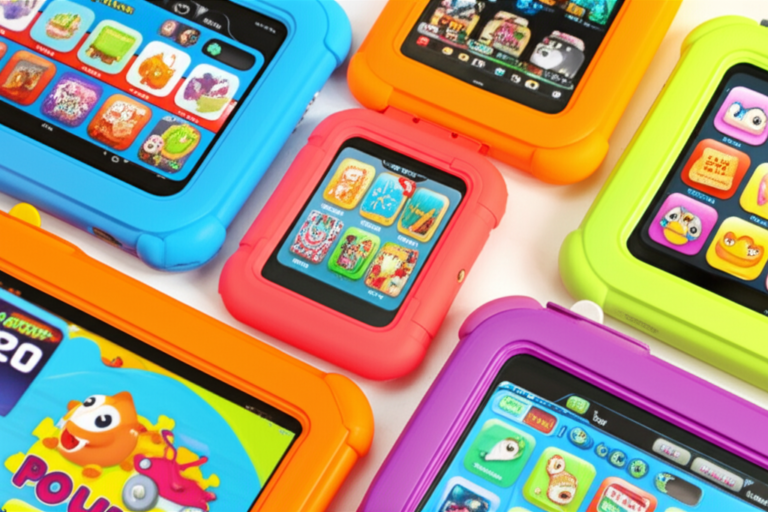
Are There Any Potential Safety Concerns with Kids Tablets? 🛡️ (2026)

Handing your child a tablet can feel like giving them the keys to a digital kingdom—full of wonder, learning, and yes, a few lurking dangers. But are kids tablets truly safe? From privacy pitfalls and blue light exposure to content risks and physical durability, the potential safety concerns are as varied as the apps on the device. At Kids Tablets™, we’ve combined insights from parents, kids, and app developers to unpack every angle of this hot topic.

Did you know that while interactive screen time can boost learning, excessive or unmanaged use might impact sleep, behavior, and even eye health? And that some tablets come with a “worry-free” warranty that replaces broken devices without hassle? Stick around as we reveal real-life stories, expert-backed tips, and the top tablets that balance fun with safety. Ready to become a digital safety pro for your family? Let’s dive in!


Key Takeaways

  • Privacy and data security are critical: Always enable parental controls, disable location tracking, and review app permissions to protect your child’s personal information.
  • Blue light exposure affects sleep and eyes: Use built-in blue light filters and enforce screen-free time before bed to safeguard your child’s health.
  • Content and screen time management matter: Curate age-appropriate content and set consistent limits to prevent exposure to inappropriate material and behavioral issues.
  • Durability and hygiene can’t be overlooked: Invest in rugged tablets with protective cases and maintain regular cleaning to ensure physical safety.
  • Parental controls are your best friend: Utilize features like Amazon Parent Dashboard, Apple Screen Time, or Google Family Link to monitor and manage usage effectively.
  • Balance is key: Combine tablet use with outdoor play, social interaction, and offline activities for healthy development.

Curious about which tablets made our top safety picks or how to set up foolproof parental controls? Keep reading for all that and more!


Table of Contents


⚡️ Quick Tips and Facts About Kids Tablets and Safety

Welcome to Kids Tablets™! As a team of parents, kids, and app developers, we know the digital world can feel like a wild frontier. Kids tablets are incredible tools for learning and fun, but like any powerful tool, they come with a responsibility to ensure safety. Are you wondering if those shiny screens are truly safe for your little ones? You’re in the right place! We’re diving deep into all the potential safety concerns, offering expert advice, and sharing real-world experiences to help you navigate this landscape with confidence.

Here are some quick, actionable tips and facts to get us started on the right foot:

  • Screen Time is Key: ⏰ Moderation is paramount! The American Academy of Pediatrics (AAP) recommends limiting screen time for children, especially for those under 5. For kids 2-5, aim for no more than 1 hour per day of high-quality programming, co-viewed with a parent. For older children, establish consistent limits.
  • Parental Controls are Your Superpower: 💪 Don’t just hand over the tablet! Dive into the settings and activate robust parental controls. These tools are designed to filter content, manage app access, and set time limits. Learn more about Kid-Friendly Tablets with strong parental features.
  • Blue Light Matters: 👁️ 🗨️ Long exposure to blue light, especially before bedtime, can disrupt sleep patterns. Look for tablets with built-in blue light filters or use third-party apps to reduce exposure.
  • Privacy Isn’t Optional: 🔒 Understand what data apps collect. Always review privacy policies and disable location tracking and unnecessary permissions. As the first YouTube video embedded in this article highlights, “Turn off precise location sharing!” and other privacy-sensitive settings.
  • Durability Saves the Day: 🛡️ Kids are, well, kids! Invest in a durable tablet and a sturdy case. Accidents happen, and a robust device can prevent physical hazards from broken screens or exposed components.
  • Did You Know? Some studies suggest that interactive, educational screen time, when co-viewed with a parent, can actually enhance learning and problem-solving skills, rather than hinder them. It’s all about how and what they’re engaging with!

📚 Understanding Kids Tablets: A Safety Background

Young girl holding a smartphone with a green screen.

Remember the days of simple wooden blocks and picture books? Fast forward to today, and our kids are swiping, tapping, and exploring digital worlds before they can even tie their shoes! The evolution of kids’ tablets has been nothing short of revolutionary. From basic learning games to full-fledged interactive educational platforms, these devices have become ubiquitous in many households. But with great power comes great responsibility, right?

At Kids Tablets™, we’ve seen this evolution firsthand. Our app developers are constantly innovating, our parent team is navigating the daily realities, and our kid testers are giving us the unfiltered truth! We believe that understanding the “why” behind safety concerns is just as important as knowing the “what.”

Think of it this way: just as the FDA rigorously evaluates medications like Zofran for potential cardiac risks or compounded ketamine for unproven efficacy and safety concerns, we, as parents and developers, must apply a similar level of scrutiny to the digital “medications” (tablets) we introduce to our children. The FDA warns that “Compounded ketamine products have been marketed for a wide variety of psychiatric disorders…FDA has not determined that ketamine is safe and effective for such uses.” This highlights the critical need for proven safety and efficacy, a principle that extends to the digital tools our kids use. We need to ask: Is this app truly safe? Is this tablet truly beneficial?

The early kids’ tablets were often clunky, limited in functionality, and primarily focused on pre-loaded educational content. Today, they’re mini-computers, offering access to vast app stores, streaming services, and the internet. This incredible access brings immense opportunities for learning and creativity, but it also introduces a new frontier of potential safety concerns – from data privacy to content exposure, and even physical well-being. Our mission is to help you understand these complexities, providing clear, actionable insights so you can make informed choices for your family.

🔍 1. Common Safety Concerns with Kids Tablets

Video: Amazon’s kid-safe tablet is good news for concerned parents.

Alright, let’s get down to brass tacks. When you hand a tablet to your child, what exactly are the boogeymen lurking in the digital shadows? It’s not about fear-mongering, but about being informed. Our team has identified several key areas where potential safety concerns can arise. Let’s explore them one by one.

🔒 1.1 Privacy and Data Security Risks

This is a big one, folks. In our increasingly connected world, data is currency, and our children’s data is no exception. When a child uses a tablet, especially with various apps, a surprising amount of information can be collected.

What kind of data are we talking about?

  • Usage Data: What apps they use, for how long, what they click on.
  • Location Data: If enabled, where the device is being used.
  • Personal Information: Depending on app sign-ups, this could include names, ages, and even photos.
  • Behavioral Data: How they interact with games, what preferences they show.

The Risks:

  • Targeted Advertising: Ever notice how ads seem to “know” what you’ve been talking about? Kids aren’t immune. Their usage data can be used to target them with specific ads, sometimes for inappropriate products or in-app purchases.
  • Data Breaches: No system is 100% secure. If a company storing your child’s data experiences a breach, that information could fall into the wrong hands.
  • Identity Theft: While less common for children, aggregated data can contribute to a digital profile that could be exploited later.
  • Inappropriate Contact: Some apps, especially those with chat features or social elements, can expose children to unwanted interactions.

Our Expert Take: “As app developers, we’re acutely aware of the data collection landscape,” says Sarah, one of our lead developers. “We design our apps with privacy by design, minimizing data collection and ensuring robust security. But not all apps are created equal.”

What You Can Do:

  • Read Privacy Policies: Yes, they’re long and often boring, but they tell you what data is collected and how it’s used. Focus on apps your child uses frequently.
  • Disable Location Services: Unless absolutely necessary for an app’s core function (which is rare for most kids’ apps), turn off precise location sharing. As the first YouTube video embedded in this article emphasizes, this is a crucial step for safeguarding privacy. You can find helpful guides on managing these settings in our Tablet How-To Guides.
  • Strong Passwords: Use unique, complex passwords for all accounts associated with the tablet. Consider a password manager.
  • Limit Third-Party Accounts: The video also advises, “Do not sign up with third party accounts” unless you’ve thoroughly vetted their privacy practices.
  • Regularly Review App Permissions: Go into your tablet’s settings and see what permissions each app has (e.g., access to camera, microphone, contacts). Revoke anything that seems excessive.

Just as the NCCIH warns about the “significant variability in the actual melatonin content of supplements compared to what is listed on the label” due to lack of regulation, we see a similar variability in the data privacy practices of different apps. Some are transparent and secure, others are… less so. Vigilance is key!

⚡️ 1.2 Exposure to Blue Light and Eye Strain

Ah, the glow of the screen! While it’s captivating, it also emits blue light, a high-energy visible light that can have implications for our eyes and sleep cycles.

What is Blue Light? Blue light is a part of the visible light spectrum. While natural blue light from the sun is important for regulating our circadian rhythm, artificial blue light from screens can be problematic, especially with prolonged exposure.

Potential Concerns:

  • Eye Strain: Staring at a screen for extended periods can lead to digital eye strain, characterized by dry eyes, blurred vision, headaches, and neck pain. Kids, with their developing eyes, are particularly susceptible.
  • Sleep Disruption: Blue light suppresses melatonin production, the hormone that tells our bodies it’s time to sleep. Using tablets close to bedtime can make it harder for children to fall asleep and impact the quality of their sleep. A study published by the American Academy of Ophthalmology discusses the impact of digital devices on eye health, noting that while direct retinal damage from device blue light is unproven, eye strain and sleep disruption are real concerns Source: American Academy of Ophthalmology.

Our Expert Take: “My daughter used to struggle to fall asleep after playing on her tablet in the evenings,” shares David, a parent on our team. “Once we started using the blue light filter and setting a ‘no screens an hour before bed’ rule, her sleep improved dramatically. It was a game-changer!”

Solutions and Tips:

  • Blue Light Filters: Many modern tablets (like the Amazon Fire Kids Edition and Apple iPad) have built-in blue light filters or “Night Shift” modes that shift screen colors to warmer tones in the evening.
  • Screen Breaks: Encourage the 20-20-20 rule: every 20 minutes, look at something 20 feet away for at least 20 seconds.
  • Proper Distance: Ensure your child holds the tablet at a comfortable distance, typically 18-24 inches from their eyes.
  • Limit Evening Use: Try to implement a “digital sunset” at least 1-2 hours before bedtime.
  • Adjust Brightness: Keep the screen brightness appropriate for the ambient lighting.

🛑 1.3 Inappropriate Content and Screen Time Management

This is often the first thing parents worry about, and for good reason! The internet is a vast ocean, and not all waters are safe for little swimmers.

The Content Conundrum:

  • Accidental Exposure: A simple search query, a click on a misleading link, or an unmoderated comment section can expose children to violent, sexual, or otherwise inappropriate content.
  • Age-Inappropriate Apps/Games: App stores are filled with content not suitable for all ages. Without proper controls, kids can easily download or access games meant for older audiences.
  • Harmful Influences: Exposure to cyberbullying, hate speech, or radical content, even if unintentional, can have lasting psychological effects.

The Screen Time Struggle:

  • Developmental Impact: Excessive screen time, especially passive consumption, can potentially impact cognitive development, language skills, and attention spans. The AAP provides comprehensive guidelines on healthy media use for children Source: American Academy of Pediatrics.
  • Behavioral Issues: We’ve heard countless stories from parents about increased irritability, tantrums, or difficulty transitioning away from screens. “My son would turn into a gremlin when I told him screen time was over,” recounts Maria, a parent from our community. “It took consistent limits and clear expectations to turn that around.”
  • Social Isolation: Swapping real-world interactions for virtual ones can sometimes hinder the development of crucial social skills.

Our Expert Take: “It’s a constant balancing act,” says Emily, a mom of two and a content specialist at Kids Tablets™. “We want our kids to explore and learn, but we also need to be the gatekeepers. That’s why we champion Educational Tablets that offer curated, age-appropriate content.”

Solutions and Tips:

  • Robust Parental Controls: This is your primary defense! Utilize features like web filtering, app restrictions, and content age ratings. We’ll dive deeper into these in Section 3.
  • Content Curation: Opt for tablets or platforms that offer curated content libraries, like Amazon Kids+ or Google Kids Space.
  • Co-Viewing: Whenever possible, watch or play with your child. This allows you to guide their experience, explain what they’re seeing, and bond over digital activities.
  • Set Clear Limits: Establish consistent daily or weekly screen time limits and stick to them. Use timers or the tablet’s built-in screen time features.
  • Create a “Digital Diet”: Balance screen time with other activities like outdoor play, reading physical books, creative arts, and social interaction.

📶 1.4 Wireless Connectivity and Radiation Exposure

This concern often sparks lively debates among parents. Tablets connect to the internet via Wi-Fi or cellular data, both of which use radiofrequency (RF) electromagnetic fields (EMF).

The Concern: Some parents worry about the potential health effects of long-term exposure to these low-level RF-EMF emissions, particularly on developing brains.

What the Science Says:

  • Current Consensus: Major health organizations like the World Health Organization (WHO) and the Centers for Disease Control and Prevention (CDC) state that, based on current scientific evidence, there is no conclusive proof that exposure to low-level RF-EMF from Wi-Fi or cellular devices causes adverse health effects in children or adults. Studies are ongoing, and the scientific community continues to monitor research. Source: World Health Organization.
  • Differences from Other Radiation: It’s important to distinguish between non-ionizing radiation (like RF-EMF from tablets) and ionizing radiation (like X-rays), which is known to cause cellular damage.

Our Expert Take: “As developers, we adhere to all regulatory guidelines regarding RF emissions,” explains Mark, an engineer on our team. “While the science currently points to no significant risk, we understand parental concerns. It’s always about balancing utility with caution.”

Precautionary Measures (if you’re concerned):

  • Distance is Your Friend: The strength of RF-EMF decreases rapidly with distance. Encourage your child to hold the tablet at arm’s length or place it on a table rather than directly on their lap for extended periods.
  • Download Content: When possible, download games, movies, or books for offline use, then turn off Wi-Fi or cellular data.
  • Limit Use in Weak Signal Areas: Devices work harder (and emit slightly more RF-EMF) when the signal is weak.
  • Turn Off When Not in Use: If the tablet isn’t actively being used, consider turning off Wi-Fi or putting it in airplane mode.

🧠 1.5 Impact on Child Development and Behavior

Beyond the digital and physical, perhaps the most profound safety concern revolves around how tablets influence a child’s developing mind and behavior. This is a complex area with both potential benefits and drawbacks.

Potential Drawbacks:

  • Cognitive Development: Excessive passive screen time might displace activities crucial for cognitive development, such as imaginative play, problem-solving with physical objects, and direct social interaction. Some studies suggest a correlation between high screen time and lower scores on developmental screening tests in young children Source: JAMA Pediatrics.
  • Social-Emotional Skills: Face-to-face interactions are vital for learning social cues, empathy, and conflict resolution. Over-reliance on screens can sometimes hinder the development of these crucial skills.
  • Attention Span: Fast-paced, highly stimulating digital content might contribute to difficulties with sustained attention in real-world tasks.
  • Addiction/Dependency: The reward systems in many games and apps can create a strong desire for continued use, leading to arguments and dependency.
  • Behavioral Issues: As mentioned earlier, transitions off screens can be challenging, leading to frustration, irritability, and tantrums.

Potential Benefits (when used appropriately):

  • Educational Tools: High-quality educational apps can enhance literacy, numeracy, problem-solving, and creativity.
  • Access to Information: Tablets provide a gateway to vast amounts of knowledge, fostering curiosity and independent learning.
  • Creative Expression: Digital art, music creation, and coding apps offer new avenues for creative expression.
  • Connection: For families separated by distance, tablets can facilitate video calls and shared experiences.

Our Expert Take: “It’s not the tablet itself that’s inherently ‘bad’ or ‘good’,” explains Dr. Anya Sharma, a child psychologist and advisor to Kids Tablets™. “It’s about how it’s used, what content is consumed, and who is guiding the experience. Just as the NCCIH notes that we don’t fully understand the long-term hormonal impact of melatonin supplements on children, we are still learning the full, long-term impact of digital media on brain development. This uncertainty underscores the importance of a balanced approach.”

Balancing Perspectives: We believe in a balanced approach. Tablets are powerful tools. Our kids, who are often our toughest critics and most enthusiastic testers, show us daily how tablets can spark joy and learning. But they also remind us of the need for breaks, outdoor play, and real-world adventures. The goal isn’t to eliminate tablets, but to integrate them thoughtfully and safely into a child’s life.

🛠️ 2. How to Choose a Safe Kids Tablet: Features to Look For

Video: Amazon’s tablet for kids now has features designed to put safety first.

So, you’re convinced that safety is paramount, but how do you pick the right digital companion for your child? It’s not just about the coolest games or the brightest screen. It’s about finding a device that’s built with your child’s well-being in mind. Here’s what our team at Kids Tablets™ recommends looking for:

1. Robust Parental Controls: This is non-negotiable. A truly safe kids’ tablet will offer a comprehensive suite of parental controls that are easy to set up and manage.

  • Content Filtering: Ability to block inappropriate websites, apps, and videos.
  • Time Limits: Features to set daily screen time limits and enforce “bedtime” curfews.
  • App Management: Control over which apps can be downloaded, installed, or accessed.
  • Purchase Restrictions: Prevent accidental in-app purchases or unauthorized downloads.
  • User Profiles: Separate profiles for each child, allowing customized settings.

2. Durable Design and Kid-Proofing: Let’s be real: kids drop things. A lot.

  • Protective Bumper Case: Many kids’ tablets come with a thick, shock-absorbent case right out of the box. This is a huge plus!
  • Screen Protector: A pre-installed or easily attachable screen protector can save you from cracked screens.
  • Splash-Proof/Water-Resistant: While not fully waterproof, some tablets offer a degree of resistance to spills, which is a lifesaver.

3. Curated Content Ecosystem: Look for tablets that offer access to a pre-vetted library of age-appropriate content.

  • Educational Focus: Does the platform prioritize learning apps, e-books, and videos?
  • Subscription Services: Services like Amazon Kids+ or Google Kids Space offer thousands of kid-friendly titles, often without ads.
  • No Ads/In-App Purchases: Ideally, content for kids should be free from distracting ads and manipulative in-app purchase prompts.

4. Privacy-First Approach: Dig into the brand’s reputation for privacy and data handling.

  • Clear Privacy Policies: Can you easily find and understand how they collect and use data?
  • COPPA Compliance: Ensure the device and its associated services comply with the Children’s Online Privacy Protection Act (COPPA) in the U.S.
  • Minimal Data Collection: Does the tablet or platform minimize the collection of personal information?

5. Eye-Care Features: Protecting those precious peepers is crucial.

  • Blue Light Filter/Night Mode: Essential for reducing eye strain and improving sleep.
  • Screen Distance Alerts: Some advanced tablets can even alert children if they’re holding the device too close.

6. Performance and Longevity: While safety is key, you also want a tablet that performs well and lasts.

  • Decent Processor and RAM: Ensures apps run smoothly and don’t frustrate your child (or you!).
  • Sufficient Storage: Allows for downloading plenty of content for offline use.
  • Battery Life: A good battery means less charging and more uninterrupted play/learning.

Our Recommendation: “When we’re evaluating tablets for our own kids, we always start with the parental controls and durability,” says Alex, a parent and product reviewer for Kids Tablets™. “If those aren’t top-notch, it doesn’t matter how many cool games it has. We’re looking for peace of mind, not just entertainment.”

For a deeper dive into specific models and their features, check out our Tablet Comparisons section!

👨 👩 👧 👦 3. Parental Controls and Monitoring Tools: Keeping Kids Safe

Video: Screen time concerns: What’s the safe amount of time for kids using smartphones and iPads?

Think of parental controls as your digital safety net. They’re not about spying on your kids, but about creating a safe, curated environment where they can explore and learn without stumbling into digital dangers. At Kids Tablets™, we consider these tools to be absolutely essential for any family with a kids’ tablet.

What are Parental Controls? These are software features, often built into the tablet’s operating system or a dedicated app, that allow parents to manage and restrict their child’s device usage.

Key Features You Should Master:

  1. Screen Time Limits:

    • How it works: You can set daily limits (e.g., 1 hour of games, 30 minutes of videos) or specific “bedtime” hours when the tablet locks down.
    • Why it’s vital: Helps prevent excessive use and ensures a balance with other activities.
    • Example: On an Amazon Fire Kids Edition tablet, you can use the Amazon Parent Dashboard to set educational goals (e.g., 30 minutes of reading before games unlock) and total screen time limits.
    • Step-by-step (General):
      1. Access the tablet’s main settings or dedicated parental control app (e.g., Amazon Parent Dashboard, Apple Screen Time, Google Family Link).
      2. Select your child’s profile.
      3. Look for “Screen Time,” “Usage Limits,” or similar options.
      4. Set daily time allowances, specific app limits, and downtime schedules.
  2. Content Filtering and Web Browsing Restrictions:

    • How it works: Blocks access to inappropriate websites, search results, and specific content categories (e.g., violence, mature themes).
    • Why it’s vital: Protects against accidental exposure to harmful content.
    • Example: Apple’s Screen Time on an iPad allows you to restrict web content to “Limit Adult Websites” or “Allowed Websites Only.”
    • Step-by-step (General):
      1. Navigate to parental controls.
      2. Find “Web Content,” “Browser Restrictions,” or “Content Restrictions.”
      3. Choose your desired level of filtering (e.g., block all adult content, only allow specific sites).
  3. App and Game Restrictions:

    • How it works: Allows you to approve or block specific apps, or restrict app downloads based on age ratings.
    • Why it’s vital: Ensures your child only accesses age-appropriate and parent-approved applications.
    • Example: With Google Family Link, you can approve or block apps your child wants to download from the Google Play Store directly from your phone.
    • Step-by-step (General):
      1. Go to parental controls.
      2. Look for “App Limits,” “Allowed Apps,” or “Content & Privacy Restrictions.”
      3. Select apps to allow/block, or set age ratings for app store downloads.
  4. Purchase Controls:

    • How it works: Requires a password or parental approval for any app purchases, in-app purchases, or digital content downloads.
    • Why it’s vital: Prevents unexpected bills from accidental (or intentional!) purchases.
    • Example: All major platforms (Amazon, Apple, Google) offer robust purchase approval settings.

Our Expert Take: “As the first YouTube video embedded in this article highlights, understanding and utilizing these controls is paramount for creating a safe digital space,” says Emily, our content specialist. “The video offers excellent practical advice on navigating Amazon’s Parent Dashboard, which is a fantastic example of a comprehensive control system.” You can watch the video here: #featured-video.

A Developer’s Perspective: “When we design our apps, we build them to integrate seamlessly with parental control systems,” explains Sarah, our lead app developer. “We want parents to feel empowered, not overwhelmed. The goal is intuitive design that makes managing safety settings straightforward, not a chore.”

Real-Life Anecdote: “I once forgot to set up purchase controls on my son’s tablet,” confesses Mark, a dad on our team. “Next thing I knew, he’d bought a whole new wardrobe for his favorite game character! It was a small lesson, but a clear reminder: always set up those purchase controls first!

Pro Tip: Don’t just set them and forget them! Regularly review your parental control settings, especially as your child grows and their needs change. What’s appropriate for a 5-year-old might be too restrictive for an 8-year-old.

Ready to take control? Here are some top tablets known for their excellent parental control features:

For detailed guides on setting up these controls, visit our Tablet How-To Guides.

🧩 4. Real-Life Stories: Parents Share Their Kids Tablet Safety Experiences

Video: Consequences for kids’ of endless screen time.

At Kids Tablets™, we’re not just experts; we’re parents living these experiences every day. Sometimes, the best advice comes from those who’ve been there, done that, and maybe even cleaned up a spilled juice box off a tablet screen. Here are a few anecdotes from our community that highlight the ups, downs, and learning curves of kids’ tablet safety.

Story 1: The Accidental YouTube Rabbit Hole (and the Solution!) “My daughter, Lily, was 6 when she got her first tablet,” shares Jessica, a mom from our Kids Tablets™ Facebook group. “I thought I had everything locked down, but one day, she somehow bypassed the YouTube Kids app and ended up on regular YouTube. She was watching a video about cute kittens, but then the autoplay led to something totally inappropriate for her age – a scary movie trailer! I walked in just as she was getting visibly distressed.”

The Lesson: “It was a wake-up call. I realized that even with parental controls, kids are incredibly resourceful. I immediately went back and tightened the web filtering, specifically blocking the main YouTube site and ensuring only approved apps could be opened. Now, I regularly check her browsing history and app usage. It’s an ongoing process, not a one-time setup!”

Story 2: The “Worry-Free” Warranty That Saved the Day “My son, Leo, is a whirlwind of energy,” laughs Tom, a dad and Kids Tablets™ app tester. “He loves his Amazon Fire HD 10 Kids Edition tablet. One afternoon, he was playing a game, got a little too excited, and whoosh – the tablet went flying across the room and hit the wall. Screen shattered!”

The Lesson: “I was devastated, thinking I’d have to buy a whole new tablet. But then I remembered the 2-year worry-free guarantee that came with the Amazon Kids tablet. I contacted Amazon, explained what happened, and they replaced it, no questions asked! It was such a relief. That experience taught me the value of investing in a tablet that truly stands behind its ‘kid-proof’ claims. It’s not just about the case; it’s about the peace of mind.”

Story 3: Finding the Balance with Screen Time “My twins, Mia and Noah, are 8, and they could spend all day on their tablets if I let them,” says Sarah, a developer on our team. “We struggled with constant arguments when it was time to put them away. It was impacting their homework and even their sleep.”

The Lesson: “We implemented a ‘digital diet’ that worked for our family. We use the parental controls to set strict time limits, but we also involve them in the process. We have a family meeting once a week to discuss their favorite apps and how they’re using their screen time. We also introduced ‘tech-free zones’ like the dinner table and bedrooms after 8 PM. It wasn’t easy at first, but now they understand the boundaries, and the arguments are almost non-existent. It’s about teaching them self-regulation, not just imposing rules.”

These stories remind us that while technology offers incredible benefits, it also requires active parenting and a willingness to adapt. Our kids are growing up in a digital world, and it’s our job to equip them with the tools and knowledge to navigate it safely.

📊 5. Research Insights: What Studies Say About Kids Tablets and Safety

Video: Top 5 Kids Tablets in 2026👌.

When it comes to kids and tablets, everyone has an opinion. But what does the science say? At Kids Tablets™, we believe in grounding our advice in reliable research. It’s a dynamic field, with new studies emerging constantly, but here’s a summary of key insights from reputable sources.

The American Academy of Pediatrics (AAP) Guidelines: The AAP is a leading authority on child health, and their recommendations on media use are highly influential.

  • Under 18 Months: Avoid screen media use, except for video-chatting.
  • 18-24 Months: Parents should choose high-quality programming and watch it with their children.
  • 2-5 Years: Limit screen use to 1 hour per day of high-quality programs, co-viewed with a parent.
  • 6 Years and Older: Place consistent limits on the time spent using media, and ensure media does not take the place of adequate sleep, physical activity, and other behaviors essential to health. Source: American Academy of Pediatrics

Key Research Findings and Debates:

  1. Cognitive Development:

    • Concerns: Some studies suggest that excessive passive screen time in early childhood may be associated with delays in language development and executive function skills. A study published in JAMA Pediatrics found a link between higher screen time at 24 and 36 months and poorer performance on developmental screening tests at 36 and 60 months Source: JAMA Pediatrics.
    • Benefits: Conversely, interactive, educational apps, especially when used with parental guidance, can enhance literacy, numeracy, and problem-solving skills.
    • Our Take: It’s not just about how much screen time, but what kind of screen time. High-quality, interactive, and co-viewed content is generally seen as more beneficial.
  2. Sleep Patterns:

    • Concerns: Consistent evidence shows that blue light exposure from screens, particularly in the hours before bedtime, can suppress melatonin production and disrupt circadian rhythms, leading to difficulty falling asleep and poorer sleep quality.
    • Our Take: This is a well-established concern. Implementing a “digital sunset” and using blue light filters are crucial.
  3. Physical Health:

    • Concerns: Prolonged sedentary screen time is linked to increased risk of childhood obesity. Poor posture while using tablets can contribute to neck and back pain.
    • Our Take: Encourage regular breaks, physical activity, and ergonomic use of tablets.
  4. Social-Emotional Development:

    • Concerns: Some research indicates that excessive screen time can displace face-to-face interactions, potentially impacting the development of social cues and empathy.
    • Benefits: Tablets can facilitate communication with distant family members and provide platforms for creative collaboration.
    • Our Take: Balance is key. Prioritize real-world social interactions and use tablets as a tool for connection, not a replacement.
  5. Radiation Exposure:

    • Current Consensus: As discussed in Section 1.4, major health organizations state that current scientific evidence does not conclusively link low-level RF-EMF from Wi-Fi or cellular devices to adverse health effects. Research is ongoing. Source: World Health Organization.
    • Our Take: While the scientific consensus is reassuring, we support precautionary measures for concerned parents.

The “Unknowns” and the Melatonin Parallel: It’s important to acknowledge that the long-term effects of widespread tablet use on children are still being studied. As the NCCIH article on melatonin states, “There are not many studies on children and melatonin, and little information exists on its long-term effects.” This sentiment resonates deeply with the digital landscape. We are still in the early stages of understanding the full impact of these powerful devices on developing minds. This lack of definitive long-term data underscores the importance of a cautious, balanced, and informed approach.

Table: Screen Time: Potential Pros and Cons (Based on Research)

Aspect Potential Pros (with mindful use) Potential Cons (with excessive/unmanaged use)
Cognitive Enhanced problem-solving, literacy, numeracy, digital literacy Displaced imaginative play, potential for attention difficulties
Educational Access to vast learning resources, interactive educational apps Exposure to misinformation, passive consumption over active learning
Social-Emotional Connection with distant family, collaborative learning Reduced face-to-face interaction, potential for social isolation
Physical N/A Sedentary behavior (obesity risk), eye strain, poor posture
Sleep N/A Disrupted sleep cycles due to blue light, difficulty falling asleep
Behavioral Self-regulation (with clear limits), creative expression Increased irritability, tantrums, dependency/addiction

Conclusion from Research: The overarching message from research is clear: context matters. It’s not about whether tablets are “good” or “bad,” but how they are integrated into a child’s life. Active parental involvement, setting limits, choosing high-quality content, and balancing screen time with other activities are consistently recommended for maximizing benefits and minimizing risks.

🧼 6. Hygiene and Physical Safety: Cleaning and Handling Kids Tablets

Video: 4 Things to Know Before You Buy a Kids’ Tablet | Consumer Reports.

Beyond the digital dangers, let’s not forget the good old physical world! Kids’ tablets are magnets for sticky fingers, crumbs, and all sorts of delightful germs. Plus, they’re electronic devices, which means physical safety is also a concern. Our Kids Tablets™ team, especially the parents among us, have seen it all – from tablets covered in jam to devices taking an unexpected tumble.

6.1 The Germ Factor: Keeping Tablets Clean

Think about it: your child touches their tablet, then their mouth, then their friend’s toy. Tablets can harbor a surprising amount of bacteria and viruses. A study published in Scientific Reports found that mobile phones (and by extension, tablets) can carry a diverse range of microorganisms, including potential pathogens Source: Scientific Reports. Yuck! 🦠

Our Expert Cleaning Tips:

  • Unplug First: Always disconnect the tablet from any power source before cleaning.
  • Use the Right Products:
    • Avoid: Harsh chemicals, abrasive cleaners, window cleaners, aerosol sprays, or bleach. These can damage the screen’s oleophobic (oil-repellent) coating and other components.
    • Use: A soft, lint-free microfiber cloth, slightly dampened with water. For tougher grime or disinfection, a solution of 70% isopropyl alcohol and 30% water, or specialized electronic screen cleaners, applied to the cloth (never directly to the screen), is generally safe.
  • Wipe Gently: Don’t scrub. Gently wipe the screen and the back of the tablet.
  • Don’t Forget the Case: Remove the protective case and clean it separately with soap and water (if washable) or a disinfectant wipe. Let it dry completely before putting it back on.
  • Frequency: Aim for a quick wipe-down daily, and a more thorough cleaning weekly, especially during cold and flu season.

Anecdote from a Parent: “My youngest once sneezed directly onto her tablet screen during a video call with grandma,” recalls Maria, a mom of three. “It was disgusting! That’s when I realized how important regular cleaning is. Now, a quick wipe with a microfiber cloth is part of our daily routine.”

6.2 Physical Hazards: Drops, Chokes, and Ergonomics

Beyond germs, there are other physical aspects to consider for your child’s safety.

1. Durability and Protection:

  • Drops and Bumps: Kids drop things. It’s a fact of life. A sturdy, shock-absorbent case is your first line of defense against cracked screens and internal damage. Many kids’ tablets, like the Samsung Galaxy Tab A7 Lite Kids, come with a robust bumper case.
  • Screen Protectors: A tempered glass screen protector can add an extra layer of defense against scratches and shatters.
  • Exposed Components: If a tablet does break, exposed wires or sharp edges can pose a physical hazard. Always inspect damaged devices immediately and consider professional repair or replacement.

2. Choking Hazards:

  • Small Parts: Be mindful of small accessories like styluses, charging port covers, or even detachable parts of a case, especially for very young children.
  • Cables: While not a choking hazard in the traditional sense, long charging cables can be a strangulation risk for toddlers. Always supervise charging and keep cables out of reach.

3. Ergonomics and Posture:

  • Neck and Back Strain: Hunching over a tablet for extended periods can lead to “tech neck” and poor posture.
  • Eye Strain: As discussed in Section 1.2, holding the tablet too close or for too long can strain the eyes.
  • Our Tips:
    • Encourage Proper Posture: Remind your child to sit upright, with their feet flat on the floor, and the tablet at eye level if possible (using a stand can help).
    • Maintain Distance: Teach them to hold the tablet at arm’s length (about 18-24 inches).
    • Regular Breaks: Integrate the 20-20-20 rule to give their eyes and bodies a rest.
    • Vary Activities: Ensure tablet time is balanced with active play and movement.

A Developer’s Insight: “When we’re designing tablets for kids, physical durability is just as important as software safety,” says Mark, our lead engineer. “We put these devices through rigorous drop tests and stress tests because we know they’ll face the ultimate challenge: a child’s everyday use!”

By paying attention to both digital and physical safety, you can ensure your child’s tablet experience is as safe and healthy as possible.

🎯 7. Tips and Best Practices for Safe Kids Tablet Usage

Alright, you’ve learned about the concerns, you know what features to look for, and you’ve heard the real-life stories. Now, let’s put it all together into a comprehensive guide for safe kids’ tablet usage. This isn’t just a checklist; it’s a philosophy for integrating technology responsibly into your family’s life.

1. Be the Digital Pilot 🧑 ✈️ (Parental Controls are Your Co-Pilot):

  • Set Up First: Before handing over any tablet, thoroughly set up all available parental controls. This includes screen time limits, content filters, app restrictions, and purchase controls. Don’t skip this step!
  • Regular Reviews: As your child grows, their needs and the digital landscape change. Revisit and adjust settings periodically.
  • Know Your Device: Familiarize yourself with the specific parental control features of your chosen tablet (e.g., Amazon Parent Dashboard, Apple Screen Time, Google Family Link).

2. Embrace the “Digital Diet” 🍎:

  • Balance is Key: Think of screen time as part of a balanced “diet” that includes physical activity, creative play, reading, social interaction, and sleep.
  • AAP Guidelines: Follow the American Academy of Pediatrics’ recommendations for screen time based on age.
  • No Screens Before Bed: Implement a “digital sunset” 1-2 hours before bedtime to promote better sleep.

3. Co-View and Engage Together 🤝:

  • Watch and Play: Whenever possible, sit with your child while they’re using the tablet. Ask questions, discuss what they’re seeing, and turn passive consumption into an interactive experience.
  • Teach Digital Literacy: Use tablet time as an opportunity to teach them about online safety, identifying reliable sources, and responsible digital citizenship.
  • Model Good Behavior: Kids learn by example. Limit your own screen time, especially during family meals or conversations.

4. Choose Quality Over Quantity ✨:

  • Educational Content: Prioritize high-quality, interactive, and educational apps and games over passive entertainment. Look for apps that encourage creativity, problem-solving, and critical thinking.
  • Ad-Free Experience: Opt for apps and platforms that are free from intrusive ads and manipulative in-app purchases.
  • Vetted Content: Utilize curated content libraries like Amazon Kids+ or Google Kids Space, which offer age-appropriate materials.

5. Prioritize Physical Well-being 🧘 ♀️:

  • Ergonomics: Encourage good posture, holding the tablet at arm’s length, and using stands if possible.
  • Eye Breaks: Implement the 20-20-20 rule to prevent eye strain.
  • Blue Light Filters: Activate blue light filters or night modes, especially in the evenings.
  • Cleanliness: Regularly clean the tablet and its case to minimize germ transmission.

6. Foster Open Communication 🗣️:

  • Talk About It: Have ongoing conversations with your child about their online experiences, what they enjoy, and any concerns they might have.
  • Safe Space: Create an environment where they feel comfortable coming to you if they encounter something upsetting or confusing online.
  • Set Expectations: Clearly communicate rules and consequences regarding tablet use.

7. Secure the Device Itself 🛡️:

  • Strong Passwords: Use unique, complex passwords for the tablet and any associated accounts.
  • Privacy Settings: Disable location tracking and review app permissions regularly.
  • Software Updates: Keep the tablet’s operating system and apps updated to ensure you have the latest security patches.

Our Kids Tablets™ Golden Rules for Tablet Safety:

Rule # Principle Actionable Tip ✅ / ❌
1 Parental Control Power-Up ✅ Activate all available parental controls before first use.
2 The Digital Sunset ✅ No screens 1-2 hours before bedtime.
3 Co-Pilot Mode ✅ Watch and play with your child whenever possible.
4 Quality Over Quantity ✅ Choose educational, interactive, and ad-free content.
5 Movement & Breaks ✅ Encourage regular physical activity and screen breaks (20-20-20 rule).
6 Open Dialogue ✅ Talk openly with your child about their online experiences.
7 Physical Protection ✅ Invest in a durable case and keep the tablet clean.
8 Personal Data Lock-Down ✅ Disable location services and review app permissions.
9 No Unsupervised Downloads ❌ Don’t allow kids to download apps or make purchases without approval.
10 Lead by Example ✅ Model responsible screen time habits yourself.

By following these best practices, you’re not just mitigating risks; you’re empowering your child to become a responsible and safe digital citizen.

Video: 5 Best Tablets for Kids in 2025 – Safe, Fun & Learning-Friendly.

After countless hours of testing, reviewing, and getting feedback from our own kids, parents, and developers, we’ve identified a few standout tablets that truly prioritize safety alongside fun and learning. These devices offer a robust combination of parental controls, durability, and curated content, making them excellent choices for families.

Here’s our expert breakdown of the top contenders:

Rating Table: Kids Tablets Safety & Features

Feature Amazon Fire HD 8 Kids Pro Apple iPad Mini (with Family Sharing) Samsung Galaxy Tab A7 Lite Kids
Parental Controls 9 8 7
Durability 9 7 7
Content Curation 9 7 6
Blue Light Filter 8 8 7
Privacy Settings 8 9 7
Performance 7 9 6
Value for Money 9 6 8
Overall Safety Score 8.6 7.8 6.8

8.1 Amazon Fire HD 8 Kids Pro

The Amazon Fire Kids Pro tablets are specifically designed for children aged 6-12, offering a more “grown-up” tablet experience while retaining Amazon’s industry-leading parental controls.

  • Key Features:

    • Amazon Kids+ Subscription: Includes a year of Amazon Kids+, offering thousands of ad-free books, games, videos, and apps from popular brands like Disney, LEGO, and National Geographic.
    • Robust Parental Dashboard: Easy-to-use web-based dashboard allows parents to set screen time limits, manage content, approve app downloads, and even enable a digital store for kids to request apps (which parents must approve).
    • Durable Case & Warranty: Comes with a slim, kid-friendly case and a 2-year worry-free guarantee – if it breaks, Amazon replaces it, no questions asked! This is a huge peace of mind for parents.
    • Web Browser with Controls: Offers an open web browser with built-in controls to filter inappropriate content.
    • Blue Shade: Amazon’s blue light filter to reduce eye strain.
  • Benefits:

    • Exceptional Value: Combines a decent tablet, a year of premium content, a protective case, and a fantastic warranty into one package.
    • Seamless Parental Control: The Parent Dashboard is incredibly intuitive and comprehensive, making it easy to manage multiple child profiles.
    • Curated Content: Amazon Kids+ ensures a safe and engaging content library without ads or in-app purchases.
    • Peace of Mind: The worry-free guarantee is a game-changer for active kids.
  • Drawbacks:

    • Amazon Ecosystem: You’re largely tied into Amazon’s app store and services, which might limit access to some non-Amazon apps.
    • Performance: While good for kids’ apps, it’s not as powerful as premium tablets like an iPad.
  • Our Take: “The Amazon Fire Kids Pro is our top pick for families looking for a dedicated kids’ tablet,” says Alex, our product reviewer. “The combination of the worry-free guarantee and the comprehensive parental controls makes it incredibly reassuring for parents. My daughter absolutely loves the content on Kids+!”

  • 👉 CHECK PRICE on:


8.2 Apple iPad Mini (with Family Sharing & Screen Time)

While not specifically a “kids’ tablet,” the Apple iPad Mini, when paired with Apple’s robust Family Sharing and Screen Time features, becomes a powerful and safe device for older children.

  • Key Features:

    • Powerful iOS Ecosystem: Access to millions of high-quality apps, including a vast array of educational content, often with higher production values.
    • Screen Time: Apple’s built-in parental control system is incredibly comprehensive, allowing parents to set app limits, content restrictions, communication limits, and downtime schedules across all Apple devices.
    • Family Sharing: Easily share purchases, subscriptions, and manage parental controls for up to six family members.
    • True Tone Display: Automatically adjusts the display to match the color temperature of the room, reducing eye strain.
    • Privacy Focus: Apple has a strong reputation for user privacy and data security.
  • Benefits:

    • Premium Experience: Excellent performance, stunning display, and access to a vast, high-quality app store.
    • Robust Parental Controls: Screen Time is powerful and granular, offering deep control over usage and content.
    • Longevity: iPads are built to last and receive software updates for many years, offering a longer lifespan.
    • Versatility: Can grow with your child, transitioning from a learning tool to a productivity device.
  • Drawbacks:

    • Higher Cost: iPads are a significant investment compared to dedicated kids’ tablets.
    • Accessories Sold Separately: Protective cases, screen protectors, and styluses (like the Apple Pencil) are extra purchases.
    • Less “Kid-Proof” Out of the Box: Requires a good third-party case to withstand drops.
  • Our Take: “For families who are already in the Apple ecosystem or want a more powerful, versatile tablet that can grow with their child, the iPad Mini is an excellent choice,” says Sarah, our lead developer. “The iOS parental controls are incredibly sophisticated, and the quality of educational apps is unparalleled. Just be sure to invest in a really good, rugged case!” For more on Apple’s offerings, check out our iOS Tablets section.

  • 👉 CHECK PRICE on:


8.3 Samsung Galaxy Tab A7 Lite Kids

The Samsung Galaxy Tab A7 Lite Kids offers a solid Android-based option specifically tailored for younger users, providing a balance of features and affordability.

  • Key Features:

    • Samsung Kids Mode: A dedicated, secure environment for children with a fun, cartoonish interface. It includes pre-loaded educational content and games.
    • Parental Dashboard: Allows parents to set screen time limits, control app access, and monitor usage within the Kids Mode.
    • Durable Bumper Case: Comes with a colorful, protective case designed to withstand drops and bumps.
    • Google Play Store Access (for parents): Outside of Kids Mode, parents have full access to the Google Play Store for their own apps.
    • Eye Comfort Shield: Samsung’s blue light filter to reduce eye strain.
  • Benefits:

    • Affordable Android Option: A good entry-level tablet for kids without breaking the bank.
    • Dedicated Kids Mode: Provides a safe, walled-off environment that’s easy for kids to navigate.
    • Decent Performance: Sufficient for most kids’ apps and light gaming.
  • Drawbacks:

    • Parental Controls Less Intuitive: While functional, the parental control interface might be less streamlined or comprehensive compared to Amazon or Apple.
    • Content Library: The pre-loaded content is good, but the curated library within Samsung Kids might not be as extensive as Amazon Kids+.
    • Performance: Can be slower than premium tablets, especially with more demanding apps.
  • Our Take: “The Samsung Galaxy Tab A7 Lite Kids is a great choice for families looking for an Android-based kids’ tablet that’s easy on the wallet,” says David, a parent on our team. “The Kids Mode is a fantastic feature for keeping little ones safe, and the included case is a big plus. It’s a solid all-rounder for younger children.”

  • 👉 CHECK PRICE on:


Choosing the right tablet is a personal decision, but by focusing on these safety-centric features and considering our recommendations, you’ll be well on your way to finding a device that brings joy and learning to your child, safely and securely.

Here at Kids Tablets™, we believe in empowering parents with knowledge. The digital world is constantly evolving, and staying informed is your best defense. We’ve compiled a list of valuable external resources from reputable organizations that offer further guidance on children’s health, media use, and online safety.

  • American Academy of Pediatrics (AAP) Media and Children Communication Toolkit:
  • Common Sense Media:
    • Provides independent ratings and reviews for movies, TV shows, apps, games, websites, books, and music, helping parents make informed choices about media content.
    • Explore Common Sense Media
  • National Center for Complementary and Integrative Health (NCCIH) – Melatonin Information:
    • While not directly about tablets, this resource offers crucial insights into unregulated products and potential risks for children, drawing parallels to the need for vigilance in the digital space.
    • Learn about Melatonin from NCCIH
  • ConnectSafely:
    • A non-profit organization dedicated to educating parents, teens, educators, and policymakers about online safety, security, and privacy.
    • Discover ConnectSafely
  • Federal Trade Commission (FTC) – OnGuardOnline:
    • Provides practical tips from the federal government and the technology industry to help you be safe, secure, and responsible online.
    • Check out OnGuardOnline
  • World Health Organization (WHO) – Electromagnetic Fields and Public Health:
    • Offers scientific information regarding the health effects of electromagnetic fields, including those from wireless devices.
    • Read WHO’s EMF Fact Sheets

These links are fantastic starting points for deepening your understanding and staying ahead of the curve. Remember, knowledge is power, especially when it comes to protecting our kids in the digital age!

❓ FAQ: Your Burning Questions About Kids Tablets and Safety Answered

Young boy using a tablet on a couch

We know you’ve got questions, and we’re here to answer them! Our Kids Tablets™ team has compiled some of the most frequently asked questions from parents just like you.

Q1: How much screen time is safe for my child? A: This depends on age! The American Academy of Pediatrics (AAP) recommends:

  • Under 18 months: Avoid screen media, except for video-chatting.
  • 18-24 months: Choose high-quality programming and watch it with your child.
  • 2-5 years: Limit to 1 hour per day of high-quality programs, co-viewed with a parent.
  • 6 years and older: Set consistent limits that don’t interfere with sleep, physical activity, or other healthy behaviors. Our Take: It’s not just about the quantity, but the quality and context. Interactive, educational content with parental involvement is always better than passive viewing.

Q2: Are blue light filters really effective, or are they just a gimmick? A: Blue light filters (like Apple’s Night Shift or Amazon’s Blue Shade) are generally effective at shifting the screen’s color temperature to warmer tones, which can help reduce the suppression of melatonin, the sleep hormone. While they don’t eliminate all blue light, they can certainly help, especially when combined with a “digital sunset” rule (no screens 1-2 hours before bed). Our Take: They’re not a magic bullet, but they’re a helpful tool in your arsenal for promoting better sleep and reducing eye strain.

Q3: Can tablets cause eye damage in children? A: Current scientific evidence does not conclusively link blue light from digital devices to permanent eye damage in children. However, prolonged screen use can definitely lead to digital eye strain (dry eyes, headaches, blurred vision) and may contribute to myopia (nearsightedness) progression due to less time spent outdoors. Our Take: Encourage the 20-20-20 rule (every 20 minutes, look 20 feet away for 20 seconds), ensure proper viewing distance, and prioritize outdoor play.

Q4: Is Wi-Fi radiation from tablets dangerous for kids? A: Major health organizations like the World Health Organization (WHO) and the Centers for Disease Control and Prevention (CDC) state that, based on current scientific evidence, there is no conclusive proof that exposure to low-level radiofrequency (RF) electromagnetic fields (EMF) from Wi-Fi or cellular devices causes adverse health effects. Our Take: While research is ongoing, the current consensus is reassuring. If you’re concerned, simple precautionary measures like maintaining distance and turning off Wi-Fi when not in use can be implemented.

Q5: My child found inappropriate content despite parental controls. What went wrong? A: It happens! Kids are incredibly tech-savvy and sometimes parental controls aren’t foolproof. Common reasons include:

  • Outdated Settings: Controls might not have been updated as your child grew or as new apps/websites emerged.
  • Unapproved Apps: An app with its own browser or unmoderated content might have been downloaded.
  • “Smart” Kids: They might have found a loophole or a friend showed them how to bypass a setting. Our Take: Don’t panic, but act swiftly. Review all your parental control settings, ensure all apps are approved, and have an open conversation with your child about what they saw and why it’s not appropriate. It’s an ongoing learning process for both of you!

Q6: How can I prevent my child from making accidental in-app purchases? A: This is a classic! The best way is to set up purchase restrictions or password protection for all purchases within your tablet’s parental control settings (e.g., Amazon Parent Dashboard, Apple Screen Time, Google Family Link). This requires a password or parental approval for any transaction. Our Take: This is one of the easiest and most crucial controls to set up. Don’t leave home without it!

Q7: Should I get a dedicated kids’ tablet or a regular tablet with parental controls? A: Both have merits!

  • Dedicated Kids’ Tablets (e.g., Amazon Fire Kids Edition, Samsung Galaxy Tab A7 Lite Kids): Often come with durable cases, worry-free guarantees, and pre-loaded, curated content. They’re typically more affordable and simpler to manage for younger kids.
  • Regular Tablets (e.g., Apple iPad, Samsung Galaxy Tab): Offer more power, versatility, and access to a wider range of apps. They require more active parental setup and a separate durable case. Better for older kids who need more functionality. Our Take: For younger children (under 8-10), a dedicated kids’ tablet often provides better out-of-the-box safety and durability. For older kids, a regular tablet with robust parental controls offers more longevity and functionality.

Q8: My child gets really upset when screen time ends. How can I manage this? A: This is a common challenge!

  • Clear Expectations: Set clear, consistent limits and communicate them beforehand. Use visual timers.
  • Warnings: Give 5-minute warnings before screen time ends.
  • Transition Activities: Suggest an engaging activity to transition to (e.g., “After this game, let’s build LEGOs!”).
  • Consistency: Stick to your rules. Inconsistency makes it harder for kids to adjust.
  • Positive Reinforcement: Praise them when they transition smoothly. Our Take: It takes patience and consistency. Remember, you’re teaching them self-regulation, a vital life skill!

We hope these FAQs help you feel more confident in navigating the world of kids’ tablets. Keep asking questions, keep learning, and keep those kids safe!

To ensure our advice is always grounded in reliable information, we frequently consult leading experts and organizations in child development, health, and technology. Here are the sources cited throughout this article, along with additional resources for those who wish to dive deeper.

🏁 Conclusion: Navigating Kids Tablet Safety Like a Pro

A young boy reading a book on a couch.

Phew! We’ve journeyed through the digital jungle together, uncovering the potential safety concerns associated with kids tablets—from privacy pitfalls and blue light blues to content conundrums and physical durability dilemmas. But fear not! With the right knowledge and tools, you can confidently hand over a tablet that’s not just fun but safe and enriching for your child.

Product Review Recap: Our Top Picks

If you’re wondering which tablet to pick, here’s a quick recap of our top recommendations:

Tablet Model Positives Negatives Our Recommendation
Amazon Fire HD 8 Kids Pro Robust parental controls, worry-free 2-year warranty, curated content, durable case Locked into Amazon ecosystem, moderate performance ⭐️ Best overall for younger kids who need a safe, durable, and worry-free tablet experience.
Apple iPad Mini Premium performance, extensive app ecosystem, powerful Screen Time controls, privacy focus Higher cost, requires rugged case for durability ⭐️ Ideal for older kids and families invested in Apple ecosystem seeking versatility and longevity.
Samsung Galaxy Tab A7 Lite Kids Affordable, dedicated Kids Mode, durable case, decent parental controls Less intuitive controls, smaller curated content library ⭐️ Great budget-friendly Android option for younger children needing basic safety features.

Closing the Loop on Earlier Questions

Remember Jessica’s story about the YouTube rabbit hole? The key takeaway is that parental controls are powerful but not foolproof. Regular monitoring, open communication, and proactive adjustments are essential. And David’s tale about the worry-free warranty? That’s a reminder to invest in durability and support—because accidents happen, and peace of mind is priceless.

Ultimately, kids tablets are a fantastic tool when used thoughtfully. They can spark curiosity, creativity, and learning, while also providing entertainment. But like any tool, safety comes down to how you wield it. Use the tips, insights, and recommendations here as your compass, and you’ll steer your child’s digital experience toward safe, happy horizons.


Ready to shop or learn more? Here are some direct links to the tablets and resources we’ve discussed, plus a few handy books to deepen your understanding of kids’ digital safety.

Shop Kids Tablets with Safety Features

  • “The Tech-Wise Family: Everyday Steps for Putting Technology in Its Proper Place” by Andy Crouch
    Amazon Link

  • “Raising Humans in a Digital World: Helping Kids Build a Healthy Relationship with Technology” by Diana Graber
    Amazon Link

  • “Screenwise: Helping Kids Thrive (and Survive) in Their Digital World” by Devorah Heitner
    Amazon Link


❓ FAQ: Your Burning Questions About Kids Tablets and Safety Answered

man using silver iPad

How can I monitor my child’s activity on their tablet to ensure their safety?

Monitoring your child’s tablet activity is a blend of technology and communication:

  • Use Parental Control Dashboards: Platforms like Amazon Parent Dashboard, Apple Screen Time, and Google Family Link provide detailed reports on app usage, screen time, and browsing history.
  • Set Up Notifications: Enable alerts for app downloads or purchase requests.
  • Regular Check-Ins: Schedule weekly “tech talks” to discuss what your child is doing online.
  • Review App Permissions: Periodically check which apps have access to sensitive data like location or microphone.

This combination helps you stay informed without being intrusive, fostering trust and safety.

What are some safety guidelines for children using tablets with internet access?

  • Activate Content Filters: Block inappropriate websites and limit search results.
  • Set Time Limits: Prevent excessive use that can impact health and behavior.
  • Disable Location Sharing: Protect privacy by turning off GPS tracking.
  • Use Secure Wi-Fi: Avoid public or unsecured networks.
  • Educate Your Child: Teach them about online dangers, privacy, and respectful behavior.

Can kids’ tablets be addictive, and how can I set limits for my child?

Yes, tablets can be addictive due to engaging apps and games designed to capture attention.

  • Set Screen Time Limits: Use built-in parental controls to enforce daily or session limits.
  • Encourage Breaks: Apply the 20-20-20 rule and promote physical activity.
  • Offer Alternatives: Balance screen time with offline hobbies and social interactions.
  • Model Behavior: Demonstrate healthy device use yourself.

Are kids’ tablets at risk of being hacked, and how can I prevent it?

While kids tablets are less targeted than general-purpose devices, risks exist:

  • Keep Software Updated: Regular updates patch security vulnerabilities.
  • Use Strong Passwords: Protect device and accounts with complex passwords.
  • Disable Unnecessary Features: Turn off Bluetooth or Wi-Fi when not in use.
  • Avoid Unknown Apps: Only download apps from trusted sources.
  • Enable Two-Factor Authentication: Where available, add an extra layer of security.

What features should I look for in a kid-friendly tablet to ensure safety?

  • Comprehensive Parental Controls: Time limits, content filters, purchase restrictions.
  • Durable Design: Protective cases and screen protectors.
  • Curated Content Libraries: Age-appropriate, ad-free content.
  • Privacy Protections: Minimal data collection, COPPA compliance.
  • Eye Care Features: Blue light filters and screen brightness controls.

How can I ensure my child’s tablet is safe from online predators?

  • Disable Chat Features: Turn off or restrict chat and social networking apps.
  • Use Kid-Safe Browsers: Restrict web access to child-friendly sites.
  • Educate Your Child: Teach them never to share personal info or meet online contacts offline.
  • Monitor Activity: Use parental controls and maintain open communication.

What are the most common safety concerns with kids’ tablets?

  • Privacy and Data Security Risks
  • Exposure to Inappropriate Content
  • Excessive Screen Time and Behavioral Impact
  • Eye Strain and Blue Light Exposure
  • Physical Damage and Hygiene Issues
  • Potential Addiction and Social Isolation

How can parental controls on kids tablets help protect my child?

Parental controls empower you to:

  • Limit Screen Time: Prevent overuse.
  • Filter Content: Block inappropriate websites and apps.
  • Manage Purchases: Avoid accidental spending.
  • Monitor Usage: Track app activity and browsing.
  • Set Boundaries: Enforce device-free times like bedtime.

Are there risks of screen time affecting children’s health with tablets?

Yes, excessive screen time can:

  • Disrupt sleep patterns (due to blue light)
  • Cause digital eye strain
  • Reduce physical activity, increasing obesity risk
  • Impact social and cognitive development if unbalanced

Balanced, mindful use mitigates these risks.

What are the best tablets with built-in safety settings for kids?

  • Amazon Fire HD 8 Kids Pro: Best overall for younger kids.
  • Apple iPad Mini: Best for older kids with advanced controls.
  • Samsung Galaxy Tab A7 Lite Kids: Budget-friendly Android option.

How do kids tablets protect against inappropriate content online?

  • Content Filtering: Blocks adult or violent sites.
  • Curated Content Libraries: Pre-approved apps and media.
  • Restricted Browsing: Kid-safe browsers with limited access.
  • App Approval: Parents approve downloads and purchases.

Can kids tablets pose privacy concerns for children?

Yes, some apps collect personal data or track usage. Choose tablets and apps with strong privacy policies, minimal data collection, and compliance with laws like COPPA.

Refer to the American Academy of Pediatrics:

  • Under 2 years: Avoid screen time except video-chatting.
  • 2-5 years: 1 hour per day of high-quality, co-viewed content.
  • 6+ years: Consistent limits ensuring balance with sleep, activity, and social time.


Thank you for joining us on this deep dive into kids tablet safety! With these insights, you’re well-equipped to make smart, confident decisions that protect and empower your child in the digital age. Happy tablet adventures! 🚀📱

Review Team
Review Team

The Popular Brands Review Team is a collective of seasoned professionals boasting an extensive and varied portfolio in the field of product evaluation. Composed of experts with specialties across a myriad of industries, the team’s collective experience spans across numerous decades, allowing them a unique depth and breadth of understanding when it comes to reviewing different brands and products.

Leaders in their respective fields, the team's expertise ranges from technology and electronics to fashion, luxury goods, outdoor and sports equipment, and even food and beverages. Their years of dedication and acute understanding of their sectors have given them an uncanny ability to discern the most subtle nuances of product design, functionality, and overall quality.

Articles: 194

Leave a Reply

Your email address will not be published. Required fields are marked *