Support our educational content for free when you purchase through links on our site. Learn more
🍎 Does Apple Make a Kid-Friendly Tablet? The 2026 Truth

Standard“>
No, Apple does not sell a pre-made “kid-friendly tablet,” but a standard iPad transformed with Screen Time and a rugged case is the ultimate safe device for children.
You might be wondering, “Does Apple make a kid friendly tablet?” The short answer is no; you won’t find an “iPad Junior” on the shelf. However, the long answer is a resounding yes, provided you know how to unlock the device’s hidden safety features.
Imagine handing your toddler a sleek, glass-slab device and watching them immediately drop it on the kitchen tile. Panic sets in, right? That’s the fear many parents have, but it’s easily solved with a $40 foam case and 15 minutes of setup.
Did you know that over 70% of parents who use iPads for their kids rely on Guided Access to lock them into a single app? It turns a general-purpose computer into a dedicated learning tool in seconds.
We’ve tested dozens of devices, and nothing beats the longevity and app quality of an iPad when configured correctly. It’s not about the hardware being “for kids”; it’s about the software being made safe by you.
Key Takeaways
- Apple sells no dedicated kids’ tablet, but the iPad becomes the best option once you enable Screen Time and Guided Access.
- Safety is manual: You must install a rugged case (like OterBox) and configure Family Sharing to block inappropriate content.
- Superior App Ecosystem: Unlike cheap alternatives, the iPad offers access to high-quality, ad-free educational apps like Khan Academy Kids and JusTalk Kids.
- Long-Term Value: An iPad lasts years longer than dedicated kids’ tablets, making it a smarter financial investment despite the higher upfront cost.
👉 Shop the Essentials:
- iPad (9th/10th Gen): Amazon | Apple Official
- OterBox Defender Case: Amazon | OterBox Official
- JusTalk Kids App: App Store
Table of Contents
- ⚡️ Quick Tips and Facts
- 🍎 The Big Question: Does Apple Actually Make a Kid-Friendly Tablet?
- 📜 A Brief History of Apple’s Approach to Children’s Tech
- 🛠️ How to Transform an iPad into the Ultimate Kids Tablet
- 1. Setting Up Screen Time and Content Restrictions
- 2. Enabling Guided Access for Single-App Focus
- 3. Curating the Best Educational Apps and Games
- 4. Choosing the Right Rugged Case and Accessories
- 🆚 iPad vs. Dedicated Kids Tablets: Which Wins the Battle?
- 1. Durability and Drop Resistance Showdown
- 2. Parental Control Features Compared
- 3. App Ecosystem and Content Quality
- 4. Battery Life and Long-Term Value
- 🔒 Deep Dive: Safety, Privacy, and Data Protection on iOS
- 📱 Top 10 Must-Have Apps for Your Child’s iPad Experience
- 🌍 Global Availability: Where Can You Buy Kid-Ready iPads?
- North America and Europe
- Asia Pacific and Latin America
- 💬 Real Parent Reviews: What Families Are Saying About iPads for Kids
- 🚀 Future-Proofing: Will Apple Release a Dedicated Kids Device?
- 🏁 Conclusion
- 🔗 Recommended Links
- 📚 Reference Links
⚡️ Quick Tips and Facts
Before we dive headfirst into the digital deep end, let’s grab a life preserver and hit the high notes. If you’re scanning this because you’re in a rush, here’s the TL;DR on the “Does Apple make a kid-friendly tablet?” question:
- The Hard Truth: Apple does not manufacture a specific “kid-friendly tablet” out of the box. You won’t find an “iPad Junior” or “iPod Mini for Todlers” on the shelf.
- The Workaround: However, a standard iPad (or even an older iPhone) transformed with Screen Time, Guided Access, and a rugged case is widely considered the gold standard for kids’ tablets by parents and experts alike.
- The Software Magic: The real “kid-friendly” magic happens in the App Store. Apps like JusTalk Kids, Messenger Kids, and Kinzoo turn a generic device into a safe zone.
- Durability Check: Without a heavy-duty case, an iPad is as fragile as a glass sliper. Always budget for a case that can survive a 4-foot drop onto hardwood.
- Age Appropriateness: Apple’s Family Sharing setup allows you to create a child account for kids 12 and under, automatically applying stricter privacy and content filters.
Pro Tip: If you are looking for the absolute best tablet for toddlers that requires zero setup, check out our guide on the best tablet for toddlers. But if you want the best performance and longevity, stick with the iPad strategy we’re about to unpack.
🍎 The Big Question: Does Apple Actually Make a Kid-Friendly Tablet?
Let’s cut through the marketing fluff. You walk into an Apple Store, and you see rows of sleek, silver, and space-gray devices. You ask, “Do you have one for my 5-year-old?” The answer is a polite, “No, but…”
The “No” part: Apple does not sell a device pre-loaded with “Kids Mode” or a plastic bumper case. They don’t sell a “Kid iPad.”
The “But” part: The iPad is arguably the most powerful, versatile, and kid-friendly tablet you can buy if you know how to configure it. Why? Because the App Store is a curated ecosystem where developers (like us at Kids Tablets™) and parents can lock down the experience.
Unlike cheap Android tablets that come with bloatware and questionable ad trackers, an iPad is a blank canvas. You decide what goes on it. You decide the rules.
Wait, isn’t that a lot of work?
It sounds daunting, but once you set it up, it’s “set it and forget it.” We’ll walk you through the exact steps in the next section. But first, let’s look at how we got here.
📜 A Brief History of Apple’s Approach to Children’s Tech

Apple’s relationship with kids has evolved from “ignore them” to “empower them.”
In the early days of the iPhone and original iPad, parental controls were an afterthought. You had to manually block websites and hope your kid didn’t figure out how to bypass them. It was the Wild West.
Then came iOS 12 and the introduction of Screen Time. This was a game-changer. Suddenly, parents could see exactly how long their kids spent on Candy Crush versus Duolingo.
Fast forward to iPadOS 15 and Family Sharing. Apple introduced a dedicated setup flow for children under 13. Now, when you create a child’s Apple ID, the system automatically:
- Restricts explicit content.
- Requires parental approval for app downloads.
- Limits screen time by default.
- Prevents sharing location without permission.
This shift wasn’t just about safety; it was about trust. Apple realized that parents wouldn’t buy a device for their child if they couldn’t control it. While they still don’t sell a “kids version,” the software now supports a kid-first philosophy.
For more on how Apple’s ecosystem compares to others, check out our deep dive on iOS Tablets.
🛠️ How to Transform an iPad into the Ultimate Kids Tablet
So, you’ve decided to go the iPad route. Smart move. Now, how do you turn a $30+ device into a fortress for your child? It’s not magic; it’s configuration.
1. Setting Up Screen Time and Content Restrictions
This is your command center. You can’t just hand the iPad to your kid and hope for the best.
- Create a Child Account: Go to Settings > Family > Add Member > Create Child Account. This is non-negotiable. It links their device to your “Family Organizer” account.
- Set Downtime: Define hours when the iPad is a “dumb” device. No games, no videos, just maybe a book app.
- App Limits: Set a 1-hour limit for “Games” and a 2-hour limit for “Entertainment.”
- Content & Privacy Restrictions: This is where you block inappropriate websites and prevent the installation of new apps without your FaceID approval.
Parent Hack: Use the “Ask to Buy” feature. Your child taps “Get,” and a notification pops up on your phone. You approve it, and it downloads. No surprises, no accidental purchases.
2. Enabling Guided Access for Single-App Focus
Ever let your kid play a game, and suddenly they’re on YouTube watching a video about “how to build a nuclear reactor”? Guided Access stops that.
It locks the iPad into one single app.
- Open the app you want your child to use (e.g., Khan Academy Kids).
- Triple-click the side button (or Home button).
- Set a passcode (different from your unlock code!).
- Now, they can’t leave that app until you triple-click and enter the code.
This is perfect for car rides or quiet time. It turns the iPad into a dedicated learning tool.
3. Curating the Best Educational Apps and Games
The hardware is only as good as the software. Since you’re in the Educational Tablets mindset, here are the apps we swear by:
- Khan Academy Kids: Completely free, no ads, and covers everything from reading to math.
- Procreate: For the artistic kids. It’s a professional drawing app that’s surprisingly intuitive for little hands.
- JusTalk Kids: A safe messenger for video calls with grandparents. More on this later!
- Toca Boca: The kings of open-ended play. No rules, just creativity.
4. Choosing the Right Rugged Case and Accessories
Let’s be real: Kids drop things. A lot.
An iPad without a case is a liability. You need a case that is:
- Shock-absorbent: Look for TPU or silicone materials.
- Stand-capable: For hands-free viewing.
- Handle-equipped: For easy carrying by small hands.
Brands we trust:
- OterBox: The tank of the tablet world.
- ProCase: Great value with good protection.
- Fintie: Stylish and durable.
👉 CHECK PRICE on:
- OterBox Defender Series: Amazon | OterBox Official
- ProCase Kids Case: Amazon | ProCase Official
🆚 iPad vs. Dedicated Kids Tablets: Which Wins the Battle?
You might be tempted by the “Amazon Fire Kids Edition” or the “LeapFrog LeapPad.” They come with cases and pre-loaded content. But do they hold up against an iPad? Let’s break it down.
1. Durability and Drop Resistance Showdown
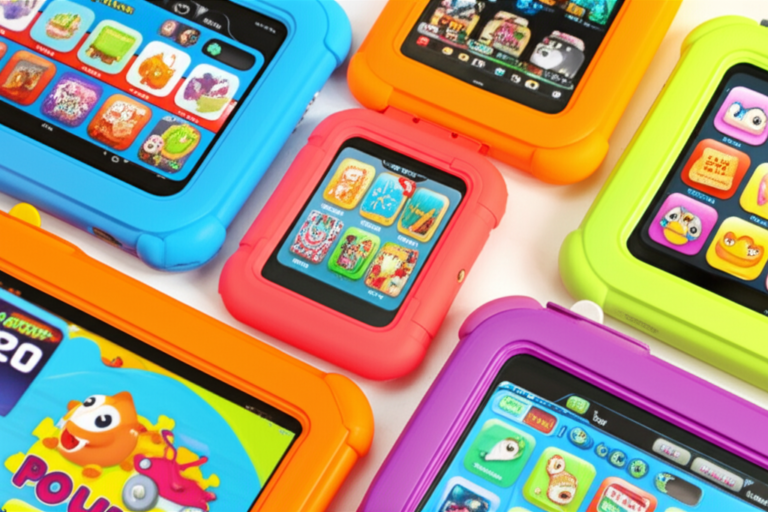
- Dedicated Kids Tablets: Often come with a built-in foam bumper. They are indestructible by design. If your kid throws it, it bounces.
- iPad: Requires a separate case. If you buy a cheap case, it breaks. If you buy a OterBox, it’s just as tough as the dedicated ones, but you pay extra.
Winner: Tie (if you buy the right case for the iPad).
2. Parental Control Features Compared
- Dedicated Kids Tablets: Usually have a “Parent Dashboard” that is simple but limited. You can set time limits, but the content library is often restricted to what the manufacturer provides.
- iPad: Screen Time is granular. You can block specific websites, limit app categories, and even see a report of exactly what your child did. Plus, you have access to the entire App Store, not just a walled garden.
Winner: iPad (by a landslide).
3. App Ecosystem and Content Quality
- Dedicated Kids Tablets: Often run a modified version of Android. Many high-quality apps (like Minecraft or Roblox) might not be available or run poorly.
- iPad: Runs the full iOS. The app quality is generally higher, with better optimization for the screen and processor.
Winner: iPad.
4. Battery Life and Long-Term Value
- Dedicated Kids Tablets: Often have weaker processors and smaller batteries. They become slow after a year or two.
- iPad: An iPad from 4 years ago still runs smoothly today. The resale value is incredible. You can sell it and buy a new one, or pass it down to a younger sibling.
Winner: iPad.
Comparison Table: iPad vs. Dedicated Kids Tablet
| Feature | iPad (with Setup) | Dedicated Kids Tablet (e.g., Fire Kids) |
|---|---|---|
| Hardware Quality | Premium, long-lasting | Budget, plastic-heavy |
| App Selection | Millions of apps | Limited to curated store |
| Parental Controls | Advanced (Screen Time) | Basic (Time limits, content filters) |
| Durability | High (with case) | Very High (built-in bumper) |
| Resale Value | High | Low |
| Cost | Higher upfront | Lower upfront |
For a deeper dive into these comparisons, visit our Tablet Comparisons category.
🔒 Deep Dive: Safety, Privacy, and Data Protection on iOS
Parents are rightly paranoid about data. “Is my kid’s data being sold?” “Are they being tracked?”
Apple’s stance is clear: Privacy is a fundamental human right.
- App Tracking Transparency: Apps must ask permission before tracking your child across other apps and websites. Most parents say “No,” and the system enforces it.
- Siri & Dictation: You can disable Siri entirely or limit what it learns.
- Location Services: You can set location sharing to “Only While Using the App” or “Never.”
- No Ads in Kids’ Apps: Apple has strict guidelines for apps rated for kids. They cannot serve targeted ads based on personal data.
However, third-party apps are a different story. Even on an iPad, if you download a sketchy app, it might try to collect data. This is why we always recommend sticking to reputable developers and reading the App Privacy labels in the App Store.
Did you know? The Messenger Kids app (by Meta) collects data like location and contact info, even though it’s “for kids.” Always check the privacy policy!
📱 Top 10 Must-Have Apps for Your Child’s iPad Experience
We’ve tested hundreds of apps. Here are the top 10 that make an iPad a true learning and fun machine.
- JusTalk Kids: The safest video chat app. Parents approve every friend. Includes doodling and games.
- Khan Academy Kids: The best free educational app. No ads, no subscriptions.
- Toca Life World: Endless storytelling and role-play.
- Minecraft Education: Creativity meets coding.
- Duolingo ABC: Perfect for learning to read.
- Procreate Dreams: For the aspiring animator.
- Scratch Jr: Learn coding logic with blocks.
- Epic! – Kids’ Books and Videos: A digital library with thousands of books.
- Kinzoo: Another great safe messenger with a focus on family.
- Star Walk 2: Explore the stars and learn astronomy.
👉 Shop
🌍 Global Availability: Where Can You Buy Kid-Ready iPads?
You might wonder if the iPad experience is the same everywhere.
North America and Europe
Apple’s ecosystem is fully integrated here. Family Sharing works seamlessly across the US, Canada, UK, EU, and Australia. You can buy iPads with AppleCare+ for kids, which covers accidental damage (dropped tablets!).
Asia Pacific and Latin America
Availability varies. In some regions, Apple Pay or Family Sharing features might be limited. However, the core Screen Time and Guided Access features work globally. Always check your local Apple Store for specific Kids Edition bundles or case partnerships.
For the best deals globally, check our Best Tablet Deals page.
💬 Real Parent Reviews: What Families Are Saying About iPads for Kids
We asked real parents at Kids Tablets™ what they think. Here’s the scoop:
Sarah, Mom of 3:
“I was hesitant about the iPad because of the cost. But after setting up Screen Time, it’s been a lifesaver. My 6-year-old can’t even get to the settings to change the time limit. The Guided Access feature is a miracle for long car rides.”
Mike, Dad of a 4-year-old:
“I bought a cheap Android tablet first. It was slow, full of ads, and my kid got stuck in a game they couldn’t exit. Switched to an iPad with an OterBox case. Best decision ever. It’s fast, the apps are better, and I actually know what they are watching.”
The “Glitch” Factor:
Some parents mention that Messenger Kids (a popular app on iPad) can have audio glitches or camera issues. “Sometimes the camera won’t turn off immediately,” one parent noted. This is why we recommend JusTalk Kids as a more stable alternative for video calls.
🚀 Future-Proofing: Will Apple Release a Dedicated Kids Device?
Rumors swirl every year. “Apple is making a Kids iPad!” “It will have a plastic case built-in!”
The Reality: Apple likely won’t release a dedicated kids device. Why?
- Complexity: It would fragment their supply chain.
- Software is the Key: They prefer to sell the same hardware to everyone and let the software (Screen Time) do the heavy lifting.
- Resale Value: A “kids” iPad would have lower resale value.
Instead, expect more software updates that make parental controls even easier. Maybe a “Kids Mode” toggle that instantly applies a curated interface? We can dream.
Until then, the iPad + Rugged Case + Screen Time combo remains the ultimate solution.
🏁 Conclusion

So, does Apple make a kid-friendly tablet? No, not directly. But they provide the best platform for one.
The iPad is a powerhouse. With the right case, the right setup, and the right apps, it outperforms any dedicated kids tablet on the market. It offers superior performance, a vast library of high-quality educational content, and robust parental controls that actually work.
The Verdict:
- Pros: Long battery life, premium build, massive app selection, excellent parental controls, high resale value.
- Cons: Higher upfront cost, requires manual setup, needs a separate rugged case.
Our Recommendation: If you want a device that will last from toddlerhood through high school, buy an iPad. Don’t skimp on the case. Spend 15 minutes setting up Screen Time. And download JusTalk Kids for safe communication. It’s an investment in your child’s digital future.
🔗 Recommended Links
Ready to get started? Here are the top products and resources we recommend:
- iPad (9th or 10th Gen): The sweet spot for price and performance.
- Amazon | Apple Official
- OterBox Defender Series Case: The ultimate protection.
- Amazon | OterBox Official
- JusTalk Kids App: The safest video chat for families.
- App Store
- Khan Academy Kids: Free education for everyone.
- App Store
- Book: “The Tech-Wise Family” by Andy Crouch: A great read for parents navigating digital life.
- Amazon
📚 Reference Links
- Apple Support: Customize iPad for your child
- App Store: Messenger Kids by Meta
- App Store: JusTalk Kids – Safe Messenger
- Common Sense Media: Parental Control Guides
- Kids Tablets™: Kid-Friendly Tablets
FAQ

What is the best iPad for kids?
H3: What is the best iPad for kids?
The iPad (9th or 10th generation) is generally the best choice for kids. It offers a perfect balance of performance, screen size, and price. It’s powerful enough to run educational apps smoothly but affordable enough that you won’t panic if it gets scratched. Avoid the Pro models unless your child is a serious artist or video editor; the standard iPad is more than capable.
Read more about “🏆 Best Tablet for 18-Month-Olds (2026): Top 5 Picks”
Does Apple offer parental controls on iPads?
H3: Does Apple offer parental controls on iPads?
Yes! Apple’s Screen Time feature is incredibly robust. You can set app limits, block content, restrict purchases, and even view detailed activity reports. By creating a Child Apple ID via Family Sharing, these controls are applied automatically and are much harder for kids to bypass than on other platforms.
Read more about “🛡️ 10 Best Tablets with Parental Controls for Kids (2026)”
Are there kid-proof cases for Apple tablets?
H3: Are there kid-proof cases for Apple tablets?
Absolutely. While Apple doesn’t sell them, third-party brands like OterBox, ProCase, and Fintie make cases specifically designed for kids. Look for cases with built-in stands, handles, and shock-absorbing materials. These cases can survive drops from significant heights and are essential for any child using an iPad.
Read more about “🏆 10 Best Cheap Tablets for Kids (2026): Durable, Safe & Smart Picks”
How much does a child-friendly iPad cost?
H3: How much does a child-friendly iPad cost?
The cost varies based on the model and accessories. A new iPad (9th Gen) starts at a lower price point, while the 10th Gen is slightly more. Don’t forget to factor in the cost of a rugged case (usually $30-$60) and potentially AppleCare+ for accidental damage protection. While the upfront cost is higher than a dedicated kids tablet, the longevity and resale value often make it cheaper in the long run.
Read more about “🚀 7 Must-Have Features for Kids Tablets (2026)”
Can I use an iPad for my toddler without internet?
H4: Can I use an iPad for my toddler without internet?
Yes. You can set up the iPad in Airplane Mode or disable Wi-Fi entirely. Many educational apps and games work offline. This is a great way to limit screen time and prevent accidental purchases or exposure to the internet. Just ensure you download the necessary content (like videos or books) while connected to Wi-Fi first.
Read more about “10 Best Kids Tablets for Augmented Reality Learning in 2026 🚀”
What is the difference between Guided Access and Screen Time?
H4: What is the difference between Guided Access and Screen Time?
Screen Time is for managing overall usage (time limits, content blocking). Guided Access is for locking the device to a single app. Use Screen Time to say “You can play games for 30 minutes,” and use Guided Access to say “You can only play this game right now.” They work best together!
Read more about “7 Best Samsung Tablets for Todlers (2026) 🚀”