Support our educational content for free when you purchase through links on our site. Learn more
What Is a Good Age to Give a Kid an iPad? 📱

For many families, around age 6 or 7 is a reasonable time to introduce an iPad with clear limits and adult supervision—but there’s no magic age. What matters most is whether your child can follow basic rules, handle transitions with support, and ask for help when something online feels wrong.
A 4-year-old who uses a tablet beside a parent is in a very different situation from an 8-year-old with unrestricted access in their bedroom. Start with a shared, purposeful activity, then add independence gradually as your child shows they’re ready.
That gradual approach matters because parents don’t agree one perfect age. In a PCMag survey, 27% of respondents chose ages 9–11 for a child’s own digital device, while 26% chose ages 6–8. Those are opinions, not developmental rules—but they show why readiness and family boundaries matter more than a birthday alone.
Key Takeaways
- Around ages 6–7 can be a sensible starting point for some children’s structured iPad use, but readiness varies.
- Younger children should use screens selectively and with adult involvement. The American Academy of Pediatrics advises avoiding screen media under 18 months except video chatting, and recommends limited, high-quality screen use for preschoolers.
- Set up safety measures before handing over the iPad: use a child account, Screen Time limits, age-appropriate restrictions, and adult approval for downloads and purchases.
- Protect sleep, play, school, and family time. Educational apps still need sensible boundaries.
- Start with a shared device and increase independence gradually. The best age is when your child—and your family’s rules—are ready.
Table of Contents
- ⚡️ Quick Tips and Facts
- 📱 Why the Right Age for an iPad Depends on Your Child
- What “ready for an iPad” really means
- How iPads differ from other screen devices
- 🕰️ How Kids’ iPad Use Has Changed
- 👶 A Parent’s Age-by-Age iPad Readiness Guide
- 1. Babies and toddlers under 2
- 2. Preschoolers ages 2 to 4
- 3. Early elementary kids ages 5 to 7
- 4. Older elementary kids ages 8 to 10
- 5. Twens ages 11 to 12
- 6. Teenagers ages 13 and up
- ✅ Signs Your Child Is Ready for an iPad
- 🤔 Questions to Ask Before Giving Your Child an iPad
- 🌟 Benefits of an iPad for Kids
- ⚠️ Risks and Drawbacks of iPad Use for Children
- ⏱️ Screen Time Guidelines by Age
- How to balance iPad time with sleep, school, and play
- When educational screen time still needs limits
- 🎨 Choosing the Right iPad and Accessories for Your Child
- Which iPad model works best for kids
- Kid-friendly cases, headphones, and other essentials
- When a tablet or shared family device may be a better choice
- 🔒 How to Set Up an iPad Safely for a Child
- Create an Apple Account for your child
- Set up Family Sharing
- Turn on Screen Time and set downtime
- Set content, privacy, and web restrictions
- Manage app downloads, purchases, and in-app spending
- Use communication and location safety settings
- Consider BrightCanary for additional parental monitoring
- 🛡️ Protecting Kids’ Privacy and Online Safety
- Teach safe browsing, messaging, and sharing
- Choose age-appropriate apps, games, and videos
- Prevent cyberbulying, scams, and unwanted contact
- 📋 Family iPad Rules That Kids Can Actually Follow
- Set clear time, place, and content limits
- Create screen-free routines and charging stations
- Agree on consequences and revisit rules as kids grow
- 🧠 Helping Kids Build Healthy Digital Habits
- Make room for outdoor play, reading, and family time
- Use co-viewing and shared play to stay involved
- Spot signs of excessive or difficult-to-manage screen use
- 🧰 Common iPad Parenting Challenges and Practical Fixes
- When your child melts down at iPad time limits
- When schoolwork and entertainment compete
- When siblings argue over a shared iPad
- 🏫 School iPads, Learning Apps, and Homework
- 💸 Should Your Child Have Their Own iPad or Share One
- Conclusion
- Recommended Links
- FAQ
- Reference Links
⚡️ Quick Tips and Facts
If you’re weighing the right age for an iPad, start with our practical guide to iPads for kids: there’s no magic birthday when every child is ready. Readiness depends on your child, the device setup, and the limits you can consistently maintain.
| Quick question | Helpful starting point |
|---|---|
| What’s a reasonable age to begin? | For personal, independent iPad use, many families find around 6 or 7 a more workable starting point. That’s a practical rule of thumb, not an official medical cutoff. |
| What about children under 2? | The American Academy of Pediatrics (AAP) advises avoiding screen media for children under 18 months except video chatting, and choosing high-quality content with an adult for children 18–24 months. |
| How much screen time? | AP guidance emphasizes a family media plan, quality content, and protecting sleep, physical activity, and face-to-face interaction. For ages 2–5, it recommends limiting screen use to about one hour per day of high-quality programming. |
| What should come first? | Decide the purpose, approved apps, time limits, supervision, and charging location before handing over the iPad. |
| Is “educational” automatically good? | No. Look at what the child actually does with the app—not just its label. |
| What’s the safest setup? | A child account, Apple Family Sharing, Screen Time, age-appropriate restrictions, and adult involvement. |
Our short answer: An iPad can suit some children from around 6 or 7 when it’s introduced with clear boundaries and ongoing supervision. Younger children may benefit from occasional shared use, but they generally don’t need unrestricted personal access. The age matters; the setup matters more.
📱 Why the Right Age for an iPad Depends on Your Child
Two children can be the same age and have very different readiness. One may stop when a timer rings; another may treat “five more minutes” as the opening bid in a courtroom drama.
At Kids Tablets™, our parents and app developers look at more than birthday candles. We ask what the child will use the iPad for, whether an adult can supervise, and whether the family can stick to its rules.
What “ready for an iPad” really means
Readiness is a mix of developmental skills and family circumstances. A child may be ready to use an iPad with a parent nearby well before they are ready to manage one independently.
Look for whether your child can:
- Follow simple safety rules, such asking before downloading an app.
- Stop an activity with support and move on without repeated, intense conflict.
- Tell a trusted adult when something confusing, upsetting, or inappropriate appears.
- Keep the device in agreed-upon spaces rather than sneaking it into bed.
- Use apps for a defined purpose, instead of tapping through whatever appears next.
A 2024 survey by PCMag reflects how varied parents’ opinions are: 27% of respondents selected ages 9–11 for a child’s own digital device, while 26% selected ages 6–8. Those figures describe parent opinions, not a scientific verdict. The survey itself points to the difficulty of finding a single right age.
A useful distinction: being able to use an iPad is not the same as being ready to manage one. Many toddlers can swipe with impressive speed. That doesn’t mean they can judge a pop-up, understand privacy, or calmly stop watching a video.
How iPads differ from other screen devices
An iPad is portable, personal, and connected to a large app ecosystem. That flexibility is useful for schoolwork, creativity, accessibility tools, and video calls. It also means there’s more to manage than with a television in the living room.
| Device | Typical strengths | Parent considerations |
|---|---|---|
| Shared family television | Easy to watch together; content is visible to adults | Streaming services still need profiles, ratings, and viewing boundaries |
| Shared family iPad | Flexible for supervised apps, drawing, reading, and travel | Set clear turns, logins, and rules about downloads |
| Child’s personal iPad | Convenient for school, accessibility, and independent projects | Requires more consistent controls, maintenance, and privacy conversations |
| Smartphone | Portable communication and apps | More difficult to supervise; adds calls, messaging, and location features |
A family iPad in a shared room is not the same experience as a child’s own iPad with open internet access and no downtime. Screen Time settings can reduce risk, but they don’t replace judgment, conversation, or supervision.
If you’re comparing devices, browse our guides to kid-friendly tablets, educational tablets, and iOS tablets.
🕰️ How Kids’ iPad Use Has Changed
Tablet ownership and use can start surprisingly early. Common Sense Media’s research has documented young children’s increasing access to mobile devices, while Ofcom’s children’s media research tracks how children use online services and screens in the UK. Findings vary by country, year, and what researchers count as “use” or “ownership,” so treat individual percentages as snapshots—not rules for your family.
The bigger change is that an iPad can be a library, art studio, video player, game console, classroom tool, and internet portal all at once. That versatility is precisely why a family’s rules matter.
Screen-time coach Daniel Towle, quoted in Digital Family Coach’s discussion of the right age for an iPad, puts the focus on preparation: “The question is not when — it is what setup is in place when the device arrives.” That’s a useful counterweight to age-only advice.
Families also differ in how they introduce devices. Some use a shared tablet for video calls or travel; others wait until schoolwork makes a personal device practical. Neither choice is automatically right or wrong. The key is to make the choice deliberately, instead of letting “just for this trip” gradually become “also at dinner, in bed, and in the cereal aisle.”
👶 A Parent’s Age-by-Age iPad Readiness Guide
These age ranges are planning guides, not developmental diagnoses. Follow your child’s needs and your pediatrician’s guidance, especially if the device is being used for communication, accessibility, or a learning plan.
1. Babies and toddlers under 2
For children under 18 months, the AP recommends avoiding screen media except video chatting. For ages 18–24 months, if you introduce digital media, choose high-quality content and use it together. See the AP’s media guidance for young children.
At this age, the best “tablet activity” is often a real person talking, singing, reading, and responding. A video call with a grandparent can support connection; unattended autoplay is a different proposition.
Parent tip: Keep the screen brief and shared. Narrate what’s happening, then put the device away. Tiny hands may be excellent at tapping “next,” but they are not qualified to curate a video feed.
2. Preschoolers ages 2 to 4
For children ages 2–5, AP guidance recommends limiting screen use to about one hour per day of high-quality programming and co-viewing when possible. The quality and context matter: a short, purposeful activity with a caregiver is different from a long stretch of passive viewing.
Good uses can include:
- A video call with family.
- A drawing or music activity with an adult.
- A carefully chosen learning app used together.
- A short, downloaded show during travel when other options are limited.
Be cautious about assigning a preschooler an iPad of their own. A shared device lets you choose the app, help with transitions, and keep use visible. If stopping the activity regularly turns into a major struggle, that’s feedback to adjust the routine—not proof that your child needs a more powerful timer.
3. Early elementary kids ages 5 to 7
Around 6 or 7 can be a reasonable time to try a structured introduction for some children. Think shared or supervised use first, not automatic, unrestricted ownership.
Before starting, agree on:
- Which apps are allowed.
- Where the iPad can be used.
- When the session ends.
- Whether downloads or purchases require adult approval.
- What the child should do if content looks strange or upsetting.
Our parent team has found that “You can use it later” works much better when “later” has a time and a visible plan. A visual timer, a short activity, and a predictable stopping routine can prevent the five-minute negotiation from growing a sequel.
4. Older elementary kids ages 8 to 10
Many children this age can handle more responsibility, but they still need boundaries. Give them some say in which approved apps they use and what they create, while keeping downloads, purchases, web access, and viewing time under adult oversight.
Try a gradual handover:
- Begin with approved apps and shared-space use.
- Teach your child how to ask for permission before installing anything.
- Practice responding to an uncomfortable message, ad, or video.
- Review Screen Time together without turning it into a surprise inspection.
- Expand privileges only when your child demonstrates safe habits.
A child who is ready for independent drawing or homework may not be ready for unsupervised access to video platforms. Readiness is activity-specific, not one big yes-or-no badge.
5. Twens ages 11 to 12
Twens may use an iPad for research, schoolwork, creative projects, and communication. They also encounter more online recommendations, social features, and peer pressure. Keep the conversation going as freedom increases.
Discuss:
- What personal information should stay private.
- How to respond to unwanted contact.
- Why not every search result or video is trustworthy.
- How social and video apps use recommendations.
- Why sleep and face-to-face plans still outrank “one more clip.”
A tween may reasonably ask for more privacy. Make room for growing independence, but keep clear family rules and an open path to ask for help.
6. Teenagers ages 13 and up
For teens, the goal shifts from managing every minute to building sound judgment and shared accountability. Involve them in setting reasonable limits, reviewing privacy settings, and deciding how school, creativity, entertainment, and rest fit together.
Tens still benefit from household expectations around overnight charging, purchases, online conduct, and family time. A trusting conversation usually teaches more than a surprise device audit—though parents should intervene when safety concerns arise.
✅ Signs Your Child Is Ready for an iPad
No checklist can guarantee readiness, but these are encouraging signs:
- They can follow rules with age-appropriate reminders.
- They can stop an activity with support and recover from disappointment.
- They know to tell you if something confusing, frightening, or inappropriate appears.
- They can use the device for a purpose, such as drawing, reading, or a school task.
- They understand basic privacy rules, such as not sharing their full name, school, or location without permission.
- You can supervise and maintain the setup, including reviewing apps and keeping controls current.
- The iPad won’t crowd out essentials such as sleep, movement, homework, and relationships.
One of the most useful readiness checks is simply observing what happens when screen time ends. A little protest is normal. Repeated, intense distress, secrecy, or escalating conflict suggests the plan may need changing.
A 2024 study reported in JAMA Pediatrics examined links between tablet use and children’s emotional reactivity over time. Reporting on the study highlighted an association between higher tablet use at about age 3.5 and increased anger or frustration around age 4.5. The relationship may go both ways, and an association does not establish that tablets alone caused the behavior. Use the findings as a reason to pay attention to patterns, not as a reason to blame parents or panic over every cartoon.
🤔 Questions to Ask Before Giving Your Child an iPad
Before you buy—or hand down—a device, ask:
- What is the iPad for? Schoolwork, creative projects, video calls, travel, entertainment, or a combination?
- Could a shared device meet the need? A personal tablet is not always necessary.
- What content will be available? Decide on apps, video services, websites, and games in advance.
- Where and when can it be used? Shared spaces and screen-free routines make supervision simpler.
- Who handles settings and downloads? A young child should not be responsible for app permissions or purchases.
- What happens when the time ends? Agree on a routine before the first disagreement.
- Can we hold the boundary consistently? A rule that changes every day is hard for a child to understand.
- Is there a specific need? Accessibility and communication uses may call for a different plan than general entertainment.
A helpful principle from Digital Family Coach’s age-and-iPad discussion is that parental controls can manage access, but they don’t teach judgment. Controls are the guardrails; your conversations are the driving lessons.
🌟 Benefits of an iPad for Kids
An iPad can be useful when the activity is purposeful and age-appropriate. It’s not a substitute for people and play, but it can be a handy tool in the family toolkit.
Learning, creativity, and accessibility
Children can use apps to draw, make music, practice reading, explore science topics, or produce simple videos. iPad accessibility features can also support children who benefit from options such as text-to-speech, captions, VoiceOver, or guided interaction. Explore Apple’s accessibility features and consult your child’s teacher or specialist about individual needs.
Consider the task, not the marketing label. An app can wear an “educational” badge and still be mostly tapping, ads, and distractions. Ask:
- Does the child have to think, create, explain, or solve something?
- Can you see what they learned or made?
- Does the app avoid unnecessary ads and purchases?
- Would an offline activity do the same job better?
Family connection and practical moments
Video calls can help children keep in touch with relatives. Downloaded stories or games can also make a long journey more manageable. One parent on our team began with a shared iPad for travel and found it worked best when the show was chosen in advance and the device went back into the bag afterward. The trick was not a perfect app; it was keeping the purpose small and clear.
Potential support for school and independence
For older children, an iPad may help with note-taking, reading, creative assignments, and access to learning tools. Ask the school what platforms and file formats it uses before buying a device specifically for homework. Our educational tablet guides and tablet comparisons can help you compare the practical options.
⚠️ Risks and Drawbacks of iPad Use for Children
An iPad can crowd out sleep, movement, imaginative play, reading, and social connection if it becomes the default activity. It may also expose children to persuasive app design, unsuitable content, ads, or unwanted contact.
| Possible concern | What to watch for | What parents can do |
|---|---|---|
| Difficult transitions | Frequent, intense distress when use ends | Set expectations in advance; use predictable stopping routines |
| Sleep disruption | Device use near bedtime or overnight | Keep the iPad out of bedrooms and stop use before bed |
| Passive or endless viewing | Autoplay, scrolling, or “just one more” cycles | Choose specific content and disable autoplay where possible |
| Inappropriate content | Unexpected videos, ads, comments, or search results | Restrict access, supervise, and teach children to tell you |
| Privacy and purchases | Unapproved downloads, data collection, or spending | Require approval; review app permissions and privacy settings |
| Less offline activity | Reduced outdoor play, family conversation, or hobbies | Protect regular screen-free time and activities |
Digital Family Coach describes YouTube and YouTube Shorts as particular concerns for children under 12 because recommendations and autoplay can keep content flowing. YouTube Kids adds parental controls, but it isn’t a guarantee that every recommendation is appropriate. Review the service’s parental controls and supervised experiences and consider whether a child needs an open-ended video feed at all.
A useful warning sign isn’t just the number of minutes. Ask whether device use is affecting mood, sleep, school, relationships, or a child’s ability to shift to another activity.
⏱️ Screen Time Guidelines by Age
Screen-time recommendations vary by age and source, and they don’t account for every situation, including accessibility needs or school assignments. The AP recommends a family media plan and emphasizes high-quality content, co-use, and preserving sleep and physical activity. Its guidance for children under 5 recommends no screen media under 18 months except video chatting, high-quality shared use for ages 18–24 months, and about one hour per day of high-quality programming for ages 2–5.
| Age | Practical starting point | Parent role |
|---|---|---|
| Under 18 months | Avoid screen media except video chatting | Keep interactions live and responsive |
| 18–24 months | If introducing media, choose high-quality content and use it together | Co-view and explain what’s on screen |
| 2–5 years | About one hour daily of high-quality programming, consistent with AP guidance | Choose content, co-use where possible, and protect play and sleep |
| 6+ years | Set consistent limits that protect sleep, physical activity, school, and relationships | Adjust as needs change; model healthy use |
These are whole-family planning points, not a stopwatch contest. Schoolwork, reading, a video call, and rapid-fire entertainment are different activities even if they all involve a screen.
How to balance iPad time with sleep, school, and play
Start by protecting the basics:
- Keep regular bedtime and wake-up routines.
- Make space for outdoor movement and unstructured play.
- Set device-free times for meals, family conversations, and homework that requires focus.
- Charge devices outside bedrooms overnight.
- Use the iPad for a planned activity rather than as the automatic answer to boredom.
The AAP Family Media Plan can help families agree on rules together. It’s easier to follow a limit children understand than one that appears mysteriously only when a parent needs the tablet for a grocery list.
When educational screen time still needs limits
Educational content still uses time and attention. A school assignment may justify extra device access, but it doesn’t mean a child should get unlimited entertainment afterward. Separate necessary school use from optional recreational use in your family plan.
🎨 Choosing the Right iPad and Accessories for Your Child
You don’t need the most powerful iPad to introduce a child to a tablet. Choose a device that fits the actual task, is compatible with the apps they need, and can be protected from the occasional gravity experiment.
Explore Apple options in our iOS tablet guides and compare them with other kid-friendly tablets.
Which iPad model works best for kids
Apple’s model lineup changes over time, so check Apple’s current iPad lineup and your school’s requirements before purchasing.
| iPad option | Possible fit | Things to consider |
|---|---|---|
| Standard iPad | Everyday reading, video calls, school apps, and basic creativity | A practical general-purpose choice; pair with a protective case |
| iPad mini | Smaller hands, portability, and reading on the go | Compact size may not suit every homework or drawing task |
| iPad Air | More demanding creative or school work | Greater capability may be unnecessary for a young child’s basic needs |
| Refurbished iPad | A way to consider a previous-generation device | Check software support, battery condition, warranty, and return terms |
The BrightCanary guide to chosing an iPad for kids also distinguishes between the standard iPad for general use, iPad mini for portability, and iPad Air for more demanding school or creative tasks. Treat model advice as time-sensitive: Apple updates devices, so verify specifications before buying.
For many families, a shared or refurbished model in good condition makes more sense than buying a child a premium tablet before they’ve shown they can follow device rules.
- 👉 CHECK PRICE on:
- Apple iPad: Amazon | Walmart | Apple Official Website
- Apple iPad mini: Amazon | Walmart | Apple Official Website
- Apple iPad Air: Amazon | Walmart | Apple Official Website
Kid-friendly cases, headphones, and other essentials
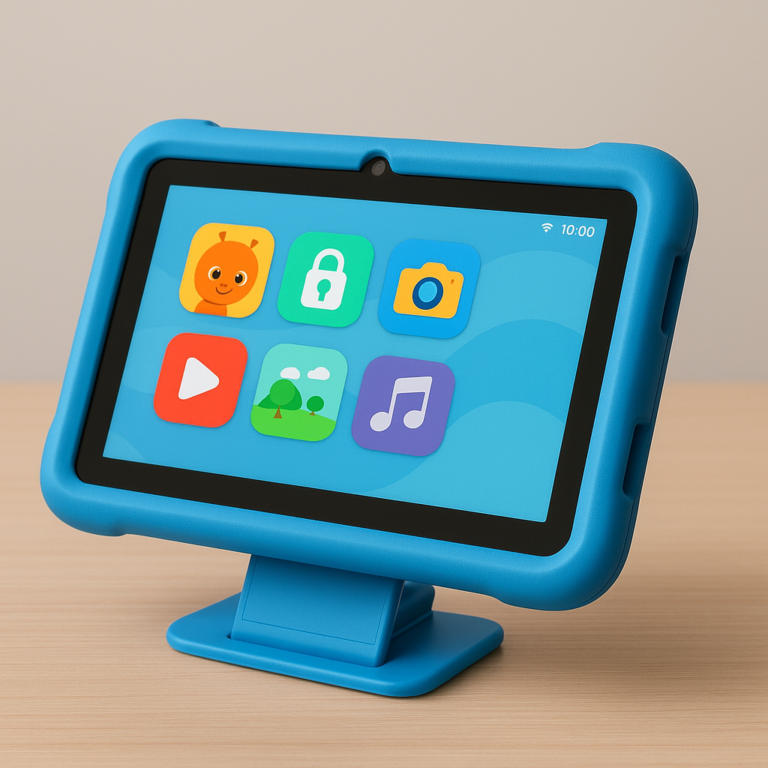
A sturdy, easy-to-grip case is a sensible first accessory. Look for a raised edge around the screen, a secure fit, and a stand if your child uses the iPad for video calls or schoolwork. A case can reduce everyday damage risk, but no case makes a tablet indestructible.
If you buy headphones, check the manufacturer’s instructions and teach your child to keep the volume comfortable. Consider whether headphones are necessary at all: open speakers make it easier for adults to notice what’s playing.
- 👉 CHECK PRICE on:
- OterBox iPad cases: Amazon | OterBox Official Website
- Logitech iPad cases and accessories: Amazon | Logitech Official Website
- Apple AirPods: Amazon | Apple Official Website
When a tablet or shared family device may be a better choice
A child doesn’t need an iPad just because one is popular. A shared tablet can meet occasional needs, while a child-focused device may offer simpler controls or a more durable design. Compare what each product actually allows: app library, parental controls, software updates, internet access, and support for school platforms.
Check our tablet comparisons before choosing. The best tablet is the one that fits the child’s actual needs—not the one with the longest specification sheet.
🔒 How to Set Up an iPad Safely for a Child
Set up the iPad before your child starts exploring. The sequence below works best when an adult keeps the device and passcode private, then explains the rules in age-appropriate language.
Create an Apple Account for your child
Apple offers child accounts through Family Sharing. Follow Apple’s instructions for creating an Apple Account for a child. Don’t share your adult account: that can expose personal information, messages, purchases, and settings that should remain private.
Set up Family Sharing
Apple Family Sharing lets family members share certain services and gives parents tools such as purchase approval. Review Apple’s current setup steps and decide which services your child actually needs.
Turn on Screen Time and set downtime
Apple’s Screen Time guide explains how to set downtime, app limits, communication limits, and content restrictions.
- Open Settings and choose Screen Time.
- Set up Screen Time for your child’s device or account.
- Choose downtime hours that protect school, family time, and sleep.
- Set app limits for entertainment categories where helpful.
- Create a Screen Time passcode your child doesn’t know.
- Review activity together and adjust limits as your child matures.
Screen Time is a tool, not a substitute for your family agreement. A child should know why a limit exists and what happens when it’s reached.
Set content, privacy, and web restrictions
Use Screen Time’s content and privacy settings to restrict age-rated media, web content, app changes, and privacy-sensitive features. Apple’s parental control instructions outline available options.
Before allowing web access, consider whether your child needs a browser at all. For younger children, a short list of adult-approved sites may be safer and easier to manage than open browsing.
Manage app downloads, purchases, and in-app spending
Enable purchase approval through Family Sharing, review in-app purchases, and remove payment details from a child’s account where appropriate. Check apps for ads, subscriptions, social features, and data collection before approving them.
A practical rule: the child can request an app; the adult installs it. That keeps the boundary clear without turning each request into a battle.
Use communication and location safety settings
Review who can contact your child, which apps can access the microphone or camera, and whether location sharing is necessary. Talk through what to do if a stranger or acquaintance sends an unexpected message. For detailed guidance, visit Apple’s Family Sharing and safety resources.
Consider BrightCanary for additional parental monitoring
BrightCanary describes additional monitoring features for parents, including alerts about concerning content and visibility into certain searches and viewing activity. See BrightCanary’s iPad guide and review the company’s current privacy information before choosing any monitoring service.
Monitoring tools can supplement built-in controls, but they shouldn’t replace direct conversations or be treated as a complete safety net. Tell older children what is monitored and why. Trust and safety work better together than surveillance alone.
🛡️ Protecting Kids’ Privacy and Online Safety
Children need clear, repeated guidance about the internet—not a one-time speech delivered at the speed of a software update. The Federal Trade Commission’s advice for parents and Common Sense Media’s family resources offer practical starting points.
Teach safe browsing, messaging, and sharing
Practice these rules together:
- Don’t share your full name, home address, school, passwords, or live location without permission.
- Don’t click unfamiliar links or download files without asking an adult.
- If something feels wrong, stop and tell a trusted adult. They won’t be in trouble for asking for help.
- Don’t assume a video, post, or search result is true just because it looks professional.
Choose age-appropriate apps, games, and videos
Check age ratings, ads, chat features, external links, subscriptions, user-generated content, and autoplay. Read the app’s privacy information and look at its settings before handing it over. Ratings are a useful filter, not a promise that every interaction will suit your child.
Prevent cyberbulying, scams, and unwanted contact
Show your child how to block and report accounts, take a screenshot when appropriate, and come to you before replying to a threatening or suspicious message. Keep communication open: if children fear losing the iPad automatically, they may hide a problem instead of reporting it.
📋 Family iPad Rules That Kids Can Actually Follow
Rules work best when they’re short, specific, and agreed before the device becomes the center of a disagreement.
Set clear time, place, and content limits
Write down a few basics:
- Where: Use the iPad in shared family spaces.
- When: No iPad during meals, bedtime routines, or agreed screen-free activities.
- What: Use approved apps and websites.
- Who: Ask an adult before downloading, purchasing, or sharing information.
- How it ends: Stop at the agreed time and return the device to its charging place.
A simple family media plan can prevent misunderstandings. The AP’s Family Media Plan tool helps parents and children talk through device expectations.
Create screen-free routines and charging stations
Choose a consistent overnight charging spot outside bedrooms. Set screen-free routines around meals and sleep, and decide in advance whether travel or special occasions have different rules. A predictable exception is easier to manage than a rule that changes only when everyone is tired.
Agree on consequences and revisit rules as kids grow
Keep consequences related and predictable. If a child installs an app without permission, remove it and review the rule. If they use the iPad after bedtime, return it to the charging station and revisit overnight access.
Review the agreement every few months. More independence should follow demonstrated responsibility—not simply a birthday or a particularly persuasive speech.
🧠 Helping Kids Build Healthy Digital Habits
The goal isn’t to make children fear technology. It’s to help them use it with intention and recognize when it’s time to move on.
Make room for outdoor play, reading, and family time
Plan offline activities your child enjoys instead of treating them as a consolation prize. Sports, building toys, books, music, crafts, and unstructured play all give children things screens can’t replace.
Use co-viewing and shared play to stay involved
Ask your child to show you what they made or explain how a game works. Co-use turns passive monitoring into a conversation and helps adults understand what an app actually offers.
A useful question is: “What’s your favorite part of this?” It’s less likely to produce the classic one-word answer than “What are you watching?”
Spot signs of excessive or difficult-to-manage screen use
Look for patterns such as repeated sleep disruption, neglect of activities, secrecy, frequent conflict, or persistent distress around stopping. One difficult afternoon doesn’t diagnose a problem. If the pattern continues or affects family life, talk with your pediatrician and review the AAP’s family media resources.
🧰 Common iPad Parenting Challenges and Practical Fixes
When your child melts down at iPad time limits
Give a warning before the end, use a predictable timer, and make the next activity clear. Try a routine such as: “One more round, then the iPad goes on the charger and we get ready for dinner.”
If meltdowns remain frequent or intense, reduce the length of sessions, review the content, and avoid using the iPad as the only way to calm your child. The aim is to make transitions manageable, not to win a debate with a child who has already summoned the tiny lawyer.
When schoolwork and entertainment compete
Use separate expectations for school tasks and leisure. If an assignment requires the iPad, set up only the needed apps, keep entertainment notifications off, and agree on a clear endpoint. Ask the teacher whether a laptop, printed material, or school-managed device would better suit the task.
When siblings argue over a shared iPad
Set turns in advance, use a visible timer, and agree on who chooses the app. Consider whether separate child accounts or profiles can keep saved work and age settings distinct. A shared device can work well, but “who had it last?” is not a sustainable scheduling system.
🏫 School iPads, Learning Apps, and Homework
Ask the school which device, apps, and operating systems it supports before buying a tablet for school. Find out whether the school manages accounts, filters web access, or expects families to provide a device. Review schoolwork separately from entertainment so necessary assignments don’t quietly become unlimited video time.
For a child who uses an iPad for accessibility or communication, coordinate with the school and relevant specialists. Explore our educational tablet resources for options to compare.
💸 Should Your Child Have Their Own iPad or Share One
A shared device is often a sensible first step. It lets parents control the setup, keep use visible, and learn what the child actually needs before buying another tablet.
| Choice | Works well when | Trade-off |
|---|---|---|
| Shared family iPad | Use is occasional or mainly supervised | Requires turn-taking and a shared schedule |
| Child’s own iPad | School, accessibility, or regular creative use calls for dependable access | Requires ongoing rules, controls, and care |
| No iPad yet | A current device or offline activity meets the need | Some school or communication tasks may require another solution |
One Kids Tablets™ parent started with a shared iPad for trips. The child’s use stayed manageable because the device had a clear job: a preselected activity during travel, then back in the family bag. That experience didn’t prove every child should have a travel-only tablet. It did show that purpose can keep a useful tool from becoming an all-day default.
Survey opinions also vary: PCMag found that parents’ preferred ages for a child’s own digital device were spread across several age groups. That’s a reminder that the right choice depends on the family—not a reason to rush into a purchase.