Support our educational content for free when you purchase through links on our site. Learn more
Amazon Kids Tablets & Fire Stick: What Works? 📱

Amazon kids tablets and a Fire TV Stick serve different purposes: Fire Kids tablets are portable devices for children, while a Fire TV Stick brings streaming apps to your television. You can use both at home, but don’t expect every tablet app to cast to the TV or parental settings to sync automatically.
One parent on our team learned that the hard way when a child’s tablet had a kids profile, but the living-room TV was still open to an adult streaming profile. The fix was simple: check each device and app separately before movie night.
Key Takeaways
- Choose a Fire Kids tablet for portable books, games, learning apps, and videos; choose a Fire TV Stick for compatible streaming on your television.
- Amazon Kids parental controls and Amazon Kids+ are different: Kids+ is an optional content subscription, not a requirement for basic parental controls.
- Check compatibility before buying. Fire tablets don’t necessarily mirror to every Fire TV Stick, and app availability can vary.
- Set up child profiles, time limits, and app restrictions on each relevant device and streaming service.
- Compare options before you decide: Browse our kid-friendly tablets, educational tablets, and tablet comparisons.
Table of Contents
- ⚡️ Quick Tips and Facts
- 📚 Amazon Kids Tablets and Fire TV Stick: What’s the Connection?
- Amazon Kids, Amazon Kids+, and Fire OS explained
- What a Fire TV Stick does—and what it doesn’t do
- 📱 Amazon Fire Kids Tablet Review: Who Is It Best For?
- Fire HD Kids tablet models and age ranges
- Kids Edition case, warranty, and included content
- Fire tablet vs. Kindle Kids vs. Android kids tablet
- 📺 Can You Use a Fire TV Stick with an Amazon Kids Tablet?
- Casting and screen miroring: compatibility limits
- Using the Fire TV app as a remote
- Watching tablet content on a television
- 🔍 Best Amazon Fire Kids Tablet Options by Age and Use
- Best for preschoolers and younger children
- Best for school-age kids
- Best for reading, travel, and shared family viewing
- 🛡️ Amazon Kids Parental Controls and Screen-Time Settings
- Create a child profile and set age filters
- Set daily limits, bedtime schedules, and learning goals
- Manage web browsing, purchases, and app access
- Use the Amazon Parent Dashboard
- 🎬 Amazon Kids+, Prime Video, and Fire TV Stick Content
- What content is included with Amazon Kids+
- Prime Video profiles and child-friendly viewing
- Streaming apps, subscriptions, and account requirements
- 🔧 Setup and Compatibility: Tablet, Wi-Fi, and Fire TV
- Set up a Fire Kids tablet safely
- Connect a Fire TV Stick to your television
- Check Wi-Fi, app, and device compatibility
- 🔋 Battery Life, Storage, Durability, and Accessories
- Offline downloads and storage management
- Protective cases, headphones, and charging tips
- ✅ Pros and ❌ Cons of Amazon Kids Tablets and Fire TV Stick
- 🆚 Amazon Fire Tablet vs. iPad and Other Kids Tablets
- 🧰 Troubleshooting Common Fire Tablet and Fire TV Issues
- Casting, streaming, and app problems
- Parental controls, downloads, and connectivity fixes
- ❓ Frequently Asked Questions
- Can an Amazon Kids tablet control a Fire TV Stick?
- Can you mirror a Fire tablet to a television?
- Does Amazon Kids+ work on Fire TV Stick?
- Can kids use a Fire TV Stick without an Amazon account?
- Are Amazon Fire Kids tablets good for school and travel?
- 🏁 Conclusion
- 🔗 Recommended Links
- 📖 Reference Links
⚡️ Quick Tips and Facts
If you’re comparing Amazon Kids tablets and a Fire TV Stick, start with our Amazon Kids tablets guide: the tablet is a child’s handheld device, while the Fire TV Stick plugs into a television for streaming. They can work together in a household, but they do not automatically share every app, screen, or parental-control setting.
| Quick fact | What parents should know |
|---|---|
| Amazon Kids | A child-focused profile and set of parental controls available on compatible Amazon devices. |
| Amazon Kids+ | An optional subscription with kid-friendly books, games, apps, videos, and other content. The subscription is not required to use basic parental controls. [Amazon Kids+](https://www.amazon.com/ Amazon-Kids-Plus/b?node=17143709011) |
| Fire TV Stick | A streaming device that connects to a TV’s HDMI port. It is not a tablet and does not turn a Fire tablet into a second screen. Amazon Fire TV |
| Casting and miroring | Compatibility depends on the specific Fire tablet and TV setup; don’t assume that every Fire tablet supports wireless miroring to every Fire TV device. |
| Best first step | Set up a child profile, check the available controls, and test the apps your family plans to use before handing over the remote. |
| Our family-tested rule | A tablet is easier to supervise when its screen-time rules and content permissions are set before a child discovers the settings menu. |
The short version: choose a Fire Kids tablet for portable reading, games, and learning; choose a Fire TV Stick for streaming on the big screen. Want both? You can use both in the same home, but treat them as separate devices with separate setup and content rules.
📚 Amazon Kids Tablets and Fire TV Stick: What’s the Connection?
The phrase “Amazon kids tablets Fire Stick” can mean a few different things: a parent may be looking for a child-friendly Fire tablet, a Fire TV Stick with parental controls, or a way to play tablet content on the TV. Those are related questions, but the products do different jobs.
Think of the Fire tablet as a lunchbox: it travels with your child and carries books, games, and videos. The Fire TV Stick is the television’s streaming gateway: it brings compatible streaming apps to the living-room screen. One is made for hands-on use; the other is made for watching from the couch.
For a wider look at tablets for children, explore our kid-friendly tablets and educational tablets guides.
Amazon Kids, Amazon Kids+, and Fire OS explained
These names are easy to mix up, especially when the product listings are full of “Kids,” “Kids+,” and “Fire.” Here’s the useful distinction:
| Name | What it means | Do you need it? |
|---|---|---|
| Fire OS | Amazon’s operating system for Fire tablets and Fire TV devices. | It comes with the device. |
| Amazon Kids | A child experience with parental controls and child profiles on supported devices. | Useful for setting boundaries; basic controls do not require Kids+. |
| Amazon Kids+ | A subscription service offering a library of children’s content. | Optional; check current plan and device terms before subscribing. |
| Amazon Parent Dashboard | A tool for managing children’s profiles and reviewing or adjusting supported controls. | Helpful for remote management; features depend on device and setup. |
Amazon’s Parent Dashboard app listing describes tools for managing screen time, content access, activity, and child profiles. The listing also says a Kids+ subscription is not required for parental controls. That distinction matters: a subscription adds content, not the basic idea of parental supervision.
What a Fire TV Stick does—and what it doesn’t do
A Fire TV Stick plugs into a compatible TV’s HDMI port and connects to Wi-Fi so you can use supported streaming services. You navigate it with a remote or, in supported setups, the Fire TV mobile app.
It does:
- Bring compatible streaming apps to a television.
- Let a household access services supported on that Fire TV device.
- Support profiles and parental controls where available, with options varying by device, app, and account settings.
It does not automatically:
- Mirror every Fire tablet’s screen.
- Turn a tablet into a universal TV remote without the appropriate app and setup.
- Make tablet-only apps available on the TV.
- Apply a child profile’s settings identically across every app and device.
Our app-development perspective: compatibility is a feature-by-feature question, not a “both say Amazon, so everything must sync” question. Confirm the app, tablet model, Fire TV model, and account setup you actually have.
📱 Amazon Fire Kids Tablet Review: Who Is It Best For?
Amazon’s Fire Kids tablets are most compelling for families who want a tablet with a child profile, protective case, and access to Amazon’s children’s ecosystem. They’re less compelling if your priority is unrestricted access to Google Play apps or seamless Apple-device integration. Browse our tablet comparisons to weigh those trade-offs against other platforms.
Here’s our practical rating for the Fire Kids tablet experience as a category. Exact hardware, accessories, subscription offers, and warranty terms vary by model and generation, so check the specific listing before buying.
| Area | Rating (1–10) | Why it earns that score |
|---|---|---|
| Child-friendly setup | 8 | Child profiles and parental tools make it easier to create age-appropriate access. |
| Durability | 8 | Kids models commonly include a protective case; the case helps, but no tablet is drop-proof. |
| Parental controls | 8 | Screen-time and content controls are useful, though families should verify settings across apps and devices. |
| Content selection | 8 | Amazon Kids+ adds a broad child-focused library; availability depends on subscription and region. |
| Portability | 8 | A tablet is convenient for trips and quiet time away from the TV. |
| TV streaming integration | 5 | A Fire tablet and Fire TV Stick can coexist, but they are not automatically a single casting system. |
| App flexibility | 5 | Fire OS is not the same as a standard Google Play tablet; check essential apps first. |
| Overall family value | 7 | Strong for households already using Amazon services, less ideal for families needing broad app-store flexibility. |
Fire HD Kids tablet models and age ranges
Amazon sells different Fire Kids and Fire Kids Pro configurations over time. Model names, screen sizes, storage, included accessories, and subscription trials can change by generation and retailer. Read the exact product page, not just the thumbnail or a retailer’s shortened title.
A sensible selection checklist:
- Age and maturity: Amazon’s age labels are a starting point, not a judgment about your child.
- Screen size: Smaller tablets are easier to carry; larger screens may be more comfortable for reading, drawing, or watching.
- Storage: Downloaded videos and games use space. Check whether the model supports expandable storage and whether the apps you want can use it.
- Case and stand: A built-in stand can make hands-free viewing more comfortable.
- Connectivity: Confirm whether the model is Wi-Fi-only and whether that fits your family’s travel plans.
- Subscription terms: Included Kids+ access, if offered, has specific terms. Check the current listing and cancellation details.
The Fire HD 10 Kids Pro is aimed at older children than many preschool-focused configurations and may suit a child who wants a larger screen for reading, drawing, and media. In the featured video, the reviewer highlights a grippy case with a stand, a detachable stylus, child-friendly access, and the Parent Dashboard. That hands-on perspective is useful for seeing how accessories and setup feel in practice, but verify current specifications and included items on the exact product listing.
Kids Edition case, warranty, and included content
A protective case is a real advantage for a child’s tablet. It adds grip, softens everyday bumps, and can make the device easier for small hands to hold. It is not armor: drops onto hard corners, spills, and rough handling can still cause damage.
Before buying, confirm:
- What case is included: The style and color can differ across models.
- Whether a stand is built in: Handy for video calls or shows, but not a substitute for active supervision.
- Warranty coverage: Read the warranty terms for the specific model and seller; coverage and exclusions can differ.
- What the bundle includes: A Kids+ subscription may be offered with some models, but duration and renewal terms vary.
- What content is available: Catalogs change and may vary by country, age setting, and subscription.
A Best Buy listing describes Amazon kids’ tablets as having a durable case and parental controls, and highlights content such as books, apps, games, videos, and audiobooks. That’s a helpful retail overview, but listings don’t always identify the exact generation or clarify which features are included with which model. Use the manufacturer’s product page and the retailer’s exact listing to verify the details.
Fire tablet vs. Kindle Kids vs. Android kids tablet
These devices may all be marketed to families, but they serve different needs.
| Device type | Strongest use | Main trade-off |
|---|---|---|
| Amazon Fire Kids tablet | A mix of child-friendly apps, games, books, and video. | Fire OS app availability differs from Google Play and iPadOS. |
| Kindle Kids e-reader | Reading books with fewer distractions than a general-purpose tablet. | Not designed as a full tablet for video and a broad selection of games. |
| Android kids tablet | Broader Android flexibility, depending on the model and app store. | Parental controls, update support, and build quality vary widely by manufacturer. |
| Apple iPad | Broad app ecosystem and strong integration with Apple family tools. | Usually a less specialized “kids bundle” experience; protective accessories and setup need attention. |
A Kindle Paperwhite Kids is an e-reader, not a Fire tablet. For families choosing between those formats, our iOS tablet recommendations and tablet comparison articles can help identify which ecosystem fits your household.
📺 Can You Use a Fire TV Stick with an Amazon Kids Tablet?
Yes, you can use both in the same household. But that does not guarantee that a child can cast any tablet app to the TV or that a tablet’s child restrictions automatically carry over to the Fire TV Stick.
The answer depends on what you mean by “use together”:
| What you want to do | What to expect |
|---|---|
| Watch a supported streaming service on the TV | Install and use the service’s supported Fire TV app, subject to its account and parental controls. |
| Use a tablet as a Fire TV remote | Use the compatible Fire TV mobile app and follow its setup instructions. |
| Show the tablet’s whole screen on the TV | Check model-specific miroring and casting support; it is not universal. |
| Share the same Amazon Kids profile and rules everywhere | Don’t assume settings transfer identically. Check controls separately on each device and app. |
Casting and screen miroring: compatibility limits
Casting generally sends content from a compatible app to another device. Screen miroring duplicates the tablet’s display. They sound similar, but a feature can support one method and not the other.
Before trying to mirror:
- Find the exact tablet model and software version in device settings.
- Check Amazon’s current Fire tablet help pages for that model’s display or miroring options.
- Check the Fire TV Stick or television’s current support documentation.
- Confirm both devices are on the same Wi-Fi network if the supported method requires it.
- Test with a non-sensitive, freely available video before relying on it for a family movie night.
- If there is no supported mirror option, use the streaming service’s Fire TV app instead.
A frequent source of confusion is assuming that any app that plays on a tablet can also send video to a television. Some apps restrict casting, some require a separate TV app, and some don’t support either option. The app provider’s rules matter as much as the hardware.
Using the Fire TV app as a remote
The Fire TV mobile app can provide remote-control features for compatible Fire TV devices. Amazon’s support information is the place to confirm current availability and connection steps: Fire TV app help.
A typical setup looks like this:
- Connect the phone or tablet and Fire TV Stick to the same Wi-Fi network.
- Install the official Amazon Fire TV app from the relevant app store.
- Open the app and select the Fire TV device it finds.
- Follow the pairing prompt shown on the TV.
- Test navigation and playback before giving the device to a child.
A Fire tablet’s ability to install or use a particular mobile app may depend on its model, operating-system version, app availability, and region. The mobile app is a remote-control option, not a way to turn the tablet into a universal tablet-to-TV display.
Watching tablet content on a television
If your goal is simply to watch a show on the TV, the cleanest route is often to open the compatible app directly on the Fire TV Stick. That avoids trying to mirror an unsupported app and makes the TV’s own controls easier to supervise.
For a family movie night:
- Check that the streaming service has an app for your Fire TV device.
- Set the appropriate profile or parental controls within the service.
- Confirm whether the account requires a separate subscription.
- Use the tablet for downloads or travel viewing when the TV is unavailable.
- Keep an eye on app-specific restrictions; a child profile one service does not necessarily govern every other app.
One parent on our team learned this the slightly noisy way: the tablet had a child profile, but the living-room TV was still signed into an adult streaming profile. The fix wasn’t buying another device. It was checking the TV’s profiles and app-level settings before movie night.
🔍 Best Amazon Fire Kids Tablet Options by Age and Use
There isn’t one “best” Fire Kids tablet for every child. The right fit depends on hand size, reading habits, travel, app needs, and how much supervision you want. For more choices, see our kid-friendly tablet recommendations.
| Family need | What to prioritize | Watch out for |
|---|---|---|
| First tablet for a younger child | Durable case, simple child profile, adult-led setup | Don’t treat an age label as a substitute for supervision. |
| Older child who reads and draws | Larger screen, stylus support if included, enough storage | Verify whether the stylus is included or sold separately. |
| Long trips | Battery and offline downloads, case, headphones | Download and test content before leaving Wi-Fi. |
| Shared TV viewing | Fire TV app availability and clear household profiles | Tablet and TV controls may need separate setup. |
| School tasks | Required school apps, keyboard or stylus compatibility, update support | Verify app availability before buying. |
Best for preschoolers and younger children
For younger children, a smaller tablet with a grippy case and a tightly configured child profile can be easier to handle. The goal isn’t to fill every quiet minute with an app; it’s to provide a manageable device for a planned activity, such as a story, drawing game, or downloaded show.
We recommend:
- Start with a small, curated selection of books and apps.
- Set the profile’s age range thoughtfully.
- Use short, predictable sessions rather than handing over unlimited access.
- Review content together at first.
- Keep the tablet out of bedrooms overnight unless you have a clear bedtime routine and appropriate controls.
The American Academy of Pediatrics recommends family media planning and age-conscious media habits; its Family Media Plan is a useful starting point for creating routines that work beyond one device.
Best for school-age kids
Older children may benefit from a larger screen for reading, drawing, research, or entertainment. Some Fire Kids Pro configurations include features designed for older kids, but the model’s current specification page should settle the details.
Before purchase, check whether the child’s essential apps are available in Amazon’s app ecosystem. If school relies on Google Classroom, Microsoft tools, or a particular learning platform, verify compatibility before checkout. A tablet can be well protected and still be the wrong tool for a required app.
A helpful family rule: separate entertainment permissions from school expectations. A “Learn first” or learning-goal setting can support a routine, but it doesn’t replace a conversation about when homework is actually done.
Best for reading, travel, and shared family viewing
For travel, a Fire Kids tablet can be more practical than a TV streaming device because it works as a portable screen and may support offline downloads in compatible apps. Check storage space and download rules in advance.
For shared viewing at home, a Fire TV Stick is usually the simpler choice: install the supported service on the TV and manage viewing there. If a child wants to watch content from the tablet, test the specific app’s casting options before the trip or gathering. That one five-minute test can save you from becoming the family’s on-call HDMI detective.
🛡️ Amazon Kids Parental Controls and Screen-Time Settings
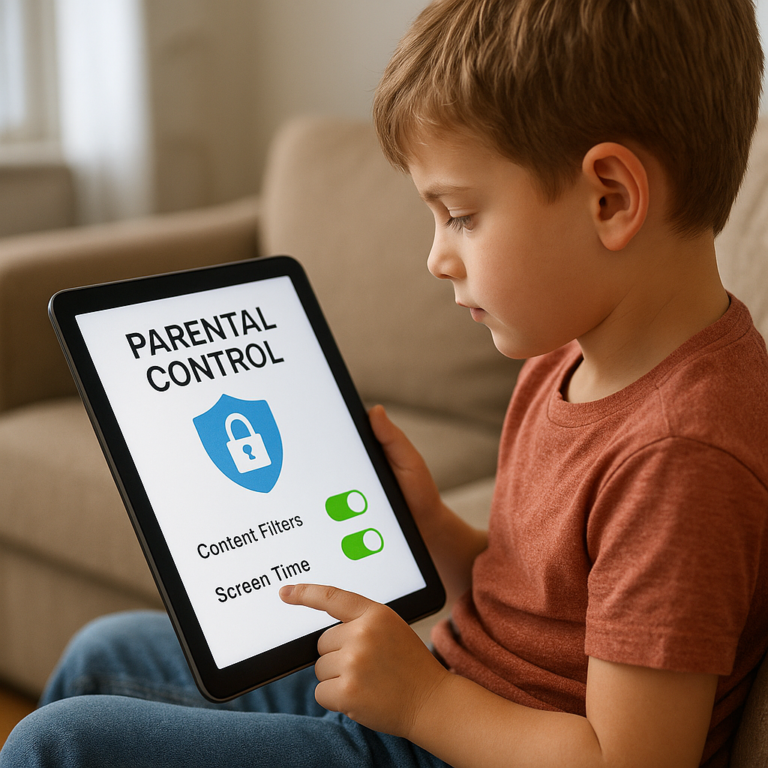
Amazon’s Parent Dashboard and child profiles can help parents shape a child’s digital experience. They are tools, not babysitters: check the settings, review app behavior, and talk with your child about what’s okay online.
The Google Play listing for Amazon Kids Parent Dashboard describes features such as time limits, activity review, content controls, and remotely pausing or resuming access. Exact options can vary by device, region, account, and software version.
Create a child profile and set age filters
A child profile gives you a place to choose content and set rules separately from an adult profile. Set it up before your child starts browsing.
- Open the tablet’s settings or Amazon Kids setup flow.
- Create or select the child’s profile.
- Choose an age range and review the content that setting allows.
- Add or remove specific apps, books, and videos as available.
- Check browser permissions and any app-specific controls.
- Test the child profile yourself before handing over the device.
Age filters are starting points, not perfect judgments. A parent may tighten or broaden access depending on the child’s maturity, reading ability, or sensitivities. Revisit the settings as your child grows.
Set daily limits, bedtime schedules, and learning goals
Where supported, parental settings can let you manage daily use, bedtime access, and learning goals. The best setup is one your family can explain and follow consistently.
A step-by-step approach:
- Decide on the family routine first: when the tablet can be used and where.
- Set a daily limit or scheduled downtime that supports that routine.
- Consider prioritizing reading or learning activities before entertainment if the feature is available.
- Test how the device behaves when a limit is reached.
- Tell your child what the rule is and what happens when time runs out.
- Adjust the plan if school, travel, or family circumstances change.
A parent on our team found that a clear “tablet after reading and chores” routine caused fewer arguments than an arbitrary countdown. The control helped, but the predictable rule did most of the work.
Manage web browsing, purchases, and app access
Parental controls differ across Amazon Kids, Fire OS, Fire TV, and third-party streaming apps. Don’t assume that turning one child profile blocks every purchase or restricts every website.
Review these areas:
- Web access: Check whether a browser is available and what filters or approvals are enabled.
- Purchases: Protect adult accounts and confirm whether purchase approval is required.
- App access: Review installed apps and age ratings, including apps added outside a child library.
- In-app content: A child-safe app can still contain links, subscriptions, or user-generated content.
- Streaming profiles: Set restrictions within each video service as well as on the device.
- Notifications and downloads: Check which apps can send alerts or store content.
The Federal Trade Commission’s Children’s Privacy guidance explains why parents should pay attention to how children’s services collect and use information. Read the privacy and account settings for the apps your child actually uses.
Use the Amazon Parent Dashboard
The Parent Dashboard can give parents a remote place to manage supported child experiences. Depending on device and account, tools may include activity review, content management, time limits, and pausing access.
To get useful information without turning the dashboard into a surveillance hobby:
- Check activity periodically, not every few minutes.
- Ask your child what they enjoyed or found confusing.
- Use the dashboard to spot patterns, such as late-night use or repeated app problems.
- Block or approve individual titles when broad age filters aren’t enough.
- Remember that activity visibility and controls can vary by app and device.
The dashboard’s app listing says households can create child profiles and manage supported experiences across Amazon devices. Confirm the current limit and feature availability in the app and Amazon help pages, as product capabilities can change.
🎬 Amazon Kids+, Prime Video, and Fire TV Stick Content
Amazon Kids+ and Prime Video are not the same service, and a Fire TV Stick does not automatically include every streaming subscription. Treat each app, membership, and profile as its own piece of the family media setup.
| Service or feature | What it generally provides | Check before relying on it |
|---|---|---|
| Amazon Kids+ | A subscription library of children’s books, apps, games, videos, and other content. | Availability, included content, age settings, and subscription terms. |
| Prime Video | Video streaming through supported Prime Video apps and accounts. | Account profile, subscription or rental requirements, and parental controls. |
| Other streaming apps | Content from services such as Netflix or Disney+, where supported. | Separate app availability, subscription, profile, and rating controls. |
| Offline downloads | Some apps allow selected content to be downloaded. | Download eligibility, storage, expiry, and internet requirements. |
What content is included with Amazon Kids+
Amazon describes Kids+ as a children’s subscription with books, apps, games, videos, and other age-oriented content. Titles and access can change, and the catalog may vary by country, device, and age setting. Check the Amazon Kids+ page for current details.
Best practice: preview the catalog with your child profile. “Included” doesn’t automatically mean “right for this particular kid.” Parents should also check whether a title works offline and whether it is available on the tablet, the TV, or both.
Prime Video profiles and child-friendly viewing
Prime Video has its own profile and parental-control features. A child’s Amazon Kids profile does not necessarily set every restriction inside the Prime Video app or every other streaming service.
Before family viewing:
- Choose the correct profile in the streaming app.
- Review the service’s age restrictions and PIN settings.
- Confirm the TV app is using the expected Amazon account.
- Test search and playback from the child’s profile.
- Recheck settings after app updates or account changes.
A common family mix-up is assuming that a “kids” label on the tablet controls the living-room TV. It may not. Check the television’s app profile separately.
Streaming apps, subscriptions, and account requirements
A Fire TV Stick is a platform for compatible apps, not a magical bundle of every streaming service. Some apps require paid subscriptions, rentals, purchases, or sign-in accounts. App availability can change.
When comparing devices, make a short list of the services your family uses, then verify:
- The app is available for the specific Fire TV Stick.
- The service supports the account profile you want.
- Parental controls are available and enabled.
- Your home internet can support the expected streaming quality.
- The subscription’s terms allow the viewing setup you plan to use.
Amazon’s Fire TV device help and each streaming service’s official help page are more reliable than an old search result or a retailer headline.
🔧 Setup and Compatibility: Tablet, Wi-Fi, and Fire TV
A smooth setup is less about clever tricks and more about checking the basics: account, Wi-Fi, child profile, app availability, and the exact device model. Set aside a few minutes before gifting the tablet. You’ll be glad you did.
Set up a Fire Kids tablet safely
- Update the device: Connect to Wi-Fi and install available system updates.
- Sign in as the adult: Use the parent’s Amazon account, not the child’s.
- Create the child profile: Set an age range and review content permissions.
- Review time settings: Choose limits or downtime that match your household routine.
- Check purchases: Confirm protections for app and content purchases.
- Install and test apps: Verify essential apps work in the child profile.
- Set up headphones and accessories: Check volume and fit before travel.
- Try a practice session: Let your child use it while you’re nearby and observe what’s confusing.
Amazon’s Fire tablet support pages provide current device-specific instructions. The exact menu labels can change with software updates, so follow the screens on your model.
Connect a Fire TV Stick to your television
A typical Fire TV Stick setup:
- Plug the device into an available HDMI port on a compatible TV.
- Connect its power as instructed.
- Select the correct HDMI input on the television.
- Pair the remote if prompted.
- Connect to your home Wi-Fi network.
- Sign in and install only the apps your family needs.
- Set profiles and parental controls within Fire TV and each relevant app.
For troubleshooting and model-specific instructions, use Amazon’s Fire TV support. If the television has several HDMI ports, note which one you used; “HDMI 2” is less memorable once a child has started asking for a show.
Check Wi-Fi, app, and device compatibility
Before purchase or setup, check this compatibility matrix:
| Question | Where to verify |
|---|---|
| Does the app run on this Fire tablet? | Amazon Appstore listing and the app provider’s support page. |
| Does the app run on this Fire TV Stick? | Fire TV app listing and service support page. |
| Can the tablet mirror to this TV device? | Tablet model documentation and Fire TV/TV documentation. |
| Can content be downloaded? | The individual app’s download policy. |
| Does parental control cover this app? | Amazon device settings and the app’s own control settings. |
| Does the accessory fit this generation? | Product listing and accessory compatibility notes. |
If you’re choosing a device specifically for school or learning, compare it with our educational tablets category and confirm the school’s required apps.
🔋 Battery Life, Storage, Durability, and Accessories
Battery life and storage depend on the exact model, settings, apps, and how a child uses the device. Streaming video, high screen brightness, downloads, and games can all affect performance. We avoid treating a manufacturer’s maximum battery claim as a promise for every household.
Offline downloads and storage management
For travel, download content on Wi-Fi before leaving home and test it in airplane mode or with Wi-Fi off. Not every video or app supports offline use, and some downloads expire or require periodic internet access.
Storage-saving tips:
- Remove completed downloads.
- Keep a small selection of favorite apps instead of installing everything.
- Check which apps use the most storage in device settings.
- Confirm whether your Fire tablet supports expandable storage and which content types can use it.
- Avoid relying on cloud access during a flight or road trip.
Protective cases, headphones, and charging tips
A case with a handle or stand can improve grip and hands-free viewing. For headphones, choose a comfortable fit and supervise volume. The World Health Organization’s guidance on safe listening explains the value of managing sound exposure, especially for children.
Good habits:
- Use the included or model-compatible case.
- Keep liquids and food away from charging ports.
- Use accessories that match the tablet’s exact generation.
- Take breaks during long viewing sessions.
- Store the device where it can’t be crushed in a backpack.
- Inspect charging cables for damage.
The parent in our team who bought a case “just in case” became the case evangelist after a tablet slipped off a sofa. The case helped absorb the bump; it did not make us recommend testing gravity on purpose.
✅ Pros and ❌ Cons of Amazon Kids Tablets and Fire TV Stick
| Pros ✅ | Cons ❌ |
|---|---|
| Fire Kids tablets combine child profiles with a portable device. | Fire OS app availability differs from Google Play and iPadOS. |
| Protective cases can improve grip and help with everyday bumps. | A case cannot prevent all damage. |
| Amazon Kids+ offers a child-focused content library. | Kids+ is optional, and subscription terms and content can change. |
| Parent Dashboard tools can help manage supported child experiences. | Controls may not apply identically across every app or device. |
| Fire TV Stick brings compatible streaming apps to a television. | It does not automatically mirror every Fire tablet. |
| The tablet and TV streaming device can serve different family needs. | Buying both does not guarantee shared settings or universal app compatibility. |
Best Buy’s retail copy calls Amazon Kids tablets a source of “endless hours of fun and learning.” That’s promotional language, not a promise that every hour will be educational—or even peaceful. The more dependable benefit is a child-focused device experience that parents can configure, provided you check the apps and rules yourself.
🆚 Amazon Fire Tablet vs. iPad and Other Kids Tablets
The right platform depends on what your child needs and what your family already uses. Our tablet comparisons and iOS tablet guides can help you compare models without getting lost in specification soup.
| Consideration | Amazon Fire Kids tablet | Apple iPad | Other Android kids tablet |
|---|---|---|---|
| Child-focused packaging | Often sold with kid-oriented case and profile options. | Usually configured by the family with separate accessories. | Varies by brand and model. |
| App ecosystem | Amazon’s app ecosystem; verify required apps. | Apple App Store; broad selection, subject to compatibility. | Google Play may be available, but support varies. |
| Parental controls | Amazon Kids and supported Parent Dashboard tools. | Apple Screen Time and family controls. | Android and manufacturer controls vary. |
| Fire TV relationship | Convenient in an Amazon household, but not universal miroring. | Works with Apple’s ecosystem and compatible TV solutions. | Depends on casting and device support. |
| Best fit | Families wanting a child-focused Amazon setup. | Families needing Apple apps or already using Apple devices. | Families wanting Android flexibility and willing to check support carefully. |
Our recommendation: choose based on the apps your child needs, not on a brand label or a bundle that looks impressive. A cheaper-to-set-up family routine is the one that works with your actual devices, school tools, and supervision style.
🧰 Troubleshooting Common Fire Tablet and Fire TV Issues
When something fails, check the simplest explanations first: Wi-Fi, account, app update, storage, and profile. A restart is not glamorous, but it has rescued more family movie nights than any dramatic cable rearrangement.
Casting, streaming, and app problems
Try this order:
- Confirm the tablet and TV device are connected to the expected Wi-Fi network.
- Restart the app on both devices.
- Restart the tablet or Fire TV Stick.
- Check that the app is updated and available on both devices.
- Sign in to the correct profile and account.
- Check the streaming service’s own casting or playback restrictions.
- Verify that the tablet model supports the miroring method you’re attempting.
If casting is unavailable, open the service’s app directly on Fire TV when supported. That often resolves the problem without further tinkering.
Parental controls, downloads, and connectivity fixes
If a child can access unexpected content:
- Recheck the active profile; the device may be in an adult profile.
- Review the app’s own settings, not just Amazon’s controls.
- Check browser and purchase permissions.
- Confirm whether a profile or setting changed after an update.
- Test the restriction yourself before returning the device to your child.
If downloads or Wi-Fi fail:
- Check free storage.
- Confirm the device has an internet connection.
- Check whether the content allows offline viewing.
- Restart the app and device.
- Re-download only after confirming the account and subscription are active.
For current model-specific guidance, use Amazon’s Fire tablet help and Fire TV help. Don’t factory-reset first unless you’ve checked the simpler fixes and backed up anything important.