Support our educational content for free when you purchase through links on our site. Learn more
Which iPad Is Best for Your Kid? 8 Picks to Compare 🍎

For most kids, the standard iPad is the best choice: it handles school apps, reading, video calls, games, and creative projects without paying for premium features they may not use. Which iPad is best for my kid? It depends on your child’s age, school requirements, and favorite activities, but for many families, a standard iPad with a sturdy case is the sensible place to start.
One of our parent testers found that the “perfect” tablet wasn’t the one with the flashiest specs. It was the one their child could carry comfortably, use for homework, and put away without a nightly negotiation. That’s why we compare eight options, from the compact iPad mini to the powerful iPad Pro, and explain where each one earns its place.
Key Takeaways
- Best for most kids: The standard iPad offers the strongest balance of everyday features and family-friendly practicality.
- Best for school and creative projects: Consider the iPad Air if your child needs more performance or regularly uses a compatible Apple Pencil.
- Best for portability: The iPad mini is easier to carry and hold, but its smaller screen may feel cramped for long assignments.
- Best for demanding creative work: Choose the iPad Pro only when your teen has a clear use for its premium capabilities.
- Check before buying: Confirm school-app support, storage, and Apple Pencil or keyboard compatibility for the exact iPad generation.
- Make it kid-ready: Add a well-fitting protective case, set up Screen Time, and agree on family rules before handing it over.
Explore iPads and tablet guides:
- iPads: Amazon | Apple Official
- iPad Air: Amazon | Apple Official
- iPad mini: Amazon | Apple Official
- iPad Pro: Amazon | Apple Official
- More kid-friendly tablets and tablet comparisons
Table of Contents
- ⚡️ Quick Tips and Facts
- 🍎 How iPads Became Family-Friendly Tablets
- 🏆 Which iPad Is Best for Your Kid? Our Top Picks
- 1. Best iPad for Most Kids: Standard iPad
- 2. Best iPad for Young Kids: Standard iPad with a Protective Case
- 3. Best iPad for School: iPad Air
- 4. Best Small iPad for Kids: iPad mini
- 5. Best iPad for Creative Teens: iPad Air with Apple Pencil
- 6. Best Premium iPad for Teens: iPad Pro
- 7. Best Budget iPad: A Refurbished or Previous-Generation Model
- 8. Best iPad for Travel: Wi-Fi or Cellular?
- 📊 iPad Comparison: Screen Size, Performance, and Features
- 👧 Choosing an iPad by Your Child’s Age and Needs
- iPads for Todlers and Preschoolers
- iPads for Elementary School Kids
- iPads for Middle Schoolers and Teens
- 🎯 What Will Your Child Use an iPad For?
- Learning Apps, Reading, and Homework
- Drawing, Music, and Creative Projects
- Games, Streaming, and Video Calls
- 💰 How Much Storage Does a Kid’s iPad Need?
- ✏️ Apple Pencil, Keyboard, and Other iPad Accessories
- 🛡️ Best iPad Cases and Screen Protectors for Kids
- 📶 Wi-Fi vs. Cellular iPad: Which Should Parents Choose?
- 🔒 Set Up an iPad Safely with Parental Controls
- Apple Screen Time and Family Sharing
- Content Restrictions, App Limits, and Web Safety
- Privacy, Purchases, and Communication Safety
- ⏱️ Healthy Screen-Time Habits for Kids
- ♻️ New, Used, or Refurbished: Buying an iPad for Your Child
- ✅ What to Check Before Buying a Kids’ iPad
- ❌ Common iPad Buying Mistakes Parents Can Avoid
- 🔄 How Long Will an iPad Last, and When Should You Upgrade?
- 🎁 Is an iPad a Good Gift for a Kid?
- Conclusion
- Recommended Links
- FAQ
- Which iPad is best for most kids?
- What is the best iPad for a 5-, 8-, or 10-year-old?
- Is an iPad mini or regular iPad better for a child?
- How much storage should a kid’s iPad have?
- Does my child need an Apple Pencil or keyboard?
- Can I set parental controls on an iPad?
- Should I buy a cellular iPad for my child?
- Is a used or refurbished iPad safe to buy?
- How long will a kids’ iPad last?
- Reference Links
⚡️ Quick Tips and Facts
For most families, the standard iPad is the best starting point for a child: it handles learning apps, reading, video calls, games, and homework without paying extra for features many kids won’t use. Choose an iPad Air if schoolwork or creative projects call for more performance, an iPad mini if portability matters most, and an iPad Pro only if your teen has a clear need for its premium tools.
If you’re looking for a broader starter guide, see our iPad for kids guide. You can also compare more kid-friendly tablets, iOS tablets, and educational tablets before choosing.
| Quick decision | Our practical recommendation |
|---|---|
| Best for most kids | Standard iPad with a sturdy case |
| Best for school and creative work | iPad Air |
| Best for small hands and travel | iPad mini |
| Best for professional-level creative work | iPad Pro, if the child truly needs it |
| Storage starting point | 128GB is workable for many families; consider more for lots of downloaded games, video, or creative files |
| Connection | Wi-Fi is enough for most children; cellular adds a plan and is useful only when reliable Wi-Fi isn’t available |
| Essential parent setup | Family Sharing, Screen Time, purchase controls, and a child-appropriate case |
| Most overlooked check | Confirm the exact iPad model supports the school apps and accessories your child needs |
A quick model caveat: Apple updates its lineup, specifications, and accessory compatibility over time. Before buying, confirm the current model details on Apple’s iPad lineup and iPad comparison page. Older models may remain available from retailers, but compatibility and software support can differ.
At Kids Tablets™, our parent-and-developer rule of thumb is simple: buy for your child’s real week, not one exciting Saturday. A tablet should fit school requirements, family screen rules, your child’s hands, and the activities they actually enjoy.
🍎 How iPads Became Family-Friendly Tablets
The iPad has grown from a general-purpose tablet into a family device used for school platforms, ebooks, drawing, video calls, accessibility tools, games, and travel entertainment. Its appeal is not one magic feature. It’s the combination of a large app ecosystem, regular software updates, accessories, and family controls.
That flexibility cuts both ways. One iPad can serve as a reading device on Monday, a homework screen on Tuesday, and a cartoon machine on a long flight. It can also become a very expensive distraction if expectations and limits are left to chance. The model matters, but the setup matters just as much.
The best buying advice we found in the supplied Best Buy iPads-for-kids guide is to choose around a child’s “everyday needs,” rather than a single favorite game or activity. That’s sensible: a child’s interests can change faster than a tablet’s software. The guide is general rather than a model-by-model review, so we pair that needs-first advice with Apple’s current product and compatibility information.
We also considered the supplied Macworld kids’ iPad page. The available material contains a newsletter sign-up prompt, not model recommendations or specifications, so it would be misleading to attribute a specific iPad pick to it.
Our family test: ask what the child will do with the iPad on an ordinary school day, a rainy weekend, and a trip. If the answer is mostly reading and school apps, a Pro may be unnecessary. If the answer includes illustration, video editing, and demanding creative apps, a basic model may feel limiting sooner.
🏆 Which iPad Is Best for Your Kid? Our Top Picks
There’s no single best iPad for every kid. A five-year-old who watches stories on the sofa and a 15-year-old editing art projects have very different needs. Here’s how we rate the major iPad families for typical child and family use, not as a lab test of every configuration.
| iPad family | Design | Functionality for kids | Portability | Creative potential | Value for most families | Overall fit |
|---|---|---|---|---|---|---|
| Standard iPad | 8/10 | 9/10 | 8/10 | 7/10 | 9/10 | 9/10 |
| iPad Air | 9/10 | 9/10 | 8/10 | 9/10 | 7/10 | 8/10 |
| iPad mini | 8/10 | 8/10 | 10/10 | 7/10 | 7/10 | 8/10 |
| iPad Pro | 10/10 | 10/10 | 7/10 | 10/10 | 5/10 for typical kids | 7/10 |
| Previous-generation or refurbished iPad | Varies | Varies | Varies | Varies | 9/10 when carefully checked | 8/10 |
Ratings are use-case judgments, not claims that one family has a measured performance score. Exact screens, chips, storage options, cameras, Pencil support, and keyboard compatibility vary by generation. Check Apple’s model comparison before you buy.
1. Best iPad for Most Kids: Standard iPad
For the majority of children, the standard iPad is the most practical choice. It’s designed for everyday tablet tasks: learning apps, web research, books, streaming, video calls, light creative work, and games. For many families, that’s the whole checklist.
Why we recommend it:
- It covers a broad range of school and entertainment tasks.
- A standard-sized screen gives room for reading and split-screen work without becoming unwieldy for many older children.
- It typically offers a better balance of capability and cost than the Air or Pro.
- It can pair with compatible keyboards and Apple Pencil models, depending on its generation.
Trade-offs: it may lack premium display features and the extra performance headroom found in higher-end models. If your child draws seriously, edits video, or regularly uses demanding apps, check whether the current standard model supports the tools they need.
Parent perspective: “I’d rather spend the difference on a case and save the rest for the next school year,” is a common family calculation. We agree, provided the base model has enough storage for your child’s actual downloads.
Before ordering, check the standard iPad’s current specifications and Apple’s Pencil compatibility guide.
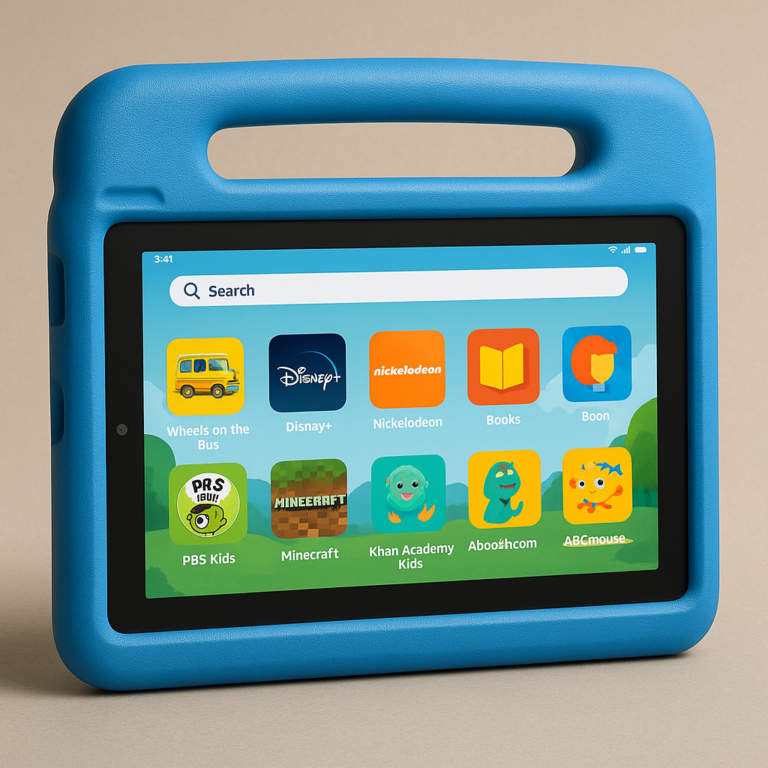
2. Best iPad for Young Kids: Standard iPad with a Protective Case
A young child usually doesn’t need the fanciest iPad. They need a tablet that fits family rules, is comfortable enough to use, and has a case that can handle ordinary bumps. A standard iPad in a child-friendly case is often more useful than a premium iPad in a thin, slippery cover.
Look for:
- A secure grip or handle that suits the child’s age and coordination.
- Raised edges around the screen and reinforced corners.
- A stable stand for video calls, lessons, and hands-free viewing.
- Easy access to charging and buttons without leaving the tablet exposed.
- A screen protector that fits the precise iPad generation.
No case makes a tablet indestructible. We’ve seen a rugged case survive a tumble from a sofa and still fail to protect a screen dropped onto a sharp corner. A case reduces risk; it doesn’t repeal gravity.
Set up Screen Time and purchase approvals before handing over the iPad. Apple explains its options in Use Screen Time on your iPhone or iPad and Set up Family Sharing.
3. Best iPad for School: iPad Air
The iPad Air is a strong pick for a student who needs more than basic browsing and note-taking, but doesn’t need a Pro-level device. It can suit multitasking, digital note-taking, illustration, presentations, and heavier school or creative apps, depending on the model and software requirements.
Why choose an Air?
- It offers a more capable platform for demanding apps than an entry-level tablet.
- It works with compatible Apple Pencil and keyboard accessories, though exact support changes by model.
- It can be a useful middle ground for a student who wants one device for school and hobbies.
The catch: “Good for school” doesn’t mean “required for school.” Ask the school which apps, websites, and accessories it expects students to use. Some schools have device-management rules or require a specific platform. A school-issued Chromebook or laptop may also better for long essays, specialized software, or exam systems.
Student perspective: A larger screen feels more comfortable when annotating a PDF or comparing notes with a lesson. A lightweight model is easier to carry all day. The best choice depends on whether the iPad will mainly live on a desk or in a backpack.
Check the current iPad Air page and Apple Pencil compatibility before purchasing accessories.
4. Best Small iPad for Kids: iPad mini
The iPad mini is the portability pick. Its smaller footprint can make it easier for a child to carry, hold while reading, or use in a car or plane. It may suit a child who prioritizes ebooks, travel, compact games, and one-handed handling.
Best for:
- Kids who find a larger tablet awkward to hold.
- Reading and travel use.
- Families that want a compact device to pack in a bag.
- Children whose school or creative apps work well on a smaller screen.
Less ideal for: lengthy typing, wide spreadsheets, detailed split-screen tasks, or art projects where extra canvas space is helpful. A small tablet can be wonderfully portable and mildly frustrating when the assignment needs room to breathe.
One buyer in our parent group said the mini was the device their child actually carried to grandma’s house because it fit in a small backpack pocket. That’s a real advantage, but portability can also mean the device is always within reach. Use the same household screen rules you would with a larger iPad.
Review Apple’s current iPad mini information and check support for the exact Pencil model you’re considering.
5. Best iPad for Creative Teens: iPad Air with Apple Pencil
For a teen who draws, annotates class material, makes music, or creates presentations, an iPad Air paired with a compatible Apple Pencil can be a compelling setup. It offers more room and creative flexibility than many compact tablets while avoiding some Pro features that a casual artist may never use.
Before buying, verify three things:
- App compatibility: Check that the art or music apps your teen uses support the iPad model.
- Pencil compatibility: Apple Pencil support varies by iPad generation. Confirm the exact match on Apple’s Apple Pencil page.
- Storage needs: Large video projects, downloaded reference material, and art files can fill storage. Consider cloud access, backup habits, and offline use.
Teen perspective: A stylus can make digital drawing feel immediate, but it doesn’t automatically make every school task more productive. Some teens love handwritten notes; others type faster. If possible, try the Pencil in a store or borrow one before treating it as an essential accessory.
6. Best Premium iPad for Teens: iPad Pro
The iPad Pro is for a child or teen with a specific reason to need a high-end tablet: serious digital art, professional-style video editing, demanding creative software, or a strong preference for its display and accessories.
It is not our default recommendation for children. A Pro can be an excellent creative tool, but its premium capabilities may sit unused if the child mainly streams, reads, and plays casual games. Put the saved budget toward a protective case, a keyboard if needed, or future upgrades.
| Consider an iPad Pro if… | Skip the Pro if… |
|---|---|
| Your teen uses demanding creative apps regularly | The iPad is mostly for school portals, reading, and video |
| Display quality and performance are central to the work | A standard iPad meets the school’s requirements |
| A compatible premium keyboard is genuinely useful | Your child rarely types long assignments |
| The family has a clear protection and supervision plan | The main attraction is simply “the most expensive one” |
Apple’s iPad Pro page and iPad comparison tool show current configurations. Confirm accessory compatibility separately; not every accessory fits every generation.
7. Best Budget iPad: A Refurbished or Previous-Generation Model
A previous-generation iPad can be a smart buy if it still supports the apps, operating system, and accessories your child needs. “Older” alone doesn’t tell you whether a model is a bargain or a headache.
For a used or refurbished iPad, check:
- The exact model and generation.
- Whether it can run the child’s required apps and current operating system.
- Storage capacity and battery condition.
- Activation Lock status and whether the seller has removed the device from their Apple Account.
- Screen condition, charging port, speakers, cameras, and buttons.
- Return policy and warranty coverage.
- Pencil and keyboard compatibility, if you plan to use accessories.
Apple’s Certified Refurbished store is one option. For any seller, don’t accept a device you cannot fully reset and activate. A locked iPad can look like a bargain right up until it becomes a very shiny paperweight.
For more shopping guidance, browse our tablet comparisons and best tablet deals.
8. Best iPad for Travel: Wi-Fi or Cellular?
For travel, the best iPad depends less on the model name and more on screen size, weight, battery needs, downloaded content, and access to Wi-Fi. The iPad mini is easy to pack; a standard iPad or Air offers a larger screen for movies and schoolwork.
A Wi-Fi iPad may be plenty if you download books, lessons, and videos before leaving. A cellular model can connect away from Wi-Fi, but requires compatible service and a data plan. Check Apple’s Wi-Fi + Cellular iPad information and the carrier’s coverage and plan terms before paying for the added capability.
Travel checklist:
- Download approved shows, ebooks, and school files while on reliable Wi-Fi.
- Set up age-appropriate headphones and reasonable volume limits.
- Bring a protective case and the correct charging cable.
- Set Screen Time rules before the trip, not during the airport snack negotiation.
- Confirm whether cellular service is necessary for your family’s travel habits.
🔎 How the 2026 iPad Lineup Fits Different Kids
A supplied 2026 iPad lineup video describes the standard iPad as the value choice for everyday tasks, the mini as the portability pick, the Air as the student and casual-artist “sweet spot,” and the Pro as a tool for professional creative work. It also emphasizes size, storage, and accessory compatibility.
That perspective is useful as a needs-based framework, not a substitute for checking current specs. Its comment that “the 11-inch size is the perfect balance” is a preference, not a universal rule: smaller hands, reading habits, accessibility needs, and backpack space all change the answer. The video’s “90%” estimate should likewise be treated as an opinion, not a measured survey result.
We agree with its central question: What will your child mainly use the iPad for? For most families, that question points toward the standard iPad or Air. The rest of this guide helps narrow the choice.
📊 iPad Comparison: Screen Size, Performance, and Features
The table below compares the roles each iPad family commonly fills. Screen sizes, chips, cameras, display features, storage tiers, and supported accessories vary by generation, so use Apple’s iPad comparison tool to verify the exact model.
| iPad family | Typical strengths | Best fit | Main compromise | Accessory check |
|---|---|---|---|---|
| Standard iPad | Everyday apps, school basics, entertainment | Most children and families | Fewer premium features than Air or Pro | Confirm Pencil and keyboard support by generation |
| iPad mini | Compact size and portability | Reading, travel, smaller hands | Less room for typing and split-screen tasks | Check exact Pencil support |
| iPad Air | Performance and creative flexibility | Students, artists, multitaskers | More capability than some children need | Confirm keyboard and Pencil model |
| iPad Pro | Premium performance and display options | Demanding creative or professional work | Often unnecessary for ordinary child use | Check exact model compatibility |
Screen size and handling
A larger screen helps with reading, drawing, lessons, and typing. A smaller one can be easier to hold, pack, and use on the move. For a child, weight and grip matter as much as diagonal screen size.
Try this simple check: ask your child to hold the tablet in a case for a few minutes, then set it on a table and read a page. If it feels too heavy or cramped in both situations, look at another size.
Storage: what fills an iPad?
Apps, games, photos, downloaded video, audio, and creative projects all use storage. Cloud storage can help, but it does not make local space irrelevant: offline schoolwork and travel downloads still need room on the device.
Apple says available storage is less than the advertised capacity because the operating system and other files use some space. Check Apple’s iPad technical specifications and manage storage guidance for the model and software version you own.
Performance and expected lifespan
A current model generally offers more performance headroom than an older one, but a child’s needs should guide the decision. If the tablet will run basic apps, video, and reading, a Pro-level chip may be unnecessary. If it will handle creative projects and demanding apps for years, extra performance may be useful.
Do not assume every iPad receives the same software support for the same length of time. Check Apple’s current operating-system compatibility information and confirm that the apps your child needs support the specific model.
👧 Choosing an iPad by Your Child’s Age and Needs
Age can help you think about size, durability, supervision, and intended use, but it shouldn’t dictate the model on its own. A careful preschooler and a hard-charging nine-year-old may need very different setups. So may two teenagers with different school and creative interests.
iPads for Todlers and Preschoolers
For a young child, start by deciding whether a personal iPad is needed at all. A shared family device may work better, particularly when adults want to supervise use and set clear routines.
If you do choose an iPad:
- Prioritize a protective case with a secure grip.
- Set up a child account and parental controls.
- Limit app installation and in-app purchases.
- Choose age-appropriate content and keep the screen in shared family spaces.
- Avoid treating the device as a substitute for sleep, play, conversation, or outdoor time.
For guidance on healthy media habits, see the American Academy of Pediatrics’ Family Media Plan.
iPads for Elementary School Kids
Elementary-age children may use an iPad for reading, school apps, basic research, communication with family, and games. A standard iPad is often enough, especially when it is protected and set up with clear app and screen-time rules.
Ask the school what it supports before buying accessories. A child may need only the tablet, or the school may require particular apps, a keyboard, or a managed device. Don’t assume an iPad can replace every school computer: web tools, file workflows, and testing platforms can behave differently on tablets.
iPads for Middle Schoolers and Teens
Older students may need note-taking, research, creative apps, group projects, and more typing. A standard iPad can still work, while an Air may make sense for demanding schoolwork or art. A keyboard can help with longer writing assignments, but check whether the child’s schoolwork requires laptop-specific software.
This is also a good age to involve your child in rules:
- Agree on where the iPad charges overnight.
- Decide which apps can send notifications.
- Make a plan for school versus entertainment use.
- Review privacy and communication settings together.
- Revisit the plan as responsibilities change.
Teen perspective: Being included in the conversation can make rules feel more like an agreement and less like a surprise ambush by the Screen Time menu.
🎯 What Will Your Child Use an iPad For?
A tablet that fits your child’s main activities is more likely to stay useful. Best Buy’s needs-first guidance makes a good point: think beyond a favorite game and consider how interests and assignments might change.
| Main use | What matters most | Likely starting point |
|---|---|---|
| Reading and learning apps | Comfortable screen, good app support, adequate storage | Standard iPad or mini |
| Homework and research | School compatibility, keyboard option, multitasking | Standard iPad or Air |
| Digital drawing | Pencil compatibility, screen space, art-app support | Air; Pro for demanding workflows |
| Travel entertainment | Portability, offline storage, protective case | Mini or standard iPad |
| Video calls and family communication | Camera and microphone suitability, privacy controls | Standard iPad or Air |
| Advanced editing and creative work | Performance, display, storage, app support | Air or Pro, depending on workload |
Learning Apps, Reading, and Homework
For reading and everyday learning apps, a standard iPad is often more than capable. The bigger questions are whether the app works on the model, whether the school requires specific software, and whether your child can use it comfortably.
Before buying:
- Get the school’s device and app requirements.
- Check each app’s compatibility in the Apple App Store.
- Test websites the student needs, especially school portals and testing tools.
- Decide whether a keyboard is necessary for the child’s assignments.
- Set up backups and storage before school files start accumulating.
An iPad can be useful for learning, but installing educational apps doesn’t automatically turn homework into a joyful parade. The child still needs a sensible routine and a quiet place to work.
Drawing, Music, and Creative Projects
Creative apps may be more demanding than reading apps. Check the minimum supported iPad model, operating-system requirements, Pencil support, and storage needs for software such as drawing, music, or video tools.
For a budding artist, try the intended app with the child’s preferred stylus before buying a premium accessory. For a young musician, check whether the app works with the instruments or headphones they plan to use. For video projects, storage and backup habits matter as much as processor speed.
App developer perspective: The feature list is only half the story. A great creative app should also be easy for a child to learn, have age-appropriate sharing options, and explain purchases clearly. Review privacy information and in-app purchase details before installation.
Games, Streaming, and Video Calls
Every current iPad family can be attractive for entertainment, but the child’s game library and usage habits should shape the purchase. Check game compatibility, storage use, multiplayer and chat features, and in-app purchases.
For streaming and travel, download content in advance when allowed. For video calls, talk with your child about who they may contact and when. Apple’s communication and privacy settings can help families manage access, but conversation remains part of the safety plan.
💰 How Much Storage Does a Kid’s iPad Need?
There’s no perfect storage number for every child. 128GB is a reasonable starting point for many families who mainly use school apps, ebooks, browsing, and streaming. Consider more storage if your child downloads many games, keeps media offline, records video, or creates large projects.
| Child’s use pattern | Storage planning |
|---|---|
| Mostly streaming, reading, and school apps | A lower available capacity may work if the family manages downloads |
| Several large games and offline videos | Leave room for apps and downloads; consider a higher tier |
| Frequent drawing, music, or video projects | Plan for project files and backups; more local storage may be useful |
| Shared family tablet | Allow extra room for multiple profiles’ apps and downloads |
| Travel without reliable Wi-Fi | Make room for offline books, lessons, and entertainment |
Storage on an iPad cannot be upgraded after purchase. Cloud services can help store files, but a cloud account is not a substitute for enough device space when a child needs offline access. See Apple’s storage management guide before deleting school files or apps.
✏️ Apple Pencil, Keyboard, and Other iPad Accessories
Accessories can make an iPad more useful, but compatibility is model-specific. Before buying an Apple Pencil, keyboard, or case, identify the iPad’s exact generation and model number.
| Accessory | Useful for | Watch out for |
|---|---|---|
| Apple Pencil | Handwriting, annotation, drawing | Pencil compatibility differs by iPad model |
| Keyboard | Essays, research, longer school tasks | Some cases make a tablet heavier; layout and fit vary |
| Ruged case | Grip and impact protection | No case guarantees protection from every drop |
| Stand | Video lessons, calls, hands-free viewing | Stability and viewing angle matter |
| Headphones | Quiet listening and travel | Choose a comfortable fit and set sensible volume limits |
| Screen protector | Everyday scratch protection | Confirm fit and touch/stylus compatibility |
Apple maintains current details for Apple Pencil and iPad keyboards. Check the product’s compatibility list rather than trusting a listing that says “fits iPad” without naming the generation.
🛡️ Best iPad Cases and Screen Protectors for Kids
A kid’s iPad case should be easy to hold, stable when propped up, and compatible with the exact model. We suggest looking for a raised bezel, reinforced corners, and a stand or handle that doesn’t make the tablet awkward to carry.
How to choose a case
- Identify the iPad’s model and generation.
- Check that the case listing names that exact model.
- Look at corner coverage and screen-edge protection.
- Test the grip and stand position if possible.
- Confirm that ports, buttons, cameras, and speakers remain accessible.
- Add a screen protector only if it fits the case and doesn’t interfere with touch or Pencil use.
A foam-style case can suit a younger child who needs a lightweight grip. An older student may prefer a slimmer case with a stand and keyboard. A case is protective equipment, not a permission slip toss the tablet.
📶 Wi-Fi vs. Cellular iPad: Which Should Parents Choose?
For most kids, Wi-Fi is enough. Home, school, libraries, and many public spaces provide connectivity, and children can download approved material before travel.
Cellular may be useful if the child regularly travels without Wi-Fi or needs a connection for supervised activities away from home. But it adds a mobile-service decision and recurring plan requirements. It does not automatically make a tablet safer or easier to supervise.
| Question | Wi-Fi is likely enough when… | Cellular may help when… |
|---|---|---|
| Where does the child use it? | Mostly at home or school | Frequently away from trusted Wi-Fi |
| Does the child need offline access? | Downloads are manageable | Live access is regularly necessary |
| Who manages the connection? | Parent or school controls Wi-Fi | Parent can manage the carrier plan |
| Is it a shared device? | The family brings it home and downloads content | A dedicated travel connection has clear value |
Check Apple’s iPad connectivity information and your carrier’s coverage, plan rules, and parental controls before choosing cellular.
🔒 Set Up an iPad Safely with Parental Controls
A new iPad is easiest to manage when you set it up before it becomes the child’s personal screen. Apple’s Screen Time tools can help with downtime, app limits, content restrictions, and privacy settings. Start with Apple’s Screen Time guide.
Apple Screen Time and Family Sharing
Use Family Sharing to organize family accounts and parental settings. Depending on your family setup and account eligibility, Apple’s features can help parents approve eligible purchases and downloads.
Step-by-step setup:
- Create or confirm the child’s Apple Account using Apple’s family setup guidance.
- Add the child to Family Sharing.
- Turn on Screen Time for the child’s device.
- Set Downtime and app limits that fit the family routine.
- Review purchase and download approval options.
- Revisit settings together as the child grows.
Menus and options can change with iPadOS updates. Use Apple’s current support instructions rather than relying on an old screenshot.
Content Restrictions, App Limits, and Web Safety
Screen Time can help families manage allowed content, app use, and selected web access. Apple describes its controls in Use parental controls on your child’s iPhone and iPad.
Consider reviewing:
- Age ratings and content restrictions.
- App installation and deletion permissions.
- In-app purchases.
- Web content access.
- Downtime and daily app limits.
- Communication and privacy settings.
Controls are useful, but they cannot replace supervision or a conversation about unsafe links, strangers, and sharing personal information. Kids learn best when adults explain why a rule exists, not just where the lock icon lives.
Privacy, Purchases, and Communication Safety
Check each app’s privacy disclosures, permissions, social features, and in-app purchases. Discuss what information should never be shared online, such as a home address, passwords, school details, or live location.
For purchases, use approval options where available and make sure the child knows that a bright “buy” button is still a real purchase. For communication, talk through who may contact the child and what they should do if a message feels uncomfortable.
Family tip: Keep the first setup session collaborative. Ask the child to show you the apps they want and explain what each one does. It’s a much better conversation starter than discovering a surprise subscription after bedtime.
⏱️ Healthy Screen-Time Habits for Kids
There isn’t one screen-time rule that suits every child, activity, and family. The American Academy of Pediatrics recommends making a family media plan that considers children’s ages, health, sleep, school, and other activities.
Practical habits we recommend:
- Keep bedtime routines and sleep protected from screen use.
- Make room for physical activity, outdoor play, reading, and face-to-face time.
- Use device-free meals or other family moments if that works for your household.
- Distinguish schoolwork and creative activities from passive entertainment.
- Review app limits and notifications when routines change.
- Let children help set realistic rules and explain what is not working.
A tablet can support learning and creativity, but it should not crowd out everything else. Aim for balance, not a daily argument over a magic number.
♻️ New, Used, or Refurbished: Buying an iPad for Your Child
A new iPad offers a clear starting point and the latest available model in that product family. A refurbished or older iPad may offer better value, but only if it meets the child’s needs and passes a careful inspection.
Used iPad buying checklist
- Confirm the model and generation in Settings → General → About when possible.
- Verify that the iPad can be erased and activated with your Apple Account.
- Ask the seller to remove their Apple Account and disable Find My before handover.
- Test charging, Wi-Fi, cameras, microphones, speakers, buttons, and touchscreen.
- Check for screen damage, swelling, or unusual heat.
- Confirm the battery condition and seller’s return terms.
- Check software compatibility and school-app requirements.
- Verify Pencil, keyboard, and case fit.
Apple’s activation-lock guidance explains why the previous owner must remove the device from their account. Apple also sells selected models through its Certified Refurbished store.
✅ What to Check Before Buying a Kids’ iPad
Use this checklist before clicking “buy”:
- Main use: school, reading, travel, drawing, gaming, or a mix?
- School requirements: which apps, sites, and accessories are actually required?
- Model and generation: does it run the apps and operating system your child needs?
- Screen size and weight: can your child hold and carry it comfortably?
- Storage: will downloads, games, and projects fit?
- Pencil and keyboard: are the exact accessories compatible?
- Protection: is there a case sized for that model?
- Connectivity: is Wi-Fi enough, or is cellular genuinely useful?
- Family setup: are Apple Account, Screen Time, and purchase settings ready?
- Support and returns: can you resolve compatibility or hardware problems if needed?
For side-by-side shopping help, browse our tablet comparisons and best tablet deals.
❌ Common iPad Buying Mistakes Parents Can Avoid
- Buying the Pro because “the best must last longest.” The best fit is the one that matches the child’s real workload.
- Choosing storage based only on cloud services. Offline content and apps still take local space.
- Assuming every Pencil or keyboard fits every iPad. Check the model-specific compatibility list.
- Forgetting the school’s requirements. A tablet may not support every school website or workflow equally well.
- Buying cellular without checking the plan. Connectivity involves a carrier and ongoing service terms.
- Skipping the case because the child is “careful.” Careful children still meet slippery hands, busy rooms, and furniture edges.
- Handing over the iPad before setting up family controls. Configure accounts, privacy, and purchase settings first.
- Expecting parental controls to do all the parenting. Controls help; communication and supervision still matter.
🔄 How Long Will an iPad Last, and When Should You Upgrade?
An iPad can remain useful for years, but its practical lifespan depends on battery health, software compatibility, physical condition, storage, and the child’s needs. There isn’t a guaranteed lifespan that applies to every model.
Consider replacing or upgrading when:
- The iPad no longer supports essential school apps or software.
- Its battery no longer lasts through a normal day.
- Storage is routinely full despite reasonable cleanup.
- The screen or other hardware is damaged and repair is not practical.
- The child’s workload has outgrown the device.
- Repairs or accessory compatibility make continued use unreasonable.
Before replacing it, review Apple’s iPad service and repair options. A new case, storage cleanup, or battery service may solve the problem more sensibly than an immediate upgrade.
🎁 Is an iPad a Good Gift for a Kid?
An iPad can be a useful gift when the family agrees on who will set it up, which apps the child can use, and what rules come with it. The gift needn’t arrive as a complete digital surprise. Ask parents about school needs, screen-time expectations, and whether a shared family device is preferable.
A thoughtful gift bundle might include:
- The iPad selected for the child’s actual needs.
- A model-compatible protective case.
- A screen protector if the family wants one.
- A compatible Pencil or keyboard only when it will be used.
- A note that the device will be set up together with a parent.
The gift that saves everyone a headache: confirm the exact model before buying accessories. That way, the case fits, the Pencil works, and the unboxing doesn’t turn into a compatibility mystery.