Support our educational content for free when you purchase through links on our site. Learn more
🏆 4 Best iPads for Kids: Which One Should You Buy in 2026?

What is the best entry level iPad for kids? For most families, it’s the iPad (A16, 11th generation): a versatile first tablet for school apps, games, reading, video, and creative projects, without paying for features many kids won’t use.
If smaller hands or frequent travel make portability the priority, consider the iPad mini (A17 Pro). For teens who genuinely need extra power for creative work or demanding school tasks, the iPad Air (M3) is a worthwhile upgrade.
One parent on our team bought a tablet expecting it to be mostly for cartoons. A few weeks later, it was also a reading buddy, drawing pad, and homework helper. The surprise wasn’t how much the child used it; it was how quickly “just one app” became a reason to check storage, set Screen Time, and buy a protective case. 📚
Key Takeaways
- Best first iPad for most kids: iPad (A16, 11th generation).
- Best for small hands and travel: iPad mini (A17 Pro).
- Best for creative teens and heavier schoolwork: iPad Air (M3).
- Before buying: Check storage, school-app requirements, iPadOS compatibility, and Apple Pencil support.
- Set it up for safety: Use a child Apple Account, Family Sharing, and Screen Time.
- Protect the investment: Get a sturdy case made for the exact iPad model.
👉 Shop the iPads we recommend:
- iPad (A16, 11th generation): Amazon | Walmart | Apple Official
- iPad mini (A17 Pro): Amazon | Walmart | Apple Official
- iPad Air (M3): Amazon | Walmart | Apple Official
Table of Contents
- ⚡️ Quick Tips and Facts: The Best Entry-Level iPad for Kids
- 📚 How the Entry-Level iPad Became a Family Favorite
- 👀 At a Glance: Which iPad Should You Choose?
- 🏆 Best iPads for Kids: Our Top Picks for Different Needs
- 1. iPad (A16, 11th Generation): Best First iPad for Most Kids
- 2. iPad mini (A17 Pro): Best iPad for Small Hands and Travel
- 3. iPad Air (M3): Best Upgrade for Twens and Teens
- 4. Refurbished iPad: Best Lower-Cost Route to a Kid-Friendly Tablet
- 🧭 How to Choose the Best iPad for Your Child
- Screen size, weight, and portability
- Storage capacity: How much space does a child need?
- Wi-Fi or cellular: Does your child need mobile data?
- Battery life, durability, and repairability
- Apple Pencil and keyboard compatibility
- iPadOS support and future-proofing
- 👶 Choosing an iPad by Age: Todlers, Kids, Twens, and Teens
- iPads for toddlers and preschoolers
- iPads for elementary school children
- iPads for twens and teenagers
- 🤔 Should You Buy an iPad for Your Child?
- Benefits for learning, creativity, and family travel
- Screen-time concerns and healthy boundaries
- When a less expensive tablet may be a better fit
- 🔒 Set Up a Kid-Friendly iPad: Parental Controls and Safety
- Apple Family Sharing and a child’s Apple Account
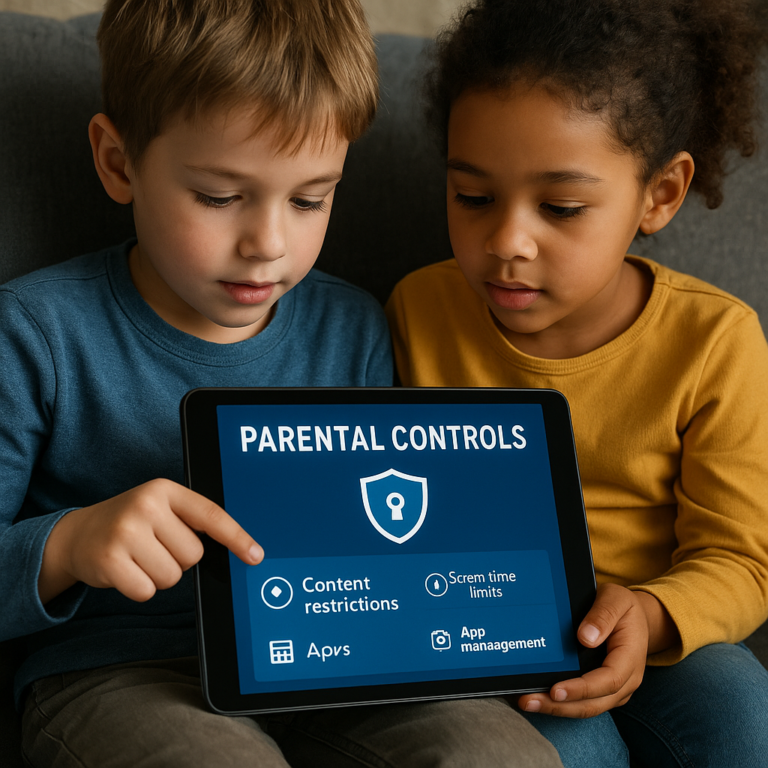
- Screen Time, app limits, and content restrictions
- Communication safety, privacy, and in-app purchases
- Safer browsing, YouTube, and age-appropriate apps
- 🎒 Best iPad Accessories for Kids
- Protective cases, screen protectors, and grips
- Headphones for school, travel, and quiet time
- Styluses, keyboards, and charging accessories
- 💸 iPad Buying Advice: Cost, Education Discounts, and Refurbished Models
- What affects the cost of an iPad for kids?
- Is education pricing available for iPads?
- Should you buy a refurbished or older iPad?
- New, refurbished, or used: What’s the safest choice?
- 🧪 How We Evaluate an Entry-Level iPad for Kids
- ✅ Final Verdict: The Best First iPad for Most Kids
- 🔗 Recommended Links
- ❓ FAQ: What Is the Best Entry-Level iPad for Kids?
- Is the basic iPad good enough for a child?
- Which iPad is best for a young child?
- How much storage should a kid’s iPad have?
- Can an iPad replace a laptop for schoolwork?
- Can I set up an iPad without giving my child an iPhone?
- How long should a child use an iPad each day?
- Is a case necessary for a child’s iPad?
- 📖 Reference Links
⚡️ Quick Tips and Facts: The Best Entry-Level iPad for Kids
If you’re comparing an iPad with other kid-friendly tablets, our iPad for kids guide is a useful place to start. For most families, the standard iPad is the best entry-level iPad for kids: it handles school apps, streaming, games, video calls, reading, and drawing without the premium features many children won’t use.
Apple’s model lineup changes, so check the exact generation and compatibility before you buy. The recommendations below focus on Apple’s current-generation models discussed here: the iPad (A16, 11th generation), iPad mini (A17 Pro), and iPad Air (M3). Confirm details on Apple’s iPad comparison page.
| Quick question | Our short answer |
|---|---|
| Best first iPad for most kids | iPad (A16, 11th generation) |
| Best iPad for small hands | iPad mini (A17 Pro) |
| Best iPad for teens, art, and heavier schoolwork | iPad Air (M3) |
| Most important setup step | Create a child Apple Account and set up Family Sharing and Screen Time |
| Best practical add-on | A sturdy, model-compatible case |
| Wi-Fi or cellular? | Wi-Fi suits most kids; cellular adds a mobile-data plan |
| How much storage? | Choose based on offline downloads, games, photos, and school files; storage cannot be upgraded later |
A little family lesson: one of our parents expected a tablet to be “just for cartoons.” Their child soon used it for reading, school assignments, drawing, and the occasional cartoon, of course. Choose for everyday needs that may change, not just the game currently dominating the kitchen table. Best Buy makes a similar point in its iPads for kids buying guide.
Before you buy: check the school’s app requirements, Apple Pencil compatibility, storage, and whether your child can comfortably hold the device. For other iOS tablets and side-by-side tablet comparisons, see our related guides.
📚 How the Entry-Level iPad Became a Family Favorite
An entry-level iPad is Apple’s standard tablet: the practical middle ground between a small, highly portable iPad mini and a more powerful iPad Air or Pro. It isn’t a “kids-only” device. That’s part of its appeal: the same screen can serve a child’s reading app, a parent’s video call, and a family’s downloaded movie on a long trip. 🧳
Apple’s iPad lineup includes different sizes and performance levels, but families don’t necessarily need the most expensive model. The Best Buy buying guide doesn’t rank a specific iPad; instead, it advises choosing around a child’s everyday needs, school requirements, and budget. That’s sensible advice: an expensive tablet is not automatically a better first tablet.
What “entry-level” means for a child
For a family buyer, entry-level means a tablet that:
- Runs the child’s required learning and entertainment apps.
- Has a screen size comfortable for reading and video.
- Can be protected with a durable case.
- Has enough storage for the family’s actual use.
- Won’t require buying premium accessories to do basic tasks.
Apple’s basic iPad is our default recommendation for those needs. The iPad mini can be a better fit for smaller hands, while the iPad Air makes more sense when advanced creative tools or demanding schoolwork justify the upgrade.
Why iPads work well for shared family use
Parents we spoke with value straightforward setup, app availability, and the ability to manage a child’s account and settings. Our app-development perspective adds one practical point: check that the specific apps your child needs support the iPad model and iPadOS version you plan to buy. Apple explains iPadOS features and compatibility, while schools may provide their own device requirements.
👀 At a Glance: Which iPad Should You Choose?
| Model | Best for | Main advantage | Main trade-off |
|---|---|---|---|
| iPad (A16, 11th generation) | Most children and first-time iPad owners | Versatile screen and everyday performance | Bigger to hold than the mini |
| iPad mini (A17 Pro) | Small hands, reading, and travel | Compact and easy to carry | Smaller screen; may feel cramped for some school tasks |
| iPad Air (M3) | Teens, creative work, and heavier school use | More performance and premium accessory options | Many children won’t need its extra capabilities |
| Apple Certified Refurbished iPad | Families seeking a lower-cost Apple option | Apple-certified refurbished hardware | Model, stock, and configuration vary |
Apple’s official iPad comparison tool is the best place to confirm current dimensions, storage options, connectivity, and accessory support. Don’t assume accessories fit across generations: even similar-looking iPads can differ in size or connector and Pencil compatibility.
The quick family decision
- Pick the standard iPad if you want one tablet for school, games, video, and family use.
- Pick the iPad mini if compact size and easy carrying matter most.
- Pick the iPad Air if your child has a real need for advanced drawing, intensive creative apps, or more demanding work.
- Consider a refurbished iPad only after checking the model’s software support, battery condition, return policy, and accessory compatibility.
🏆 Best iPads for Kids: Our Top Picks for Different Needs
These scores are our editorial assessments for children’s everyday use, not lab measurements or claims from Apple. A lower score for portability doesn’t mean a model is poor; it means it may be less convenient for a smaller child to carry.
| iPad | Design | Everyday functionality | Portability | School and creative use | Value for most kids | Overall for its use |
|---|---|---|---|---|---|---|
| iPad (A16, 11th generation) | 8/10 | 9/10 | 7/10 | 8/10 | 9/10 | 9/10 |
| iPad mini (A17 Pro) | 9/10 | 8/10 | 10/10 | 7/10 | 7/10 | 8/10 |
| iPad Air (M3) | 9/10 | 10/10 | 8/10 | 10/10 | 7/10 | 8/10 |
| Certified refurbished iPad | Varies | Varies | Varies | Varies | 8/10* | Depends on model |
*Value depends on the exact generation, condition, remaining software support, and warranty. Check Apple’s Certified Refurbished store for current availability.
1. iPad (A16, 11th Generation): Best First iPad for Most Kids
The standard iPad is our best all-rounder because it balances screen size, everyday performance, and broad usefulness. It suits a child who wants to watch videos, play age-appropriate games, attend online lessons, read, browse supervised websites, or use common school apps.
Apple lists the latest model’s specifications and accessory support on its iPad product page. Before ordering, verify the exact storage and Pencil options for the configuration you’re buying.
Why families like it
- Versatile screen size: More comfortable than a mini for shared reading, schoolwork, and video.
- Wide range of uses: A good fit for entertainment, learning, and creative apps.
- Straightforward recommendation: Most children don’t need an Air or Pro to do everyday tablet tasks.
- Room to grow: It can remain useful as a child moves from simple games to schoolwork and creative projects.
What parents should weigh
- It is less compact than the mini, particularly for younger children with small hands.
- A protective case adds bulk, even though we strongly recommend one.
- School-specific apps and peripherals may require a particular iPadOS version or accessory.
Our take: If you don’t yet know whether your child will mostly read, draw, study, or watch, the standard iPad is the safe bet. It can handle the “surprise, I need a presentation for tomorrow” phase without buying a premium model from day one.
- 👉 CHECK PRICE on: Amazon | Walmart | Apple Official
2. iPad mini (A17 Pro): Best iPad for Small Hands and Travel
The iPad mini is the compact choice. Its smaller footprint makes it easier to carry in a backpack and more manageable for children who find a full-size tablet awkward. For a young reader or a frequent family traveller, that can matter more than a larger display.
See Apple’s iPad mini product details to verify the current model’s dimensions, storage, and Pencil compatibility.
Why kids may prefer it
- Easy to carry: Handy for trips, waiting rooms, and reading on the go.
- More comfortable to hold: A useful advantage for smaller hands.
- Good for focused use: Reading, sketching, and short sessions work well on a compact tablet.
What parents should weigh
- The smaller display can feel crowded for split-screen tasks, detailed worksheets, or long typing sessions.
- It may be less comfortable for a child who primarily watches lessons or works with documents.
- Compact does not mean indestructible: it still needs a suitable case.
Our take: Choose the mini when the child’s comfort and portability are the deciding factors. Don’t choose it just because a child is young; a larger screen may be easier for a child who mainly uses learning apps at a desk.
- 👉 CHECK PRICE on: Amazon | Walmart | Apple Official
3. iPad Air (M3): Best Upgrade for Twens and Teens
The iPad Air is the upgrade for children who can explain why they need one. It offers a more capable platform for demanding creative projects, more intensive school tasks, and compatible premium accessories. For casual streaming and basic games, the extra capability may go unused.
Check the iPad Air product page for the exact M3 model’s technical details and supported accessories. Apple’s iPad comparison tool can help you compare it with the standard iPad.
Why a teen might need it
- Creative work: A better fit for heavier projects in supported art, video, and design apps.
- More demanding tasks: Useful when schoolwork involves multitasking or specialized software.
- Accessory options: Check Apple’s compatibility details if your teen plans to use an Apple Pencil or keyboard.
Why it may be overkill
- Its performance advantage may not change the experience of basic browsing, video, and homework.
- A compatible keyboard or stylus is an extra purchase to consider.
- Younger children may benefit more from a tough case and good family rules than a higher-spec tablet.
Our take: Ask your child to name the app, assignment, or creative project that needs the upgrade. If the answer is “games,” first check whether the standard iPad already supports those games.
- 👉 CHECK PRICE on: Amazon | Walmart | Apple Official
4. Refurbished iPad: Best Lower-Cost Route to a Kid-Friendly Tablet
A refurbished iPad can be a sensible choice, especially if your child is getting a first device or you don’t want to hand over a brand-new tablet to a budding acrobat. The trade-off is that “refurbished iPad” describes many different generations and conditions.
Before you buy, check these details:
- Exact generation and model number. Similar product names can hide major differences.
- iPadOS compatibility. Confirm that the device can run the apps and software version your child needs.
- Battery and condition terms. Read the seller’s description and warranty carefully.
- Return policy. Make sure you can return a device that doesn’t match its listing.
- Accessory compatibility. Check the exact case, keyboard, and Apple Pencil requirements.
- Activation Lock status. A used iPad should be erased and ready for setup, not tied to someone else’s Apple Account.
Apple describes its own process and eligible inventory at the Certified Refurbished store. For an independent seller, review the marketplace’s buying protection before paying.
- 👉 CHECK PRICE on: Apple Certified Refurbished | Amazon Renewed search | eBay refurbished iPad search
🧭 How to Choose the Best iPad for Your Child
Best Buy’s buying guide recommends comparing screen size, storage, performance, connectivity, and everyday use rather than picking by one favourite activity. We agree. A child’s “I only need it for one game” can age about as well as last week’s lunchbox mystery. 🥪
Screen size, weight, and portability
- Choose a standard iPad if the tablet will mostly sit on a desk, lap, or stand.
- Choose a mini if your child will carry it often or has difficulty holding a larger device.
- Consider the case as part of the size. Ruged protection can make a tablet noticeably heavier and thicker.
Ask your child to hold the iPad in a case, if possible. A comfortable device is more likely to be used with good posture and less likely to be gripped precariously over a tile floor.
Storage capacity: How much space does a child need?
Storage is for apps, games, downloaded shows, photos, videos, and files. Apple explains storage and device specifications on its iPad model pages. Because built-in storage can’t be upgraded later, decide based on use rather than choosing the smallest option automatically.
| Your child’s habits | Storage planning |
|---|---|
| Mostly streams at home and uses a handful of apps | A lower-capacity configuration may be enough |
| Downloads games, lessons, or shows for travel | Leave room for offline content |
| Takes lots of photos or creates video and art projects | Consider more storage |
| Shares a tablet with siblings | Plan for multiple app libraries and downloads |
Practical tip: Review installed apps and downloaded media every few months. Remove content the family no longer uses, and use cloud storage for files where appropriate. Apple explains iCloud storage and backups.
Wi-Fi or cellular: Does your child need mobile data?
Wi-Fi-only is enough for many children who use the iPad at home, school, or other trusted Wi-Fi networks. Cellular connectivity can be useful for travel or a child who needs access away from Wi-Fi, but it involves a compatible data plan. See Apple’s iPad cellular information and ask your carrier about coverage, plan terms, and parental controls.
Before paying for mobile connectivity, ask:
- Does the school allow or require cellular access?
- Does your child regularly need internet during travel?
- Could a phone hotspot or downloaded lessons meet the need?
- Who will manage the data plan and connected account?
For many families, downloading school materials and shows before leaving home is simpler than adding another monthly service.
Battery life, durability, and repairability
A child’s tablet may face long school days, car rides, and enthusiastic handling. Compare the manufacturer’s battery claims with the child’s typical routine, and remember that demanding apps, video calls, brightness, and background activity affect battery use.
A case is not optional in our family playbook. Choose one designed for the exact model, with a secure grip and raised protection around vulnerable edges. A screen protector can reduce scratches, though it does not make the display unbreakable.
For repair options and service information, consult Apple Support. Keep the device away from drinks, avoid charging under blankets, and teach children to carry it with two hands rather than by a loose cable.
Apple Pencil and keyboard compatibility
Stylus and keyboard support varies by iPad model and generation. Before ordering an accessory, match it to the exact iPad on Apple’s Apple Pencil compatibility page and its keyboard compatibility information.
- Apple Pencil: Helpful for handwriting, sketching, and markup when the child’s apps support it.
- Keyboard: Useful for longer writing and school assignments.
- Case with stand: Often the most practical first accessory for video lessons and desk work.
Don’t buy an accessory simply because it says “for iPad.” Confirm the listed model and generation.
iPadOS support and future-proofing
An iPad that can’t run a school’s required app is a poor bargain, no matter how clean it looks. Before buying, check the app’s requirements in the App Store and confirm the iPad’s software support on Apple’s official product and support pages.
Future-proofing doesn’t mean buying the highest model. It means choosing enough capability and storage for the next several years of likely use, while avoiding a model that is already too old for the child’s apps.
👶 Choosing an iPad by Age: Todlers, Kids, Twens, and Teens
Age is only one part of the decision. A child’s maturity, eyesight, coordination, interests, and ability to follow household rules matter too. The American Academy of Pediatrics’ Family Media Plan encourages families to make screen-use expectations that fit their child and household.
iPads for toddlers and preschoolers
For younger children, focus on adult supervision, durability, and short, purposeful activities. A tablet should not replace sleep, active play, conversation, or shared reading. The AAP’s media guidance can help families plan age-appropriate use.
- Choose a case that is easy for an adult to grip and clean.
- Set up a child Apple Account and parental controls before handing over the device.
- Download a small selection of age-appropriate apps, rather than opening the whole App Store.
- Use the iPad together when possible, so apps become a shared activity rather than a digital babysitter.
iPads for elementary school children
For elementary-age children, the standard iPad is often the most balanced option. It can support reading, classroom platforms, practice apps, video calls, and creative play. Ask the school which apps and accessories it supports before making a decision.
Parent tip: Set a predictable charging spot in a shared area. It reduces bedtime tablet battles and gives the device a home that isn’t under a pillow, in a backpack, or somewhere between the couch cushions.
iPads for twens and teenagers
Older students may have legitimate reasons to need a larger display, a keyboard, a stylus, or more capable apps. Start with the assignment or creative task, then match the device to it. The iPad Air may suit demanding work, but the standard iPad can still be more than adequate for ordinary school tasks.
Talk through:
- Which apps are required for school or creative projects.
- Whether a laptop is also required.
- How the family will handle messages, social apps, purchases, and privacy.
- When the device stays out of bedrooms or gets parked for the night.
🤔 Should You Buy an iPad for Your Child?
An iPad can be a useful learning and creativity tool, but it is not automatically a school requirement or a parenting shortcut. Ask what the child will use it for, how the family will supervise it, and whether a shared household device could meet the same need.
Benefits for learning, creativity, and family travel
- Learning: Reading, practice, research, and school apps can be convenient in one portable device.
- Creativity: Children can draw, compose music, edit media, and build projects using compatible apps.
- Accessibility: Some children benefit from device accessibility features; Apple lists options in its accessibility guide.
- Travel: Downloaded books, lessons, and shows can make waiting and long journeys easier.
Our app developers recommend checking privacy practices, age ratings, and subscription terms before downloading children’s apps. Apple explains privacy information on its App Store privacy page.
Screen-time concerns and healthy boundaries
The AP recommends a family approach to media use, including attention to sleep, physical activity, and quality of content. Its Family Media Plan is a practical starting point.
Try these household rules:
- Keep meals and bedtime device-free.
- Use Screen Time limits as a tool, not a substitute for talking.
- Balance screen activities with outdoor play, reading, and face-to-face time.
- Agree on which apps are allowed before the child downloads them.
- Review permissions and purchases together.
Apple’s Screen Time guide explains how parents can set downtime, app limits, and content restrictions.
When a less expensive tablet may be a better fit
If the child only needs a device for a specific school platform, ask whether the school lends tablets or recommends another device. If the child is very young, a shared family tablet may be enough. For more options, compare our educational tablets and kid-friendly tablets guides.
The right choice is the one that fits the household’s needs and rules—not the one with the most impressive spec sheet.
🔒 Set Up a Kid-Friendly iPad: Parental Controls and Safety
Apple’s tools can help parents manage purchases, content, and device use. They work best when paired with clear family expectations and regular check-ins. Apple’s guides to Family Sharing and Screen Time explain the available settings.
Apple Family Sharing and a child’s Apple Account
Set up the child’s own Apple Account through your family group rather than sharing your personal account. This helps keep the child’s messages, photos, purchases, and settings separate. Apple explains how to create an Apple Account for a child.
Basic setup steps:
- Set up the parent or guardian’s Apple Account.
- Create or add the child’s account through Family Sharing.
- Turn on purchase approval where appropriate.
- Review account recovery and contact details with an adult.
- Add the child’s iPad to the family group and check the privacy settings.
Screen Time, app limits, and content restrictions
Use Screen Time to manage app use and restrict content or purchases. Apple’s Screen Time instructions cover controls for children’s devices.
- Open Settings and choose Screen Time.
- Follow the prompts to set up the child’s device.
- Set Downtime for the family’s quiet hours.
- Add App Limits for categories or specific apps.
- Review Content & Privacy Restrictions.
- Protect the settings with a Screen Time passcode the child doesn’t know.
Limits are not a substitute for conversation. Explain what the rules are and revisit them as the child gets older.
Communication safety, privacy, and in-app purchases
Review who can contact the child, what personal information apps can access, and whether apps include advertising or in-app purchases. The Apple App Store privacy labels summarize developers’ reported data practices; parents should also review app descriptions and privacy policies.
- Require adult approval for downloads and purchases where available.
- Turn off or restrict in-app purchases if they’re not appropriate.
- Review microphone, camera, location, and photo permissions.
- Teach children not to share their full name, address, school, passwords, or live location with strangers.
- Check subscriptions periodically so a free trial doesn’t become a surprise.
Safer browsing, YouTube, and age-appropriate apps
Use Apple’s content restrictions and the controls available individual services. A child-friendly mode or app setting is helpful, but no filter replaces supervision.
Safer setup checklist
- Review browser and web-content restrictions.
- Choose age-appropriate apps and check their ratings.
- Turn off autoplay where it helps your family.
- Use downloaded, parent-approved content for travel.
- Teach children to leave a page or video and tell an adult if something feels uncomfortable.
🎒 Best iPad Accessories for Kids
Start with protection, then add accessories that solve a real problem. Apple’s iPad accessories page and model-specific compatibility information help prevent the classic mistake of buying a keyboard that almost fits.
Protective cases, screen protectors, and grips
Look for a case designed for the exact model and generation, with raised screen edges, reinforced corners, and a secure grip or stand. Some cases add a hand strap or child-friendly handle; these can help younger children carry the iPad more confidently.
A screen protector may help reduce scratches. Neither a case nor a protector makes an iPad unbreakable, so keep drinks away and avoid placing the tablet where it can be stepped on.
Headphones for school, travel, and quiet time
Choose comfortable headphones with a suitable fit and a cord or wireless connection supported by the iPad. For children, consider models with volume-limiting features, and teach them to keep the volume at a comfortable level. The World Health Organization’s safe listening resources provide guidance on protecting hearing.
Test headphones before a long trip: a headband that pinches after ten minutes can turn “quiet time” into a tiny courtroom drama.
Styluses, keyboards, and charging accessories
A stylus can help with drawing and handwriting, while a keyboard can make longer assignments easier. These are useful only when the child’s apps and schoolwork support them.
| Accessory | Most useful for | Check before buying |
|---|---|---|
| Apple Pencil or compatible stylus | Drawing, handwriting, markup | Exact iPad generation and Pencil support |
| Keyboard | Essays, notes, and longer typing | Model fit, connection type, and case clearance |
| Stand or case stand | Video lessons and desk use | Stability and viewing angle |
| USB-C charger and cable | Everyday charging | Device compatibility and reputable safety certification |
Apple lists supported accessories on its iPad pages and provides Pencil details in its compatibility guide. Don’t assume every Apple Pencil works with every iPad.
💸 iPad Buying Advice: Cost, Education Discounts, and Refurbished Models
We’re not listing specific prices because they change by model, storage, retailer, and promotion. Instead, compare the total cost of ownership: the iPad, a protective case, any required school accessories, and cellular service if applicable. Browse our best tablet deals for shopping guidance, then verify the final configuration with the seller.
What affects the cost of an iPad for kids?
- Model: The standard iPad, mini, and Air target different needs.
- Storage: Higher-capacity configurations cost more but can suit heavy offline use.
- Connectivity: Cellular models need a compatible data plan.
- Accessories: Cases, keyboards, and styluses add to the total.
- Condition: New, certified refurbished, and used devices have different protections.
Compare the exact model and storage—not just the product name—across retailers. For current specifications, start with Apple’s iPad lineup.
Is education pricing available for iPads?
Apple’s education offers and eligibility vary by country and time. Check the official Apple Education Store for current terms, and ask your school whether it has a device program or required purchasing channel. Don’t assume a student discount applies to every family or every iPad model.
Should you buy a refurbished or older iPad?
Refurbished can make sense when the device supports the child’s apps and has a clear warranty and return policy. Older devices are more complicated: a low-cost tablet may be a false economy if it can’t run the required software or has a worn battery.
Before committing, verify:
- The exact model and release generation.
- Current iPadOS and app compatibility.
- Battery and physical-condition details.
- Warranty, returns, and seller reputation.
- Activation Lock and ownership status.
- Accessories that fit that generation.
Apple’s Certified Refurbished store explains its own refurbished offerings. For used devices, choose a seller with buyer protection and avoid listings that don’t clearly identify the model.
New, refurbished, or used: What’s the safest choice?
| Buying option | Best for | Main advantage | Main caution |
|---|---|---|---|
| New | Families wanting the latest model and straightforward support | Clear model configuration and warranty terms | May cost more than an older or refurbished option |
| Apple Certified Refurbished | Buyers seeking a refurbished Apple device | Apple’s published condition and support terms | Inventory and model choice vary |
| Used marketplace | Experienced buyers who can inspect carefully | More choice across older generations | Condition, battery, ownership, and returns vary |
🧪 How We Evaluate an Entry-Level iPad for Kids
Our recommendations bring together parent priorities, children’s everyday comfort, and app compatibility. We consider the kinds of tasks kids actually do, not just headline specs.
We assess:
- Ease of use: Is the iPad straightforward for a child and manageable for a parent to configure?
- Design and handling: Can a child carry and hold it comfortably, especially with a case?
- Everyday performance: Does it suit commonly used learning, reading, video, and creative apps?
- School usefulness: Is the screen practical for assignments, and can it support needed accessories?
- Family value: Does the model deliver useful capabilities without pushing families toward unnecessary upgrades?
- Durability planning: Can you protect it with a suitable case and find clear support information?
- Software and compatibility: Can the family verify the required iPadOS version, apps, and accessories?
These ratings are editorial guidance, not a substitute for checking a school’s device policy or Apple’s current specifications. For another overview of iPad models, see Tom’s Guide’s best iPads for kids, and compare its current recommendations with Apple’s official iPad comparison page.