Support our educational content for free when you purchase through links on our site. Learn more
🛡️ Kids vs. Regular Tablets: 7 Key Differences (2026)

The bottom line? Kids tablets are built to survive drops and block ads, while regular tablets offer raw power but require constant parental vigilance. When you ask what are the differences between kids tablets and regular tablets, the answer isn’t just about the screen; it’s about the 2-year “no-questions-asked” warranty and the curated, ad-free software that comes pre-installed.
Most parents assume a kids tablet is just a cheap version of an iPad, but the reality is far more strategic. We once watched a toddler turn a $60 iPad into a shattered mess in under ten minutes, only to see a $150 Fire HD 10 Kids survive a similar drop from a second-story balcony without a scratch.
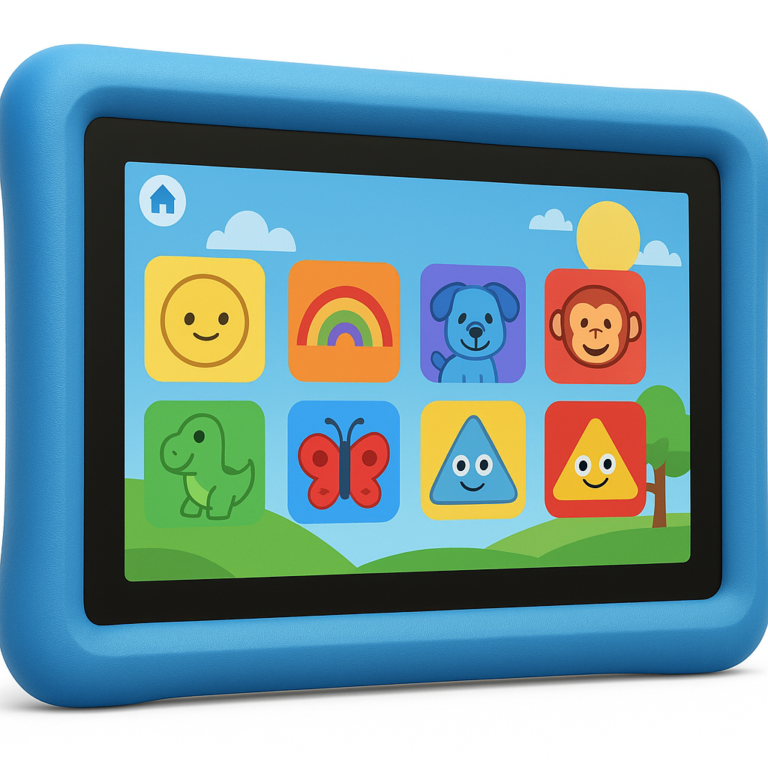
That’s the magic of the rugged case and impact-resistant design engineered specifically for small hands.
Regular tablets are designed for adult workflows, featuring glass screens and complex menus that confuse little ones. Kids tablets, conversely, are walled gardens that prioritize safety, educational goals, and durability over high-end gaming performance.
Key Takeaways
- Durability is King: Kids tablets come with built-in rugged cases and a 2-year accidental damage warranty, whereas regular tablets require expensive add-ons for similar protection.
- Software Matters: Unlike regular tablets that need manual setup, kids tablets offer pre-veted, ad-free content and system-level parental controls that are impossible for kids to bypass.
- Value Proposition: While the upfront cost is slightly higher, the included subscription and free replacement policy often make kids tablets the cheaper long-term option for families with young children.
- Best For Ages 3–10: Dedicated kids tablets are the ideal choice for early learners, while regular tablets are better suited for teens needing advanced apps and creative tools.
👉 CHECK PRICE on:
- Amazon Fire Kids Series: Amazon | Amazon Official
- Samsung Galaxy Tab Kids: Amazon | Samsung Official
- Apple iPad with Rugged Case: Amazon | Apple Official
Table of Contents
- ⚡️ Quick Tips and Facts
- 📜 The Evolution of Kids Tablets vs. Regular Tablets: A Brief History
- 🛡️ 7 Critical Hardware Differences: Durability, Battery, and Build Quality
- 🎮 5 Ways Software and Parental Controls Distinguish Kids Tablets from Standard Devices
- 📚 6 Content Ecosystems: Why Kids Tablets Offer Unlimited Ad-Free Learning
- 💰 The Total Savings of a Kids Edition Tablet: Warranty, Replacement, and Long-Term Value
- 👶 A Kid-Friendly Experience: Interface Design and Age-Appropriate Navigation
- 🔒 4 Essential Safety Features You Won’t Find on Regular Tablets
- 📱 Screen Time Management: Balancing Education and Entertainment
- 🔄 Upgradability and Longevity: Can Regular Tablets Last as Long as Kids Tablets?
- 🏆 Top Contenders: Comparing Leading Brands in the Kids Tablet Market
- 🧩 Conclusion
- 🔗 Recommended Links
- ❓ FAQ
- 📚 Reference Links
⚡️ Quick Tips and Facts
Before we dive into the nitty-gritty of why your toddler might turn your $80 iPad into a paperweight in three seconds flat, let’s hit the highlights. If you’re in a rush, here’s the TL;DR from our team of parents, kids, and developers at Kids Tablets™:
- Hardware vs. Software: Often, a “Kids Tablet” is just a regular tablet with a rugged case and specialized software pre-installed. The magic isn’t always in the chip; it’s in the walled garden.
- The “Breakage” Factor: Regular tablets are designed for adult hands and coffee tables. Kids tablets are engineered for concrete floors, sand, and sticky fingers.
- The Warranty Game-Changer: Most kids editions come with a 2-year “no-questions-asked” replacement policy. If your kid smashes it, Amazon or Samsung replaces it. Try getting that on a standard iPad without paying for AppleCare+.
- Content Curation: Kids tablets don’t just block bad stuff; they curate good stuff. Think ABCmouse, Khan Academy Kids, and PBS Kids pre-loaded and ad-free.
- Battery Life: Because they run on less powerful (and more efficient) processors, kids tablets often last longer on a single charge during light educational use than high-performance regular tablets do during heavy gaming.
For a deeper dive into our top picks, check out our guide on Kid-Friendly Tablets.
📜 The Evolution of Kids Tablets vs. Regular Tablets: A Brief History

Remember the days when “educational technology” meant a chunky plastic toy with a cassette tape? We do. Back in the early 20s, if you wanted your child to learn on a screen, you bought a LeapFrog or a VTech device. These were dedicated, single-purpose machines. They were durable, but their software was stuck in 198.
Then came the iPad in 2010. Suddenly, the world had a powerful, general-purpose computer in a sleek glass slab. Parents panicked. “How do I let my 4-year-old use this without them buying a $50 game or watching a video about ‘how to make slime with bleach’?”
The market responded in two ways:
- The “Aftermarket” Route: Parents bought cheap cases and tried to configure Google Family Link or Apple Screen Time. It was a constant cat-and-mouse game.
- The “Kids Edition” Route: Manufacturers like Amazon realized they could sell the same hardware but package it with a kid-proof case, a 2-year warranty, and a subscription service.
Today, the line is blurred. A Fire HD 10 Kids is technically a Fire HD 10 with a foam bumper. But a Samsung Galaxy Tab A9+ Kids Edition offers a distinct “Samsung Kids” mode that feels worlds apart from the standard Android experience. The evolution has moved from “dumb toys” to “smart, safe gateways” to the digital world.
🛡️ 7 Critical Hardware Differences: Durability, Battery, and Build Quality
Let’s get physical. When we say “hardware differences,” we aren’t just talking about the processor speed (though that matters). We’re talking about survivability.
1. The Case: Foam vs. Glass
This is the most obvious difference.
- Regular Tablets: Slek, thin, made of aluminum and glass. They feel premium. They also feel like they will shatter if you look at them wrong.
- Kids Tablets: Encased in EVA foam or reinforced polycarbonate. These cases are often 1 inch thick, with raised bezels to protect the screen. They are designed to survive a 4-foot drop onto hardwood or concrete.
2. The Kickstand
- Regular Tablets: Often require a separate, flimsy case to stand up.
- Kids Tablets: Almost always come with a built-in kickstand integrated into the case. This is crucial for video watching and interactive learning without the tablet sliding off the table.
3. Button Accessibility
- Regular Tablets: Tiny, flush buttons. Hard for small fingers to press.
- Kids Tablets: Oversized, tactile buttons. Some even have color-coded volume or power buttons to help younger kids navigate.
4. Port Protection
- Regular Tablets: Open ports that collect lint and crumbs.
- Kids Tablets: Rubber flaps covering the USB-C and headphone jack to prevent liquid or dust ingress.
5. Weight Distribution
- Regular Tablets: Heavy, top-heavy.
- Kids Tablets: The foam case adds weight, but it distributes it better, making it easier for a 3-year-old to hold for 20 minutes without arm fatigue.
6. Battery Efficiency
- Regular Tablets: High-performance chips (like the M4 in iPads) drain fast under load.
- Kids Tablets: Often use mid-range chips (like Snapdragon 60 series or MediaTek) that are optimized for battery longevity rather than raw speed.
7. Screen Durability
- Regular Tablets: Standard Gorilla Glass.
- Kids Tablets: Often feature tempered glass or an additional anti-glare, scratch-resistant layer under the foam bumper.
Comparison Table: Hardware Specs at a Glance
| Feature | Regular Tablet (e.g., iPad Air) | Kids Tablet (e.g., Fire HD 10 Kids) |
|---|---|---|
| Build Material | Aluminum/Glass | Plastic/Foam Bumper |
| Drop Resistance | Low (Requires Case) | High (Built-in Protection) |
| Kickstand | Optional (Separate Case) | Integrated |
| Port Covers | No | Yes (Dust/Water Resistant) |
| Button Size | Standard | Oversized/Tactile |
| Warranty | 1 Year (Limited) | 2 Years (Accidental Damage) |
| Weight | Light | Heavier (due to case) |
🎮 5 Ways Software and Parental Controls Distinguish Kids Tablets from Standard Devices
Here is where the real magic happens. You can put a case on an iPad, but you can’t change its soul. A Kids Tablet has a different operating system interface designed specifically for small minds.
1. The “Walled Garden” Interface
On a regular tablet, the home screen is a grid of apps. On a kids tablet, the home screen is a curated library.
- How it works: The child sees icons for “Games,” “Books,” “Videos,” and “Learning.” They cannot see the browser, the app store, or system settings.
- Why it matters: It prevents accidental clicks and unauthorized downloads.
2. Time-Based Goals (“Learn First”)
This is a feature parents love.
- Regular Tablets: You set a time limit (e.g., “1 hour”). When time is up, the screen locks.
- Kids Tablets: You can set educational goals. “Watch 30 minutes of reading content before you can play games.” This turns screen time into a reward system for learning.
3. In-App Purchase Blocking
- Regular Tablets: Requires a password for every purchase, but kids can sometimes bypass this if they guess the PIN or if the session stays open.
- Kids Tablets: In-app purchases are disabled by default at the system level. No amount of tapping will trigger a charge.
4. The Parent Dashboard
- Regular Tablets: You have to pick up the device to change settings.
- Kids Tablets: Many (like Amazon Kids+) offer a web-based dashboard. You can adjust time limits, set goals, and approve apps from your own phone or computer without touching the child’s device.
5. Age-Appropriate Content Filtering
- Regular Tablets: Rely on Google Play Protect or Apple’s App Store ratings, which aren’t always perfect.
- Kids Tablets: Use a pre-veted library. Content is categorized by age (3-5, 6-8, 9-12). A 4-year-old literally cannot access content rated for 12-year-olds.
Curiosity Check: But what if your child is a tech wizard? Can they break out of the walled garden? We’ll tackle the “jailbreak” myth in the Safety Features section later.
📚 6 Content Ecosystems: Why Kids Tablets Offer Unlimited Ad-Free Learning
One of the biggest hidden costs of a regular tablet is the subscription fatigue. You buy the tablet, then you have to buy Netflix, Disney+, ABCmouse, Khan Academy, and Epic! separately.
Kids tablets often bundle these into a single subscription (like Amazon Kids+ or Samsung Kids+).
1. Ad-Free Experience
- Regular Tablets: Free apps are riddled with ads. One wrong click leads to a pop-up for “Crazy Slime Games.”
- Kids Tablets: The included subscription is 10% ad-free. No pop-ups, no banners, no “watch this video to unlock.”
2. Curated Educational Content
- Amazon Kids+: Includes 10,0+ books, games, and videos from National Geographic, PBS Kids, and Disney.
- Samsung Kids: Integrates with Samsung Kids+ and offers exclusive content from partners like Khan Academy.
- LeapFrog: Focuses heavily on phonics and early math with proprietary content.
3. Interactive Reading
- Regular Tablets: You read a PDF or a static ebook.
- Kids Tablets: Features read-to-me modes, where the text highlights as the narrator reads, helping with literacy skills.
4. Offline Access
- Regular Tablets: Many apps require an internet connection to function.
- Kids Tablets: Most content can be downloaded for offline use, perfect for long car rides or flights.
5. Multi-User Profiles
- Regular Tablets: You can create profiles, but switching is a hassle.
- Kids Tablets: Designed for multiple children. One tablet can have a profile for a 4-year-old and a 9-year-old, with completely different content libraries and time limits.
6. Developer Perspective
As app developers, we see a huge difference in how kids interact with these ecosystems. On a regular tablet, kids bounce between apps randomly. On a kids tablet, they stay engaged longer within a single educational session because the interface doesn’t distract them with “notifications” or “ads.”
💰 The Total Savings of a Kids Edition Tablet: Warranty, Replacement, and Long-Term Value
Let’s talk money. The sticker price of a Kids Edition tablet is often $50–$10 higher than the standard version. Is it worth it?
The Math:
- The Case: A good rugged case for an iPad costs $40–$60.
- The Warranty: AppleCare+ for an iPad costs $150+ and still has a deductible. Amazon’s 2-year warranty is free and has no deductible.
- The Subscription: A year of Amazon Kids+ is worth $48–$79.
- The Ad Removal: Removing ads from a Fire tablet costs $20.
Total Value: $40 (Case) + $150 (Warranty) + $79 (Sub) + $20 (Ads) = $289+ in value.
Price Premium: ~$50.
Verdict: You are essentially getting $239 in free value.
The “Breakage” Factor
If your child breaks a regular tablet, you are out the cost of the device (or the deductible). If they break a kids tablet, you email Amazon, and they send a replacement (often a refurbished unit, but sometimes new) within days.
Parent Story: “My 5-year-old threw my iPad Pro out the window. I cried. Then I bought a Fire HD 10 Kids. Two months later, he dropped it down the stairs. I didn’t cry. I just ordered a replacement. It arrived in 3 days. That’s the peace of mind you pay for.”
👶 A Kid-Friendly Experience: Interface Design and Age-Appropriate Navigation
Design isn’t just about looks; it’s about usability.
Visual Hierarchy
- Regular Tablets: Small text, complex menus, hidden settings.
- Kids Tablets: Large icons, bright colors, and minimal text. The interface is intuitive enough for a pre-reader to navigate.
Feedback Lops
- Regular Tablets: A simple “bep” or a vibration.
- Kids Tablets: Encouraging sounds, animations, and visual rewards (stars, badges) when a task is completed. This gamification keeps kids motivated.
Accessibility
- Regular Tablets: Accessibility is an “add-on” feature.
- Kids Tablets: Many features are built-in, such as global volume limiting (to protect hearing) and high-contrast modes for visually impaired children.
🔒 4 Essential Safety Features You Won’t Find on Regular Tablets
We promised to resolve the “can they break out?” question. Here is the truth.
1. System-Level Lockdown
On a regular tablet, a tech-savy kid can disable Screen Time or Family Link if they know the password or find a loophole. On a kids tablet, the parental controls are baked into the OS. You cannot exit the “Kids Mode” without a PIN that only the parent knows.
2. COPA Compliance
Kids tablets are designed to be COPA (Children’s Online Privacy Protection Act) compliant. This means they do not harvest data for targeted advertising. Regular tablets, even with parental controls, often still collect data for ad profiling unless you meticulously configure privacy settings.
3. Web Filtering
- Regular Tablets: You can block specific sites, but kids can find new ones.
- Kids Tablets: The browser is often whitelisted. They can only visit pre-approved educational sites. No random YouTube rabbit holes.
4. Physical Safety
The rugged case isn’t just for drops. It prevents the tablet from overheating (by allowing airflow) and protects against liquid spills (thanks to port covers).
📱 Screen Time Management: Balancing Education and Entertainment
The goal isn’t to ban screens; it’s to make them meaningful.
The “Learn First” Feature
As mentioned, this is the killer app for parents.
- Scenario: Your child wants to play Minecraft.
- Regular Tablet: They play for 2 hours, then you have to nag them to stop.
- Kids Tablet: They must complete 30 minutes of reading or a math game first. The tablet automatically unlocks the game once the goal is met.
Scheduled Downtime
You can set “bedtime” hours where the tablet automatically locks. No more “just 5 more minutes” arguments at 9 PM.
Usage Reports
Parents get detailed reports: “Your child spent 2 hours on reading, 45 minutes on games, and 10 minutes on videos.” This helps you adjust their digital diet.
🔄 Upgradability and Longevity: Can Regular Tablets Last as Long as Kids Tablets?
This is the tricky part.
- Regular Tablets: If you take care of them, an iPad can last 5–7 years. The software support is excellent.
- Kids Tablets: The hardware is often mid-range. They might become slow after 3–4 years. However, the 2-year warranty covers you during the critical “toddler/tween” years when breakage is most likely.
The Strategy:
- Ages 3–8: Use a Kids Tablet. It’s durable, safe, and the warranty covers the inevitable destruction.
- Ages 9–12: Transition to a Kids Pro model (like the Fire HD 10 Kids Pro) which has a more mature interface but keeps the safety net.
- Ages 13+: Move to a Regular Tablet (iPad or Android) for schoolwork, coding, and creative projects.
🏆 Top Contenders: Comparing Leading Brands in the Kids Tablet Market
Let’s look at the heavy hitters.
Amazon Fire Kids Series
- Best For: Value, content library, and warranty.
- Pros: Unbeatable 2-year warranty, massive Amazon Kids+ library, deep parental controls.
- Cons: No Google Play Store (uses Amazon Appstore), screen quality is good but not great.
- Verdict: The best value for most families.
Apple iPad (with Rugged Case)
- Best For: Performance, app quality, and longevity.
- Pros: Best app ecosystem (Procreate, Swift Playgrounds), superior screen, long software support.
- Cons: Expensive, fragile, requires active parental management, no “worry-free” warranty.
- Verdict: Best for creative kids and families who can afford the premium.
Samsung Galaxy Tab Kids Edition
- Best For: Android flexibility with safety.
- Pros: Access to Google Play Store, polished Samsung Kids mode, good screen quality.
- Cons: Warranty is not as comprehensive as Amazon’s (usually 1 year).
- Verdict: Great for families already in the Samsung ecosystem.
LeapFrog LeapPad Academy
- Best For: Todlers and early learners.
- Pros: Extremely durable, focused on early education, no internet access (totally offline).
- Cons: Outgrown quickly, limited app selection, lower performance.
- Verdict: Perfect for ages 3–6, but you’ll need to upgrade soon.
The “Budget” Option: ON 1-inch Kids Tablet
- Best For: Tight budgets.
- Pros: Affordable, includes a case and stylus, runs Google Kids Space.
- Cons: Slower performance, shorter battery life, less robust warranty.
- Verdict: A decent entry-level option, but don’t expect iPad performance.
👉 CHECK PRICE on:
- Amazon Fire HD 10 Kids: Amazon | Amazon Official
- Apple iPad (9th/10th Gen): Amazon | Apple Official
- Samsung Galaxy Tab A9+ Kids: Amazon | Samsung Official
- LeapFrog LeapPad Academy: Amazon | LeapFrog Official
Conclusion

So, what are the differences between kids tablets and regular tablets? It boils down to peace of mind vs. raw power.
Regular Tablets are incredible machines. They are fast, beautiful, and have the best apps. But they are fragile, expensive to repair, and require constant parental vigilance to keep kids safe. They are like giving your child a Ferrari with no seatbelts.
Kids Tablets are workhorses. They might not win a race, but they will survive a crash. They come with a built-in seatbelt (the case), a driver’s ed course (the curated content), and a guaranteed replacement if they crash.
Our Recommendation:
- If your child is under 10, or if you are woried about breakage, go with a Kids Tablet (specifically the Amazon Fire HD 10 Kids or Fire HD 8 Kids). The 2-year warranty and ad-free content make it the smartest financial and emotional choice.
- If your child is older (10+), tech-savy, and needs the device for schoolwork or creative projects, a Regular Tablet (like an iPad) with a rugged case and strict parental controls is the way to go.
Don’t let the fear of a broken screen stop you from giving your child the tools to learn and explore. Choose the device that fits their age, maturity, and your budget.
🔗 Recommended Links
👉 Shop Top Kids Tablets:
- Amazon Fire HD 10 Kids: Amazon | Amazon Official
- Amazon Fire HD 8 Kids: Amazon | Amazon Official
- Apple iPad (with Rugged Case): Amazon | Apple Official
- Samsung Galaxy Tab A9+ Kids: Amazon | Samsung Official
Recommended Books for Parents:
- The Tech-Wise Family: Everyday Steps for Putting Technology in Its Proper Place
- Screenwise: Helping Kids Thrive (and Survive) in the Digital Age
❓ FAQ

How does the price of kids tablets compare to regular tablets?
Kids tablets often have a higher upfront cost (usually $50–$10 more) than their regular counterparts. However, when you factor in the included rugged case, the 2-year warranty, and the 1-year subscription to educational content, the total cost of ownership is often lower than buying a regular tablet plus a case, warranty, and subscriptions separately.
Read more about “🛡️ 10 Essential Parental Control Features on Kids Tablets (2026)”
What is the average battery life of kids tablets compared to regular tablets?
Kids tablets typically offer 8–12 hours of battery life. Because they use lower-power processors and run optimized software, they often last longer during light educational use than high-performance regular tablets, which might drain in 6 hours under heavy gaming or video streaming.
Read more about “Are Kids Tablets Durable Enough? The 2026 Shock Test Results 🚨”
Are kids tablets safe for young children to use?
Yes. Kids tablets are designed with COPA compliance in mind, meaning they do not harvest data for ads. They feature system-level parental controls, in-app purchase blocking, and content filtering that are much harder to bypass than the controls on regular tablets.
Read more about “🏆 Top 10 Tablets with Educational Apps for Kids (2026)”
How do kids tablets differ in content and apps from regular tablets?
Kids tablets come with a curated library of age-appropriate content. They often include subscriptions to services like Amazon Kids+ or Khan Academy Kids. Regular tablets rely on the general app store, which requires parents to manually vet every app and manage subscriptions.
Read more about “🍎 iPad vs. Tablet: The Real Difference (2026)”
What parental controls do kids tablets offer?
Kids tablets offer advanced controls including:
- Time limits and bedtime schedules.
- “Learn First” goals (e.g., read before playing).
- Web filtering (whitelisting specific sites).
- Remote management via a parent dashboard.
- In-app purchase blocking.
Are kids tablets more durable than regular tablets?
Absolutely. Kids tablets come with rugged foam cases designed to survive 4-foot drops onto concrete. Regular tablets are made of glass and aluminum and require an aftermarket case to achieve similar durability.
Read more about “🏆 7 Must-Have Features for the Best Kids Tablet (2026)”
How do kids tablets compare to regular tablets in terms of durability and resistance to damage from drops and spills?
Kids tablets are engineered with shock-absorbing materials, raised bezels, and port covers to resist water and dust. Regular tablets are highly susceptible to damage from drops and spills unless protected by a heavy-duty case, which adds bulk and cost.
What are the pros and cons of choosing a dedicated kids tablet over a regular tablet for my child?
Pros: Durability, 2-year warranty, ad-free content, easy parental controls, lower cost of ownership.
Cons: Lower performance (slower processors), limited app selection (no Google Play on some models), shorter lifespan (outgrown faster).
Can regular tablets be modified to make them suitable for kids with additional software or accessories?
Yes, but with caveats. You can add a rugged case and use Google Family Link or Apple Screen Time. However, these controls can sometimes be bypassed by tech-savy kids, and you won’t get the 2-year accidental damage warranty that comes with a dedicated kids tablet.
What are the best kid-friendly tablets for children of different ages and skill levels?
- Ages 3–7: Amazon Fire HD 8 Kids or LeapFrog LeapPad Academy.
- Ages 8–12: Amazon Fire HD 10 Kids Pro or Samsung Galaxy Tab A9+ Kids Edition.
- Ages 13+: Apple iPad (with rugged case) or Samsung Galaxy Tab S9.
How do kids tablets differ from regular tablets in terms of parental control and safety features?
Kids tablets have safety features built into the hardware and OS, making them impossible to bypass without a parent PIN. Regular tablets rely on software layers that can be disabled or tricked by older children. Kids tablets also ensure COPA compliance out of the box.
📚 Reference Links
- Amazon: Amazon Fire Tablets
- Apple: iPad Overview
- Samsung: Galaxy Tab Kids Edition
- LeapFrog: LeapPad Academy
- HowToGek: Amazon Fire Tablet vs Fire Tablet Kids: What’s the Difference?
- Kids Tablets™: What are the differences between kids tablets and regular tablets?
- Facebook Group: Are fire tablets still suitable for kids? – Facebook
- COPA: Children’s Online Privacy Protection Act